
-
2000 years later, username change to rainstorm1650.
-
I saw lots & LOTS of windows 7 pcs in my school
-
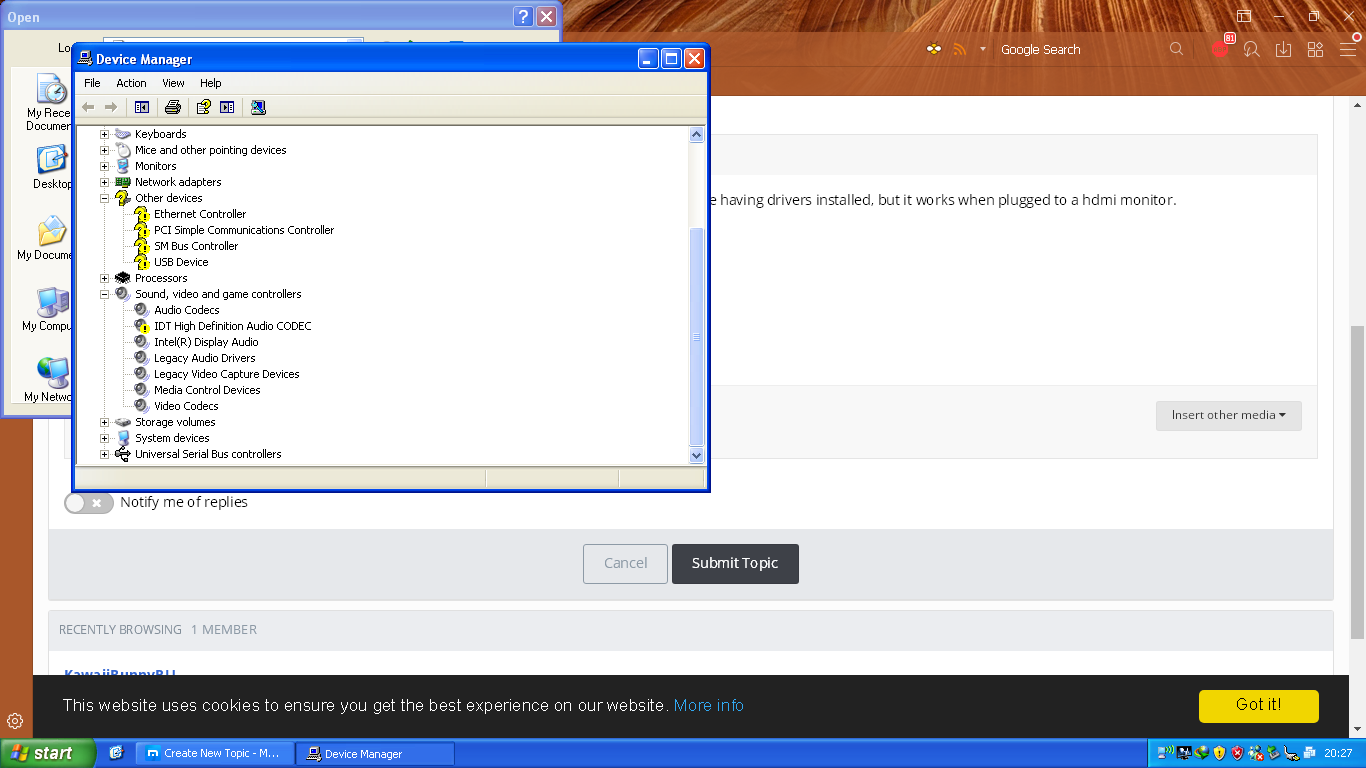
so i have inspiron n5050 laptop with xp x64 installed. for some reason sound doesnt work despite having drivers installed, but it works when plugged to a hdmi monitor. also codec is not working, so no sound works when recording with BaNdIcAm.
-
I wanted to use the built-in wallpapers because why not? anyways its been a long time, for me.
-
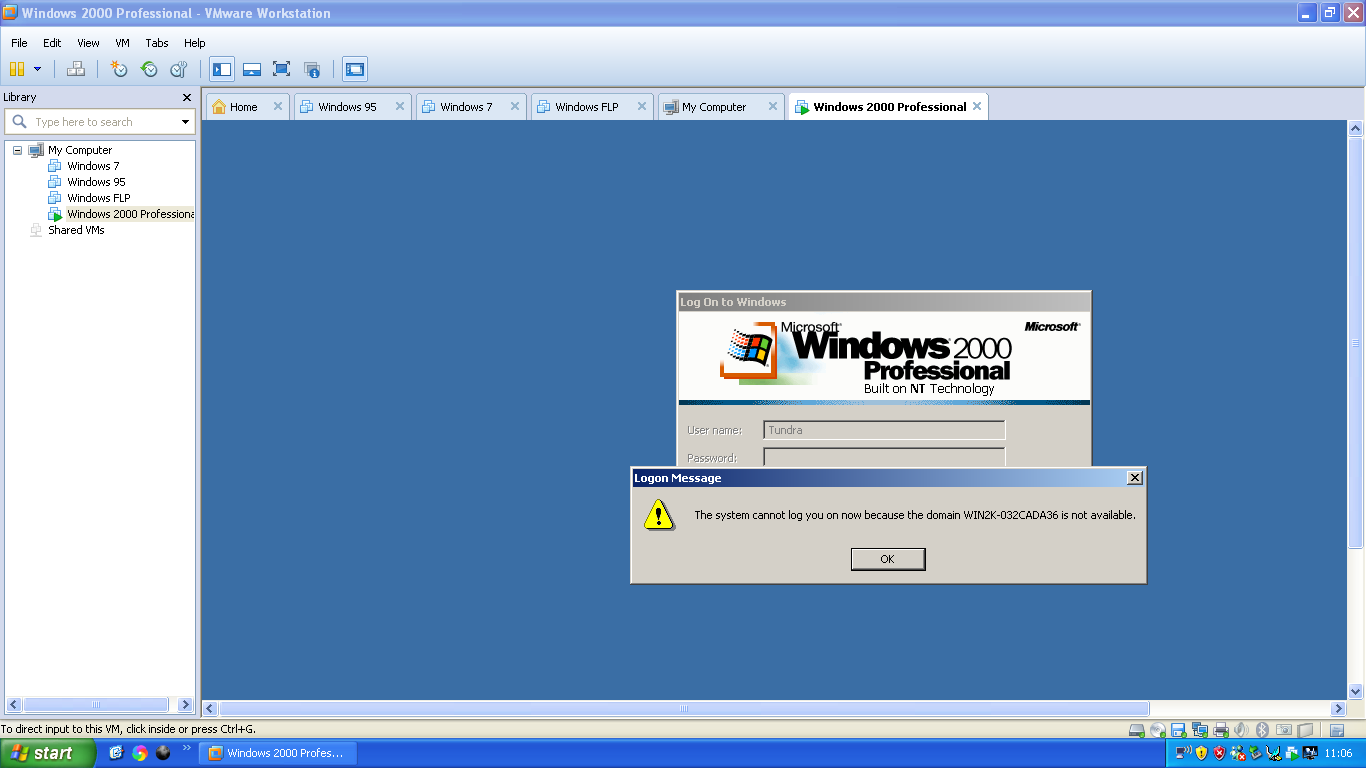
i get this error after installing latest kernelex in vmware:
-
GlowingLights --> KawaiiBunnyRU
-
Or just use MEGA.
-
28.8.0 is too bloated. And ru.xpi doesnt work. It installs but the browser is still in english (does this have something to do with the Dark Moon 2.0.0 theme?)
-
No, I have a Vista 64-bit netbook and want to use the language pack for that. Also SM 2.49.5 still supports XP x64/Vista x64 as long as you use the x86 version of SeaMonkey.
-
Is there a russian language pack for New Moon 27.9.6 x64?
-
There isnt any missing APIs, but some DLLs are missing. Ill list them later.
-
Make sure to use the x86 installer if you're using XP x64. Trying to use the x64 installer says you need Windows 7 x64. If you spoof the version to be win7 x64 seamonkey.exe will say that it is not a valid win32 app due to some missing dlls.
-
Never mind, followed @win32's instructions and it worked just fine. Also Yandex Browser 17 STILL complains about missing browser_elf.dll.
-
R.I.P. You will be missed...
-