-
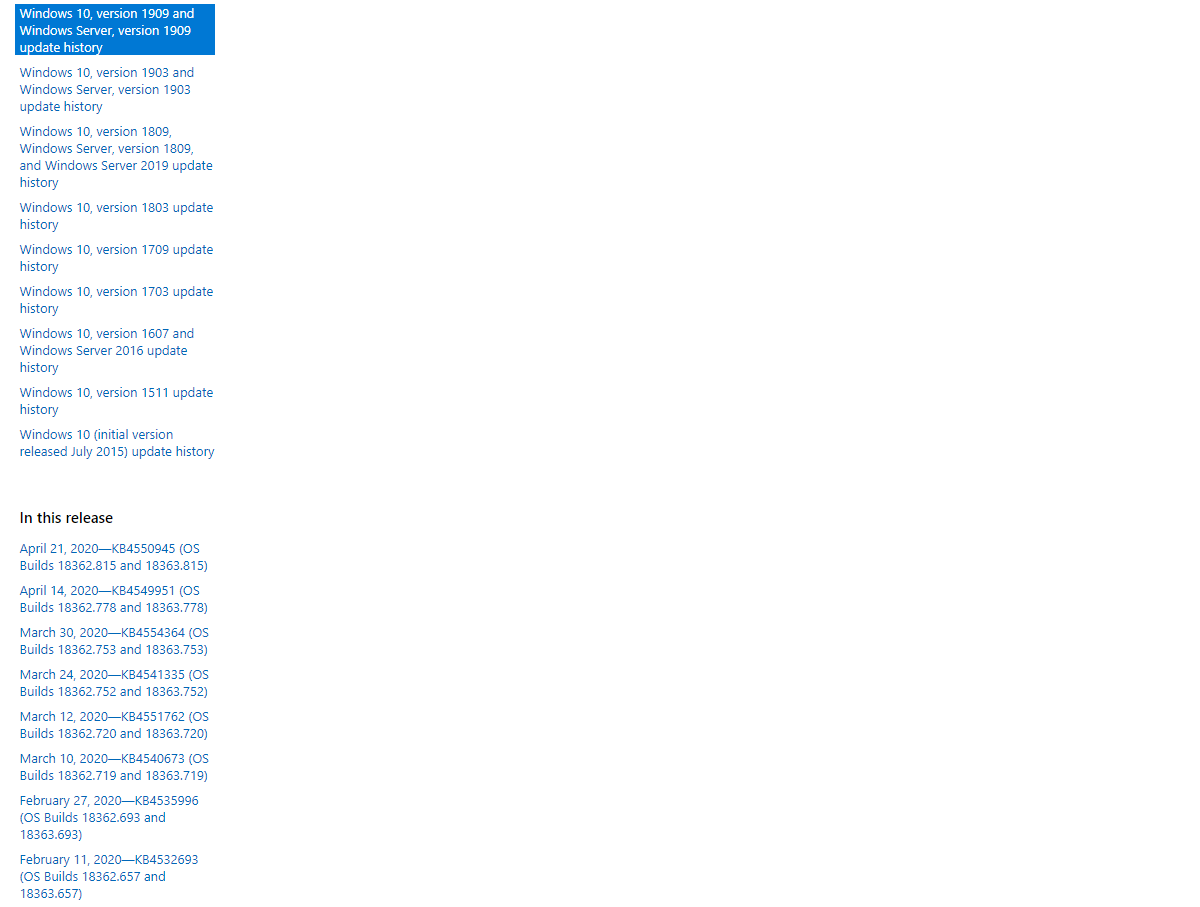
They share the same codebase. Please check and read next time.
-
Same issue, but i was wondering if the fix would apply to Win 20H1 (2004), build 19041 as well. Because if so, i'll upgrade asap.
-
Define not working. You can customize it by using this http://glass8.eu/files/AeroGlassGUI.7z
-
You can close that. Thanks @bigmuscle!
-
-
-
No, it will identiy itself as 1909, when the official update is out. 1903 (19H1) is 18362, 1909 (19H2) is18363. That depends if BM will add it at some point.
-
Are you sure you are running as admin? The titlebar of the cmd window doesn't mention that (also i don't get that when i run it nor do i have DGB tools installed). Also make sure that C:\AeroGlass is the default folder. Deleted symbols folder, AG redownloaded them, the incompatibility warning is there. I guess it's normal, as 19H2 (aka1909) isn't hardcoded yet into AG as safe.
-
I don't know, mine does that, i have donation.key loaded. Didn't bother to delete the symbols before, this might be the problem. Right now, i'm on 18363.388.
-
It does work, just press Cancel.
-
Some screenshots would be of help. Plus hardware/software specfications (gpu/motherboard/cpu ; windows10 version).
-
Thanks!
-
Install latest version 1.5.11 in C:\AeroGlass, get the experimental dll. Reboot into safe mode, copy the file over (in C;\AeroGlass), reboot. When the prompt about incompatibility appears, click cancel.
-
A thousand thankyous was waiting for it.
-
As the title says. I have mine in a VM, so no use to test AG there.