Skip to content
View in the app

A better way to browse. Learn more.

MSFN

A full-screen app on your home screen with push notifications, badges and more.

To install this app on iOS and iPadOS
  1. Tap the Share icon in Safari
  2. Scroll the menu and tap Add to Home Screen.
  3. Tap Add in the top-right corner.
To install this app on Android
  1. Tap the 3-dot menu (⋮) in the top-right corner of the browser.
  2. Tap Add to Home screen or Install app.
  3. Confirm by tapping Install.

Sig

Featured Replies

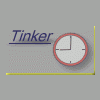
O.K, the competition is getting steep here at MSFN for Sig Art. Here is my latest, already applied....


Maybe the "e" in Tinker could be a lil more darker? My eyes are old man :)

Keep up the good work!  I have to learn how to make better ones too... :)

I do too :rolleyes: my image editing skills suck, any tips anyone?

Keep up the good work!  I have to learn how to make better ones too... :)

I do too :D my image editing skills suck, any tips anyone?

Get a copy of Photoshop and fool around with it...Or grab a copy of Fireworks MX and fool around with that... :rolleyes:

Get a copy of Photoshop and fool around with it

look i did :rolleyes::)

I have Photoshop, Macromedia Studio MX, PSP & Ulead Cool 3D

Which shall I use?

i think you should take several images in a circle. then overlap them all and edit them in photoshop mebe add some sexeh effects then put them in ulead cool 3d and make a scrolling 3d image for ur sig would be summin different :)

Create an account or sign in to comment

Recently Browsing 0

  • No registered users viewing this page.

Account

Navigation

Configure browser push notifications

Chrome (Android)
  1. Tap the lock icon next to the address bar.
  2. Tap Permissions → Notifications.
  3. Adjust your preference.
Chrome (Desktop)
  1. Click the padlock icon in the address bar.
  2. Select Site settings.
  3. Find Notifications and adjust your preference.