Skip to content
View in the app

A better way to browse. Learn more.

MSFN

A full-screen app on your home screen with push notifications, badges and more.

To install this app on iOS and iPadOS
  1. Tap the Share icon in Safari
  2. Scroll the menu and tap Add to Home Screen.
  3. Tap Add in the top-right corner.
To install this app on Android
  1. Tap the 3-dot menu (⋮) in the top-right corner of the browser.
  2. Tap Add to Home screen or Install app.
  3. Confirm by tapping Install.

f23948

Member
  • Joined

  • Last visited

  • Country

    United States
  1. i love StartIsBack++ and StartAllBack!!!!!!!! Stay away from Start10, Start11, Open Shell and other 3rd party start menu!!!
  2. f23948 replied to jsblume's topic in StartIsBack+
    My cousin had same issue
  3. f23948 changed their profile photo
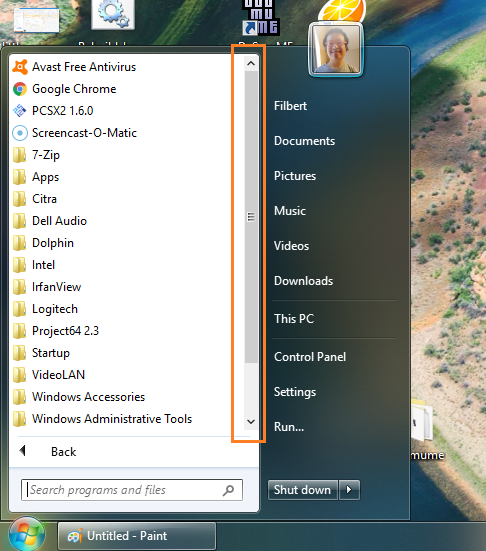
  4. why there's no windows 7 scrollbar?
  5. oldnewexplorer is beta version or stable version? because i have never issues with oldnewexplorer on windows 10 enterprise LTSC 64 bit
  6. please i would like to know are you still in active development? please i would like to know when it's going to be available for win10 2004 and win10 20H2? i hope you're not stopping development
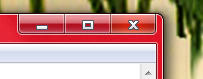
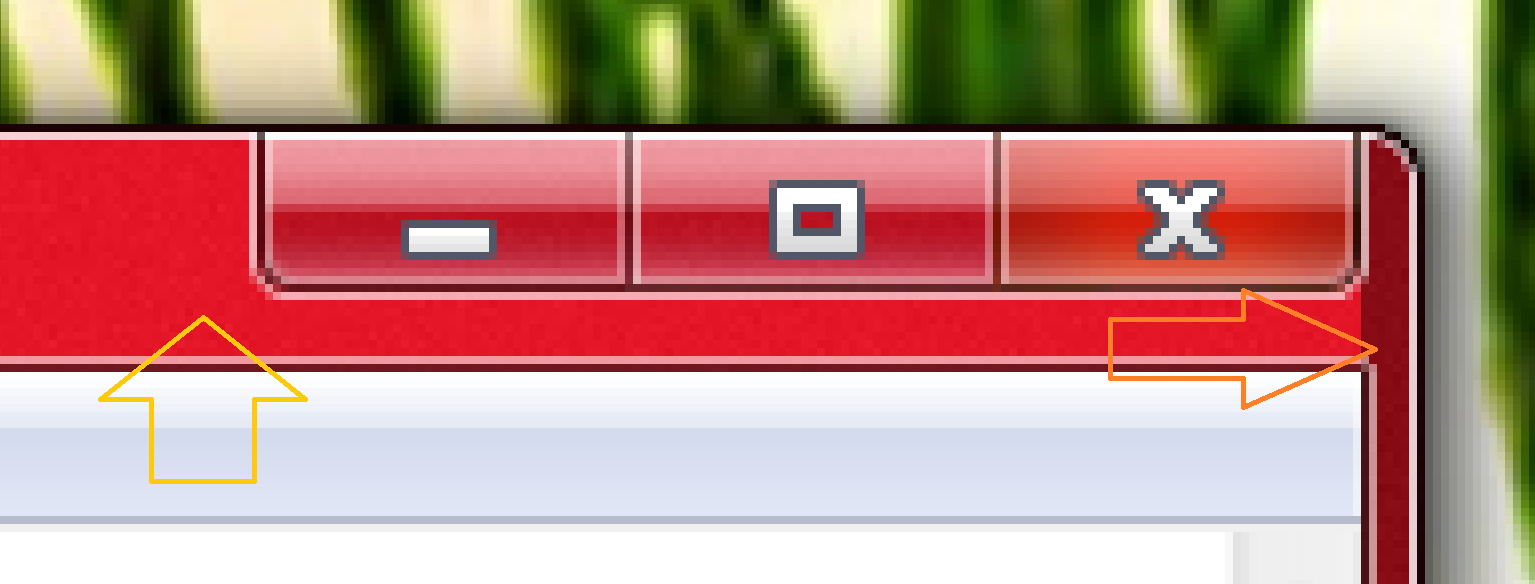
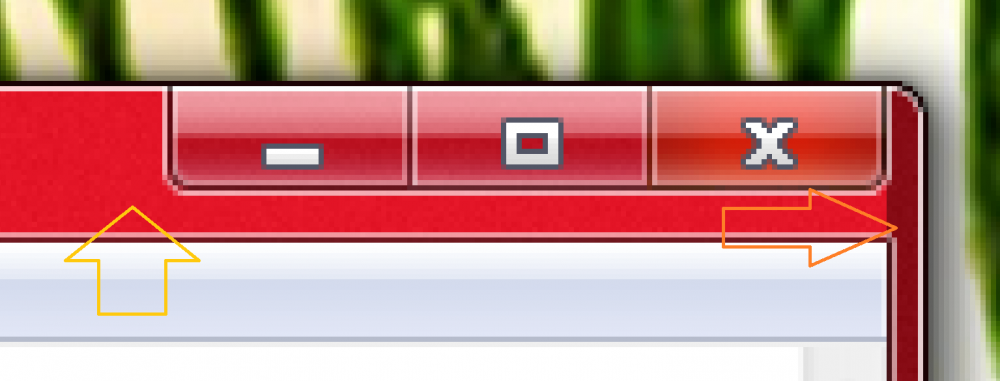
  7. thank you! How do i fix dark red on the side? I want regular red on the side
  8. i don't want to disable the task in Task Scheduler.
  9. bump still waiting for reply
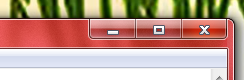
  10. please i would like to know how do i turn off transparency? i am using Windows 10 Enterprise 1809 LTSC
  11. no version for windows 10 creators update build 15063 yet?
  12. http://glass8.eu/guide
  13. just move the donation.key file to AeroGlass folder, then restart your computer

Account

Navigation

Configure browser push notifications

Chrome (Android)
  1. Tap the lock icon next to the address bar.
  2. Tap Permissions → Notifications.
  3. Adjust your preference.
Chrome (Desktop)
  1. Click the padlock icon in the address bar.
  2. Select Site settings.
  3. Find Notifications and adjust your preference.