Skip to content
View in the app

A better way to browse. Learn more.

MSFN

A full-screen app on your home screen with push notifications, badges and more.

To install this app on iOS and iPadOS
  1. Tap the Share icon in Safari
  2. Scroll the menu and tap Add to Home Screen.
  3. Tap Add in the top-right corner.
To install this app on Android
  1. Tap the 3-dot menu (⋮) in the top-right corner of the browser.
  2. Tap Add to Home screen or Install app.
  3. Confirm by tapping Install.

jsblume

Member
  • Joined

  • Last visited

  • Country

    United States
  1. I have StartAllBack app and was instructed to come to this website for technical support. I didn't know that this forum handles more than just that app.
  2. jsblume posted a topic in StartIsBack+
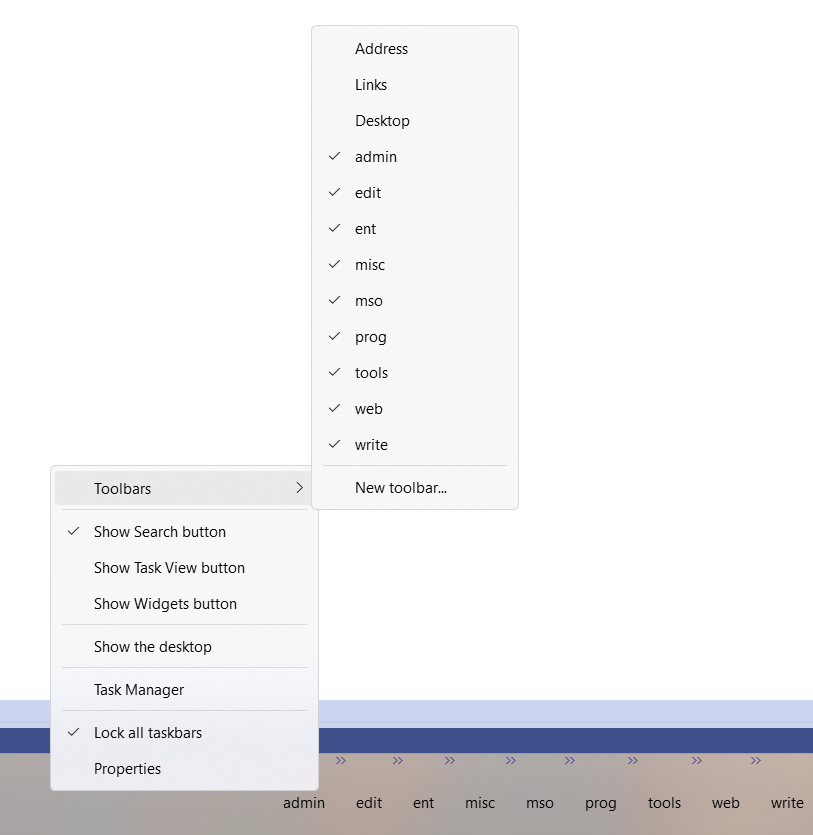
    One of my laptops just updated to Windows 11 version 10.0.26100 Build 26100. It had StartAllBack version 3.7.11 on it, but the update removed it and would not let me reinstall it. I downloaded and installed StartAllBack 3.8.13, but there seems to be a piece of functionality either missing or I haven't got it activated properly. It's the ability to add toolbars to the launchbar (see attached image). Right-clicking on the launchbar would give the "Toolbars" option at the top of the pop-up window. This still works on my other laptop with the previous versions of both Windows and StartAllBack. Any help would be greatly appreciated. Thanks.
  3. I've been using this app ever since Windows 11 came out. Additional Note: I use the StartAllBack up and was instructed to come to this forum for support. I didn't realize this forum supports more than just that app.

Account

Navigation

Search

Search

Configure browser push notifications

Chrome (Android)
  1. Tap the lock icon next to the address bar.
  2. Tap Permissions → Notifications.
  3. Adjust your preference.
Chrome (Desktop)
  1. Click the padlock icon in the address bar.
  2. Select Site settings.
  3. Find Notifications and adjust your preference.