-
Chromium 102 (developer build) works on the extended kernel! Extensions (not all of them) work too
-
Use the OS version spoofer:
-
MFTEnumEx is also required for the Roblox client (RobloxPlayerBeta.exe). The artificial software lock on the launcher (RobloxPlayerLauncher.exe) can easily be bypassed by your OS spoofer, but the client launches just fine (though it gets the MFTEnumEx error) with or without the OS spoofer as far as I've seen. Great work, by the way!
-
I'd like my name renamed from "syria!" to "ffqq" please.
-
If the embedded drivers support OpenGL which is needed to run most graphical apps or games, you should be good
-
Hm, I think you're out of luck on this one, but you can still try Snappy Driver Installer which might get the gpu drivers running. https://sdi-tool.org/download/ It's 21gb large, DriverPack doesn't work on vista so you have to use SDI Inform me if SDI installs the drivers correctly, run the windows experience index after installing the gpu drivers, then wait for it to finish the benchmarks. You should get Aero Glass and other Aero effects if it's 3+ EDIT: Yeah, might be the reason. Still, give it a try, might work although it might have to use an engineering sample
-
Which AMD gpu do you use? I use the Radeon HD 7000 Series GPU and I got it working using SDI
-
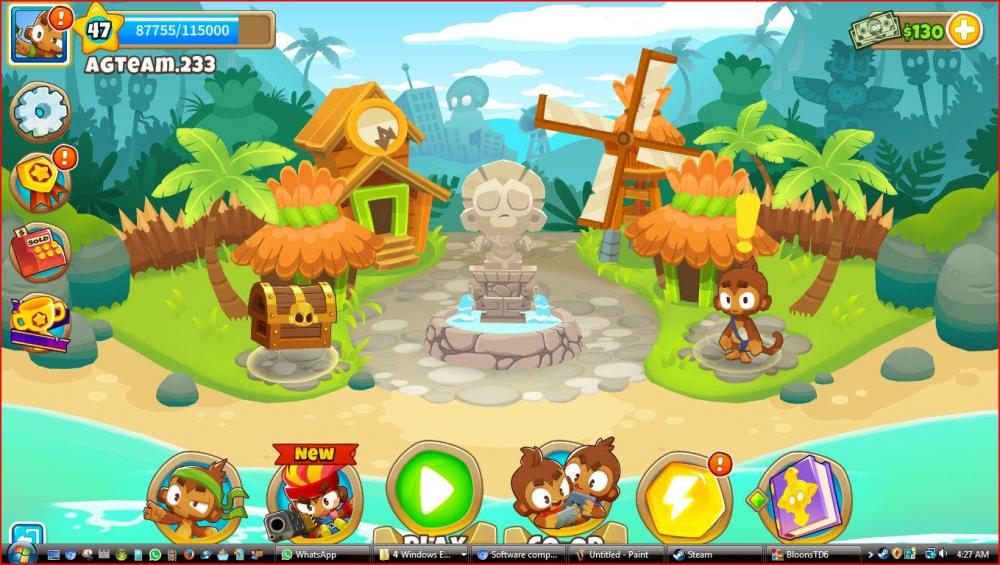
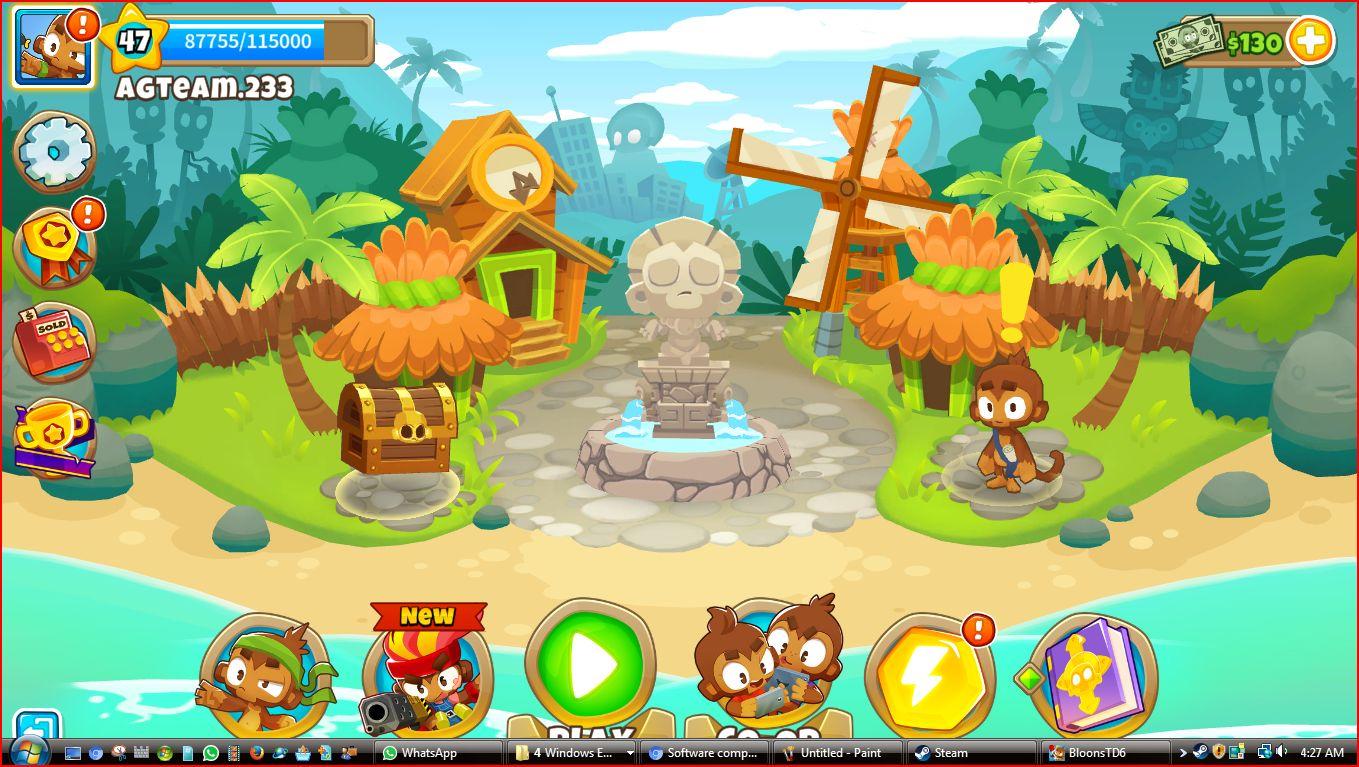
bloons td6 works on vista extended krnl (It's a steam game)