
w2k4eva
Content Type
Profiles
Forums
Events
Everything posted by w2k4eva
-
Not sure about combining "modern" with XP, but I do use a version of Foxit Reader here. It was mentioned on page 11 in this thread - https://msfn.org/board/topic/176299-latest-version-of-software-running-on-xp/page/11/?tab=comments#comment-1159022 - it's definitely lighter than Adobe! I thought the Phantom version was a paid product? I've been using the free Reader. In any case you can run a newer version 9.1.0.5096 on XP, I've been using that for a little while now. Sadly it has been removed from the foxit web site, but you can still get it from https://www.filehorse.com/download-foxit-reader/34729/
-
Some forum threads suggest it may have been fixed in 6.43 or 6.44. Since I am not using Mikrotik wifi hardware, I honestly can't tell if it ever got fixed. What I can say, is that my androids get bandwidth much better than 20Mbit/s or even 50Mbit/s and there is no special issue around long files on androids (or for that matter anywhere else). Mine shipped with 6.43, which I promply updated to then-current 6.48.3 that I am still using. My D-Link wifi plus a nameless chinese AP/repeater both work just fine with this and I never felt the need to change it. You can do a "backup" and/or "export", download a copy of the files to your PC for safekeeping, (and possibly re-upload if it gets erased in the update), update, then "restore" or "import" afterwards. The former is a binary formatted file. (I do not know what format it is, 7-Zip and everything else I tried is unable to read it.) The latter is a text based set of commands (you can read this with notepad or similar if you are curious) that will work as if you had typed them yourself in the terminal. When I updated mine, it worked pretty smoothly with no real issues. The only thing was a confusion on my part, that it needed some time to be left sitting after the update before it was ready to accept further input. I had assumed it was ready almost instantly, but it really needed more time, perhaps allowing 10-30 minutes would have been better. Sadly most manufacturers avoid releasing any documentation about the vendor partitions, and there is risk of screwing up the works if anything is done incorrectly here.
-
That sounds like there might be a power management setting to adjust... I haven't actually used the FTP functions so not sure exactly what to do there. For Ghost Commander, (this is for Pie, might be different for Android 15) try Android Settings->App Info->Ghost Commander->Advanced->Battery->Background restriction Android Settings->App Info->Ghost Commander->Advanced->Battery->Battery Optimization maybe also similar for Wifi FTP Server? There is a sort of help section about the network functions at https://sites.google.com/site/ghostcommander1/info#h.p_ID_505 but it is pretty sparse. One thing not mentioned in the help, maybe mark the checkbox at: Ghost Commander Settings->Miscellaneous (scroll almost to bottom)->Run file operations in a foreground service Also look for some similar setting in the Wifi FTP Server app. That thread... well, WOW. My router is the Mikrotik RB750Gr3. Maybe it's a good thing my wifi access point is a D-Link rather than Mikrotik, so I did not have those issues. Also might help that I do not have any Xiaomi devices, though I do have some Samsung S7's mentioned in one of the related threads; they did not make clear whether the problematic ones were Qualcomm vs Exynos chipsets (mine are Qualcomms). Come to think of it, is your phone one of the Qualcomm type, or is it MediaTek? If Mikrotik themselves have not sorted it after almost 10 years, about all I can suggest is some different brand of access point. Or maybe try it from work, a friend's home, public library, or some other location away from your router? What happens if you tap that notification when it pops up? Or, does the app have any settings that might lead there? Maybe, I don't have either that Wifi FTP Server app nor any Android 15 devices to even look at, you might have to try that one for yourself. If you have any micro SD cards sitting around, even if they are not the ones you want to use permanently, almost any card up to 1TB should "work" just for a short experiment.
-
For more recent androids it is probably better to disable them rather than try to uninstall, which might not even be possible anymore. At least if something goes wrong it is easy enough to re-enable them if needed. Microsoft never seems to pass up the opportunity to push a new incompatible prorietary (non)standard. They are the ones that made the Windows implementations so horribly useless. They could have just made it a slightly modified (to deal with Android file system interfaces) version of an explorer window - but noooo, they had to insert Media Player into the middle of what should be a simple copy-paste function, with no filtering needed or wanted. Yup. . . if Google can't force you to do this, how are they going to be able to snoop through all your files and build their advertising profile on you? It might have made more sense if they did not make it so difficult to choose a cloud server that YOU own or control. (There are apps for this on both android and windows sides so it is possible to roll your own at home if you want to.) And yeah, if you are going to bother uploading it anywhere, the logical place would be directly to your own computer, which is where you were going to use the stuff anyway, and save the extra step of getting it back down from the cloud. But then they would not have access to your files, right? That sounds gawdawful slow for modern wifi, are you sure you are not being artificially rate limited by that foobar2000 app? Or a setting in your router that needs adjusting? I know https://f-droid.org/packages/com.ghostsq.commander/ is supposed to handle SMB and (S)FTP, maybe that would be faster? On the PC side I used to use FileZilla almost 20 years ago, don't know if its current version might be faster. Others (I have not tried these): https://f-droid.org/en/packages/org.primftpd/ https://f-droid.org/packages/be.ppareit.swiftp_free/ https://f-droid.org/packages/de.qwerty287.ftpclient/ https://android.izzysoft.de/repo/apk/com.github.ghmxr.ftpshare Depending on your habits, that might fill up faster than you'd like, making an SD card useful to have more space. I don't use that particular app so can't be sure why it does that. Have you tried granting that permission despite not having the card? You can go through android settings to change it back later if you change your mind or it does not help. Supposedly the phone is micro SDXC capable (according to phonedb.net), so look for that marking on the packaging to get the best transfer speeds and highest capacity. Within that labelling, also look at the stated transfer speeds since newer generation products will be a bit faster than older stock. I don't know what capacity card your phone can handle, is there anything about SD cards in the owner manual or other documentation that came with the phone? I did find that both https://www.coolblue.nl/en/product/961028/redmi-14c-128gb-blue-4g.html and https://www.ldlc.com/en/product/PB00645657.html claim it can take a 1TB size card, though I'm not completely sure those pages match your phone. I don't know what is in stores where you live. But personally, I like things that come with a "lifetime warranty". I have half a dozen of these 256GB (the max for my relatively old androids) in various devices for 7-8 years, zero issues so far, would buy more if I needed similar sizes: https://www.samsung.com/us/computing/memory-storage/memory-cards/evo-select-adapter-microsdxc-256gb-mb-me256sa-am/ even web ordering rather than going to local stores (most stores near me do not have this in the larger sizes anyway, and charge much higher prices for what they do have) just because of the warranty.
-
Were you wanting to try the ADB drivers, or is the wifi ftp server going to cover it?
-
Looking closer at what I installed, it was both this, and the User-Mode Driver Framework (KB2685813), I did both installs just a few minutes apart, and don't completely remember which or if both are needed. You might want to have them both for completeness' sake. So I'm guessing you have the user mode framework installed, that would leave the kernel mode framework to check. After that, I think you have the files you need to get MTP mode running. Make a folder somewhere, copy all those files into it, then try to update the driver for "MTP" shown in you device manager screenshot. Choose the "have files" option, and point it to the folder where you copied everything, see if it can load the driver that way. As for the other 2 mystery devices, my phone does not present those so I'm not sure what they are... after loading the MTP driver, can you do another screen shot, with it adjusted to show devices by connection?
-
I haven't done that since W98 days.... but are some of the files sitting around on your hard drive even if you are not installing the media stuff? Do you have any of these files: c:\windows\inf\wpdmtp.inf c:\windows\inf\winusb.inf c:\windows\system32\wpdmtp.dll c:\windows\system32\wpdmtpus.dll c:\windows\system32\wpdWUDFCoinstaller.dll c:\windows\system32\drivers\WinUsb.sys c:\windows\system32\drivers\WUDFRd.sys c:\windows\system32\drivers\UMDF\WpdMtpDr.dll wpdmtpip.dll, wpdmtpbt.dll - (these last 2 I have only in packages stored under c:\windows\winsxs and c:\windows\system32\driverstore\filerepository rather than actually installed for use)
-
That's the problem... it only works for a very few file types, and those only to/from a very few locations. It does NOT work at all for non-media type files, and that is BY DESIGN. Try to copy a PDF file from your computer to your phone, it WON'T just drag & drop. Same issue with Word docs, emails, map placemarks, or a zillion other file types. As for location... I have some navigation apps that use large data files (some can be >16GB) for their maps. It might have been nice to use my desktop to generate the needed data, then drag&drop them onto my phone into the app's folder. But MTP mode not only won't handle that file type, it also won't let me reach the correct location to drop it into. Even if I use the file renaming trick, the best I could do is to drop it somewhere like Downloads, and then try to use Ghost Commander on the phone to move it where it needs to go. But that doesn't work either since Downloads is in internal storage, and it would be too large for the amount of free space there, so I end up needing ADB to put it on the SD card directly. There's also the issue that j7n hasn't yet found suitable device drivers to make it work.
-
Definitely. ADB can be used to make or restore backups, and has access to some places that normal apps would not, so these backups can be more complete than those made by other methods. It can grant or deny various permissions. It can install or uninstall apps. It can explore directory stuctures, copy, move, rename or delete files within device storage or to/from your windows computer, change file permissions or ownership, or generally do most shell commands. It can remount read-only partitions as read/write (though you still need to consider how to deal with dm-verity on some of them like /system). It can reboot the phone into recovery mode or bootloader mode, useful if you want to change ROMs. It may be able to change itself to root mode, depending if Xiaomi left some config settings on that would allow this. It also has a "sync" function in addition to the backup/restore functions. I find myself using ADB at least once a month or so, mostly because that crippleware MTP mode does not always preserve file timestamps correctly, where using ADB does. I have not looked into Xiaomi in particular, but that arrangement sounds typical for getting a bootloader unlocked. While it is not directly rooting, it is typically the first step in either rooting or in installing a custom ROM. One thing to get clear about before you do that, is for some vendors, requesting that unlock will void whatever manufacturer warranty the phone had, so best to check the rules before asking. My guess here would be that their web site is coded to want Chrome, and the needed functions are missing in whatever older browser you tried. If you don't like Google Chrome (I sure don't!) there are other chromium based browsers that are more privacy friendly. Brave ver 1.47.186, while not the most current, does run on W7 and is my go-to browser when my preferred SeaMonkey can't cope. Others might include Chromite, Vivaldi, etc; you can probably find a thread elsewhere on these boards about browsers still running in W7 for more ideas. Yeah, that is part of what I meant about the hassle factor. The card itself is usually pretty sturdy and not likely to break. But if your phone has one of those little pop-out trays that hold both cards, that thing is a lot more delicate and definitely prone to breakage, assuming it doesn't just get lost. I usually just install the card once and leave it in permanently, since ADB is simple enough for me to copy stuff out with. Yep. Even worse, for my FroYo device, doing this has about 50% odds of causing the phone to reboot, so I have to unplug everything, wait for it to finish, and start over. There's no real reason why the procedure to unmount and remount a partition should fail so often for androids when it is very reliable on Linux desktops, but apparently Google preferred to do away with it entirely rather than debug the actual problem here. Somehow desktop Linux systems solved this problem a long time ago and routinely stop trying to access a partition that is unmounted. I don't know why the same solution never made it into the android kernels. Oh, I just thought of another... if you have a USB-OTG adapter that fits your phone's USB port, you can plug in a standard USB thumb drive and use something like Ghost Commander to copy files in and out.
-
With each new version of Android it seems Google takes away previously useful features and makes others harder to use. USB Mass Storage is one that went away a long time ago. Sadly there is no way to bring it back. Some more detail is at https://www.howtogeek.com/192732/android-usb-connections-explained-mtp-ptp-and-usb-mass-storage/ Some ideas are mentioned at https://android.stackexchange.com/questions/91900/is-there-a-viable-alternative-to-mtp-for-file-transfer but I'm not convinced they are any easier than just using ADB, especially since you still need the same USB drivers to do some of those ways too. If you add an SD card, it can be inserted/removed and connected to a laptop or desktop that has a suitable adapter to read it. Just make sure it is not set up as "adopted storage" or it will be encrytped so Windows would not be able to read it. (Modern Linuxes can work with this once you extract the encryption key from your phone but it is something of a hassle to do.) But moving the SD card around all the time is something of a hassle, and you probably want to use MTP and/or ADB depending on the content to be moved. In particular, the MTP protocol can only handle media. Meaning pictures, videos, soundclips, songs, etc. It will NOT want to let you move other content like PDFs, APKs, browser bookmarks, encryption keys, etc. It may sometimes be possible to rename something to be one of the allowed file types, transfer it with MTP, then use a file manager on your phone to rename it back, but that gets cumbersome after a while and in some locations may not even be allowed. So these other types of content are best handled with ADB. Depends on your definition of "bloated", and of course assuming you are moving only suitable file types. You will need to install some device drivers (typically under 25MB). Probably best to get these from Xiaomi if possible, or there are some generics that can be used even with Windows XP. Oh, and you might need the Kernel-Mode Driver Framework (KB2685811 ?) if you don't already have it. If you want to use ADB you will need to add the platform tools package (the latest version 34.0.5 still runs on W7, possibly even Vista, and is 12.2MB unpacked). Just unzip it somewhere, open a CMD window, make sure the unzipped folder is in that window's PATH variable, and you should be good to go. In case you have not used this before, there is a bit of explanation at https://developer.android.com/tools/adb and a command reference at https://adbshell.com/
-
YouTube just doesn't work this way, in fact it is exactly backwards from what you want. I have never had a google account of any kind, including YouTube, and have never been blocked from watching any video I wanted to see. And trying to put restrictions on her account (if it is even possible) isn't likely to work for very long - at age 11, she is old enough to figure out that she can just go view them without logging in. You might be better off having a conversation with her about why some content is not suitable and convincing her to avoid it on her own. Especially since a channel blacklist is about as useless as an AV that tries to work by listing known malware - there will always be a new item that is not on the list yet. You might still be able to set screen time limits, or per-app time limits, with whatever parental controls are in Windows or Android, though. Just not channel-specific blocks.
-
Dang, wish I had seen this reply before I started putzing with this again... this might have been an interesting thing to try. The problem seemingly affected roughly a third of the entire internet, not just those sites. Anyway, the problem was clearly something about my XP system, since my W7 laptop running SeaMonkey 2.53.19 connected to the same router could view those pages. Your reply above plus AstroSkipper's confirmed that it was not IceApe (and your second reply also rules out old SeaMonkey 2.49). So, thanks to both of you for confirming that. SeaMonkey (and thus IceApe based on it) does not use any of the settings from IE/Internet Options, none of its trusted or blocked zones, etc. I had already updated the system root certs. I know SeaMonkey (and thus IceApe as well) uses its own internal cert store rather than the system one; just for jollies I looked there to verify the relevant certs were in place (they were, for both browsers). I was not using a proxy either, and had already disabled AV scanning of web pages for other reasons, so that left Comodo. None of the Comodo firewall rules where I could mark the checkbox for "log this" produced any log outputs (for either browser). This narrowed it down to the only place without such a checkbox, namely the "Blocked Network Zones" list (which had only 6 obscure sites listed, so should not have been doing this much blocking). I tried deleting the one rule that uses this list, and replacing it with another rule that lists each of these entries separately, rather than as a reference to the first list. That did let me browse those sites, with both browsers. Next I tried going back to using that list in the rule again, which broke those sites (again for both browsers). This list, like all Comodo rules, is stored as part of a private registry hive, and thus subject to the same bitrot issues as the rest of the windows registry. I ended up having to delete the reference to the list, then delete the contents of the list as well. Retried some of those pages, they worked again. Finally re-entered the contents of the list, then used the list in the block rule, thus putting everything back like it was before this mess started. And after re-entering all this stuff, that seems to have cleared out the bitrot, and everything works again, for both browsers. So, long story short, having such a paranoid set of firewall rules sort of qualifies as a "loose nut behind the wheel" type problem!
-
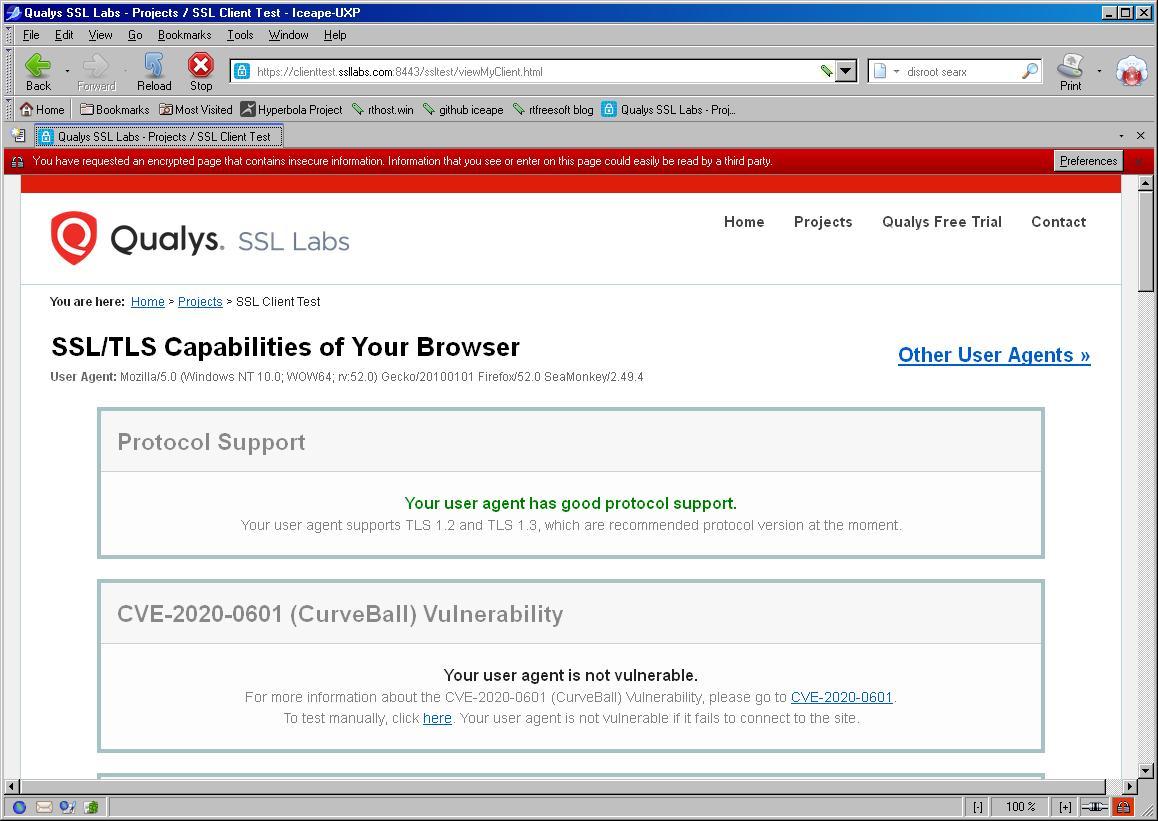
You're right, I never saw the forum software do that before... link is fixed. Here are screenshots for the linked sites. Lest you assume it is some sort of network blockage or firewall issue - no, it is able to visit the Qualys site, it seems to report TLS1.3 being available as expected. While these screenshots are being made with iceape default profile that has no addons, I get the same results in my seamonkey install with its usual addons, which in time past used to be able to visit github until fairly recently. I even tried installing JustOff's polyfill addon (since I use it on my W7 system running 2.53.19) but that makes no difference on the XP system, not sure if it can really work in Seamonkey 2.49 even after installing, but it does not help either seamonkey 2.49 nor iceape. What I find odd is that iceape supposedly has TLS1.3 available where seamonkey 2.49 does not, yet that seems to make no difference in what sites the browsers can connect to.

-
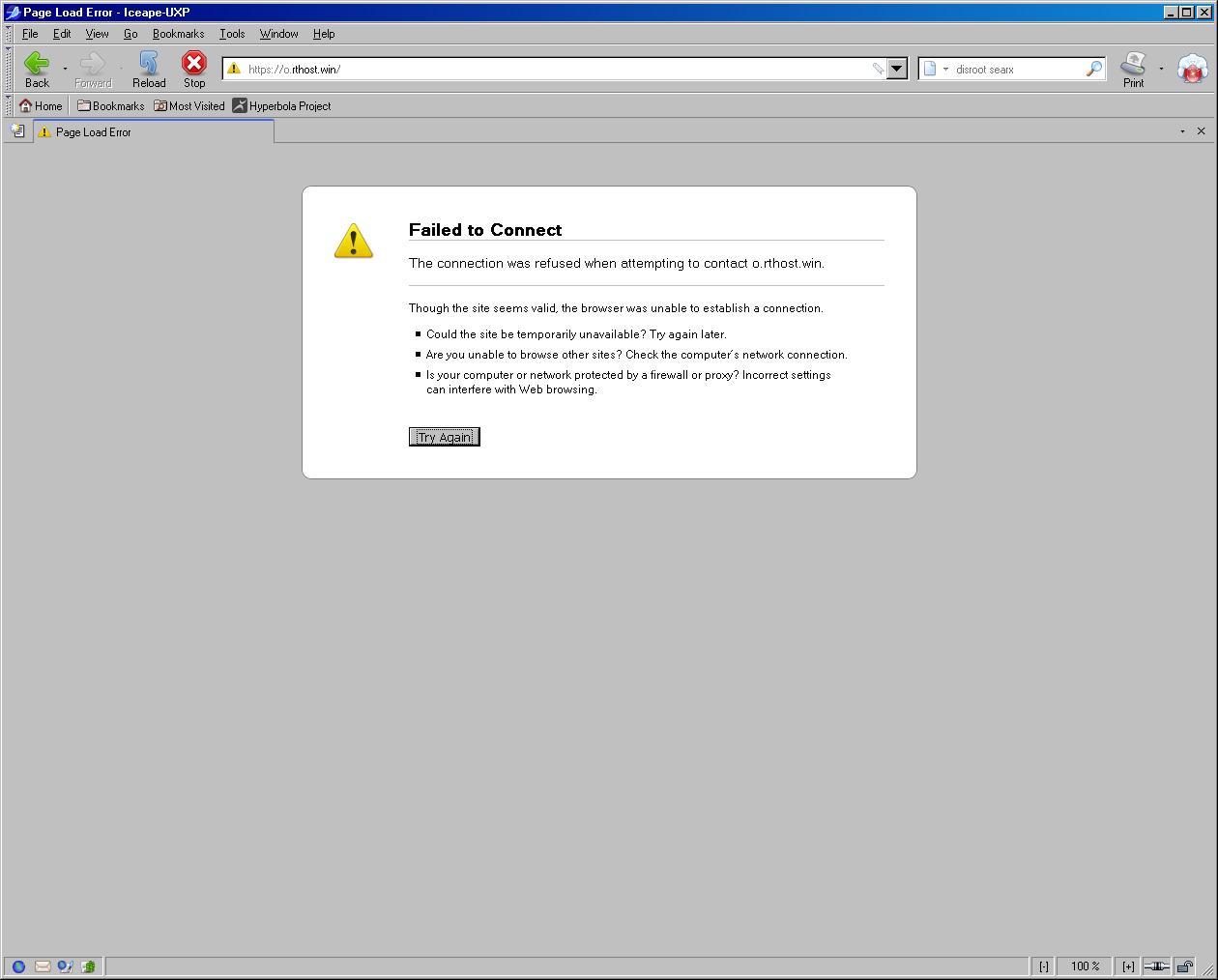
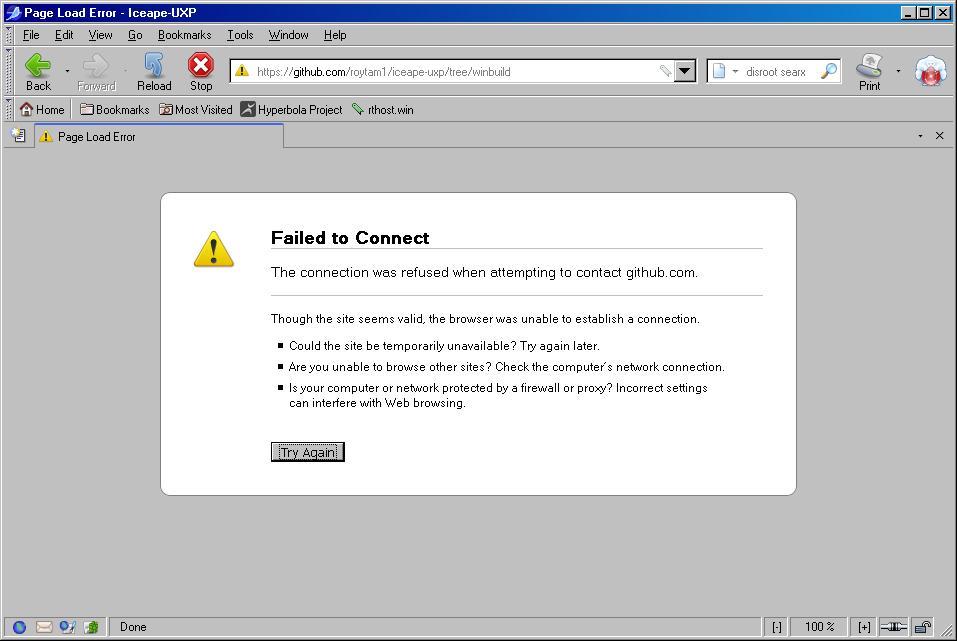
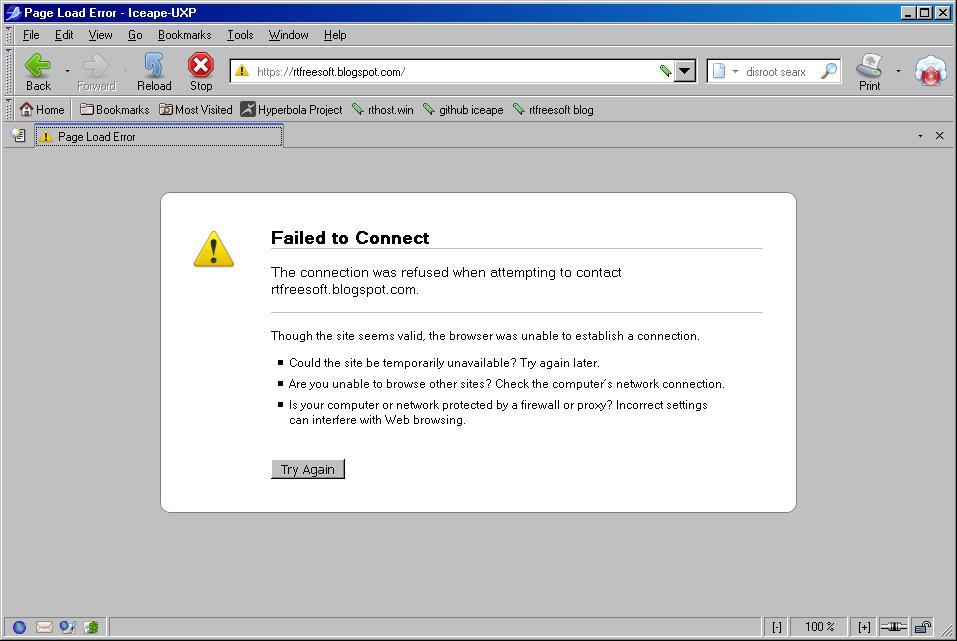
I recently installed IceApe on my old XP system (it has SP3 and the PosReady2009 updates) hoping that some of the web sites that old SeaMonkey can no longer connect to might be workable, but found no difference. The same list of websites get the Connection refused error in both browsers. Ironically, this very site is among the ones SeaMonkey can no longer load. So are https://o.rthost.win/ https://github.com/roytam1/iceape-uxp/tree/winbuild https://rtfreesoft.blogspot.com/ In other words, Ice Ape cannot visit its own sources, nor download itself, even after being installed. Is this expected? Do other people see the same issue? edit: Whoops, I meant to put this in the "Browsers working on Older NT-Family OSes" subforum, could moderators please move it?
-
Root Certificates and Revoked Certificates for Windows XP
w2k4eva replied to heinoganda's topic in Windows XP
Not directly, the web server decides which cert chain to present. At some sites it depends on what device, OS or browser it thinks you are using, or what location it thinks your IP is at. You can try experimenting with different user agent strings, but some web sites use additional javascript libraries or other fingerprinting methods to get past a simple UA string spoof. Or you can try different VPNs to get IP addresses from different locations. -
ProxHTTPSProxy and HTTPSProxy in Windows XP for future use
w2k4eva replied to AstroSkipper's topic in Windows XP
Yes, this is my conclusion as well: -
ProxHTTPSProxy and HTTPSProxy in Windows XP for future use
w2k4eva replied to AstroSkipper's topic in Windows XP
Okay... it looks like that should have covered it in terms of having the certs. So what is left is whether chrome360 can handle the certs it has. Which is a different question than whether they are missing. For the two X1 root certs, are they indeed the same? Or does one use ECC type encryption while the other uses RSA? You would need to examine both of those certs in detail to see that. Could you look at which certs that site is actually using, and check each one in the chain to see if they are using the possibly problematic ECC versions? For some versions of some browsers, if a given website had multiple possible paths to chain to a trusted root cert, they would try the first path encountered and if that failed they would not try any of the other paths even if that would have worked if the first path tried had not been there. For that situation one would have to figure out the failing path and eliminate some certs so that path would not be possible, forcing the browser to use another path that would work. I do not know whether your version of chrome360 has this issue, or if eliminating such a duplicate path might help for your case. Some other users are posting screenshots of such ECC certs working in XP with MyPal, is trying that an option for you? Otherwise you are back to making the proxy handle it for chrome360, which does indeed belong in this thread. -
ProxHTTPSProxy and HTTPSProxy in Windows XP for future use
w2k4eva replied to AstroSkipper's topic in Windows XP
Seems this question could fit in any of 3 threads. Since the screenshots are already in this thread, I'll try here, though if forum admins ask and/or move the posts with screenshots I'll be happy to move there. But looking more at your previous screen shot, leaves me more confused too, it gives conflicting information. On the heading "Insecure connection" it says "Your connection to web1.carparts-cat.com is not encrypted" but 2 sentences later says the connection is encrypted, plus the "security overview" thing has the 2 items of green text saying ""the connection to the site is encrypted" and "All resources on this page are served securely" ... rather contradictory. Does anyone have access to source code for chrome360 who can tell us what this combination of messages might actually mean? Also from the previous screen shot, it says "Certificate - missing". Your second screen shot shows the ISRG Root X2 cert, but not as a root cert - that looks like the cross signed version (actually an intermediate cert, not a root cert), which depends on also having the X2 cert signed by the X1 cert. So, does your chrome360 have a root cert for ISRG Root X1 (probably listed on a different tab in the certificate manager, I don't really read German so can't suggest the tab title)? Part of the confusion is that there are multiple versions of these certs, having the same names. That's why I mentioned "Certificate details (self-signed)", it seems you have the cross signed version. If you need the X1 root cert, it can be downloaded from the same page I linked before (again, look for the "self signed" variant). So if that is present (as a root cert, it too has a cross signed intermediate form that would require yet another root cert that signed it), it might come down to whether chrome360 can handle the ECC type encryption, or if not, whether you can get the proxy to do that for you. -
ProxHTTPSProxy and HTTPSProxy in Windows XP for future use
w2k4eva replied to AstroSkipper's topic in Windows XP
Does your chrome360 include the root cert ISRG Root X2 ??? This could be as a root cert, or in the older case it used to be an intermediate cert cross signed by ISRG Root X1, which in turn could have been either a root itself, or cross signed by DST Root CA X3. If that/those is missing you might have a problem... it DOES appear to be properly encrypted, just to a root cert that itself is not trusted. edit: you can download the cert from https://letsencrypt.org/certificates/ scroll down to "Root CAs", then "ISRG Root X2", then "Certificate details (self-signed)" choose your format, since I do not use chrome360 I'm not sure whether it prefers *.der or *.pem, someone on here who uses it can give better instructions on how to add it for your browser, or if it uses the system store -
Root Certificates and Revoked Certificates for Windows XP
w2k4eva replied to heinoganda's topic in Windows XP
One thing that still puzzles me is about the *.sst files themselves. What is the function of each file, and does updroots.exe do anything different based on the filename it is called for? I mean, the use of something called "delroots.sst" or "disallowedcert.sst" seems self explanatory, but what about the other 3? I see from the contents that roots.sst has Microsoft-related stuff that could be needed to check the cert lists themselves, so it makes some sense to have it in a separate file for the convenience of those folks who want to manage their own lists. But for authroots.sst vs updroots.sst, the difference is less clear. There must be some reason Microsoft used 2 files instead of combining them all into 1 file, so how are these different? -
I've been seeing this Wayback problem for at least 4 years now. It seems to affect many (most/all?) MS KB pages that were crawled from 2016 onward. I never had much luck with this method, since for me the page load takes several seconds after clicking Stop to take effect. So I must stop it before the page is shown and it was very hard to get the timing right on something I can't see yet and am not sure exactly how long it will take on any given attempt. What I did notice is that over the years MS has changed the format of URLs for their KB pages, and usually the older version of the URLs was from a time before this wayback problem. So fortunately for this particular update there is actually an older crawl with the different format of URL that works, even from SeaMonkey 2.49.2 on XP: http://web.archive.org/web/20150602151315/https://support.microsoft.com/en-us/kb/898461 (notice the /en-us/kb/ part, these are usually the better formatted crawls) Sadly for other updates there isn't always an older crawl that will work, and sometimes I am stuck with having to view page source and poke through the HTML tags to find the unformatted content (which is generally still present although not rendered correctly/at all).
-
There are a few lists, depending on whether you do/don't use MS Office, .NET, WMP11, IE8 etc. Some posts: https://msfn.org/board/topic/171814-posready-2009-updates-ported-to-windows-xp-sp3-enu/?do=findComment&comment=1156088 https://msfn.org/board/topic/171814-posready-2009-updates-ported-to-windows-xp-sp3-enu/?do=findComment&comment=1162280 (and next post too) https://msfn.org/board/topic/171814-posready-2009-updates-ported-to-windows-xp-sp3-enu/?do=findComment&comment=1167061 Perhaps you want the opposite list, of updates that are SSE2-free? https://msfn.org/board/topic/178377-on-decommissioning-of-update-servers-for-2000-xp-and-vista-as-of-july-2019/?do=findComment&comment=1162417
-
No. I have this update installed on at least 3 systems - two of which have had the HDDs replaced several times so Windows got reinstalled and updates re-applied several times - and have never seen any issues from it. Continuing to quote from the same KB article as luweitest found above, You can look there to see if you have any of these files. Depending on which updates you have already installed, you may have some of them (minus the .ref suffix) also in \windows\system32 or elsewhere, probably even a newer version. In any case updates downloaded from the Update Catalog will generally have these files (or more likely a newer version, this set is VERY old, from 2005) packed inside each update as needed, although there is the occasional poor quality update that has a missing file, these will probably have been flagged somewhere in this massive thread. (As noted above, "Downloads from the Windows Update Catalog site are not affected.") So you could just get ALL your updates from the catalog and install them manually without needing to install this one first. I suspect Windows Update considers this to be a prerequisite for doing any further updates, this may be why you see this behavior of not doing the other updates. If you want WU to install ANYTHING for you, this one is probably needed first. But beyond that, I'm a little surprised WU did anything at all, I thought the update server was no longer compatible with XP since they changed all the certificate signatures to SHA2 only....
-
You could (assuming you have "custom" mode selected rather than Express mode) highlight it and then look for the "hide" link to click. But choosing to download them manually from the catalog and install only after researching each one is the safer option.
-
It's a pretty persistent glitch, I've been seeing this for more than a week now. And yes, on wired ethernet, not even wifi. In some cases, repeating the page load does not produce the links even after 10 or more reloads. At least the suggestion to use the googlebot UA does seem to work nicely for the catalog site. Too bad it has the opposite effect for thehotfixshare.net and some other sites - it will cause a not-so-nice forbidden error there. FWIW, my normal UA would be Mozilla/5.0 (Windows NT 5.1; rv:52.0) Gecko/20100101 SeaMonkey/2.49.2 Edit - I have also been seeing (intermittentently) incomplete data from the catalog. Sometimes a search comes up with nothing found, other times it will find some items but have others missing - such as listing only 14 items when there are actually 17 to be returned. This is both for search results, and also for the replacement info when one of these search items is clicked. Sometimes all replacement items are missing entirely, other times only a subset is returned when I already know certain items should be there but are not.