-
Yikes. No wonder I don't find such references in StartAllBack's translation file; Microsoft's translations (especially of Simplified Chinese) are extremely horrendous. 🤦
-
It seems if you do not use the enhanced classic Start menu, then the original Start menu and search window will always show at that location. Using the enhanced classic Start menu should let it show at the intended location.
-
A bug still in 3.9 RC: When I enable and then disable Plumpness, the primary taskbar does not restore to the umplumped height (however the secondary taskbar does though; I have dual monitor). Restarting explorer.exe or toggling Automatic Hiding restores it to normal. ← primary taskbar ← secondary taskbar


-
This is actually the Command Bar itself, as you have selected. If you dislike it, you may select Win10 Ribbon UI and hide the ribbon (but unfortunately not its titles) by double-clicking on the current ribbon's title.
-
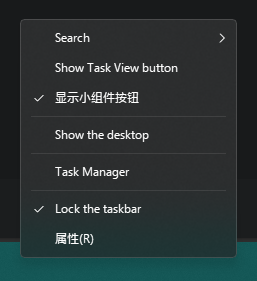
Please try to unlock the taskbar before attempting to add/remove toolbars. This FAQ has been asked and answered on 1 Aug.
-
No. Please try to unlock the taskbar before attempting to add/remove toolbars.
-
Is the Toolbars menu not available yet? I'm just on 26100.1297, found that NetSpeedMonitor disappeared from my taskbar, would like to readd it back, can't find the option to do so.
-
You're correct. Also, thank you for the fix for the first problem.
-
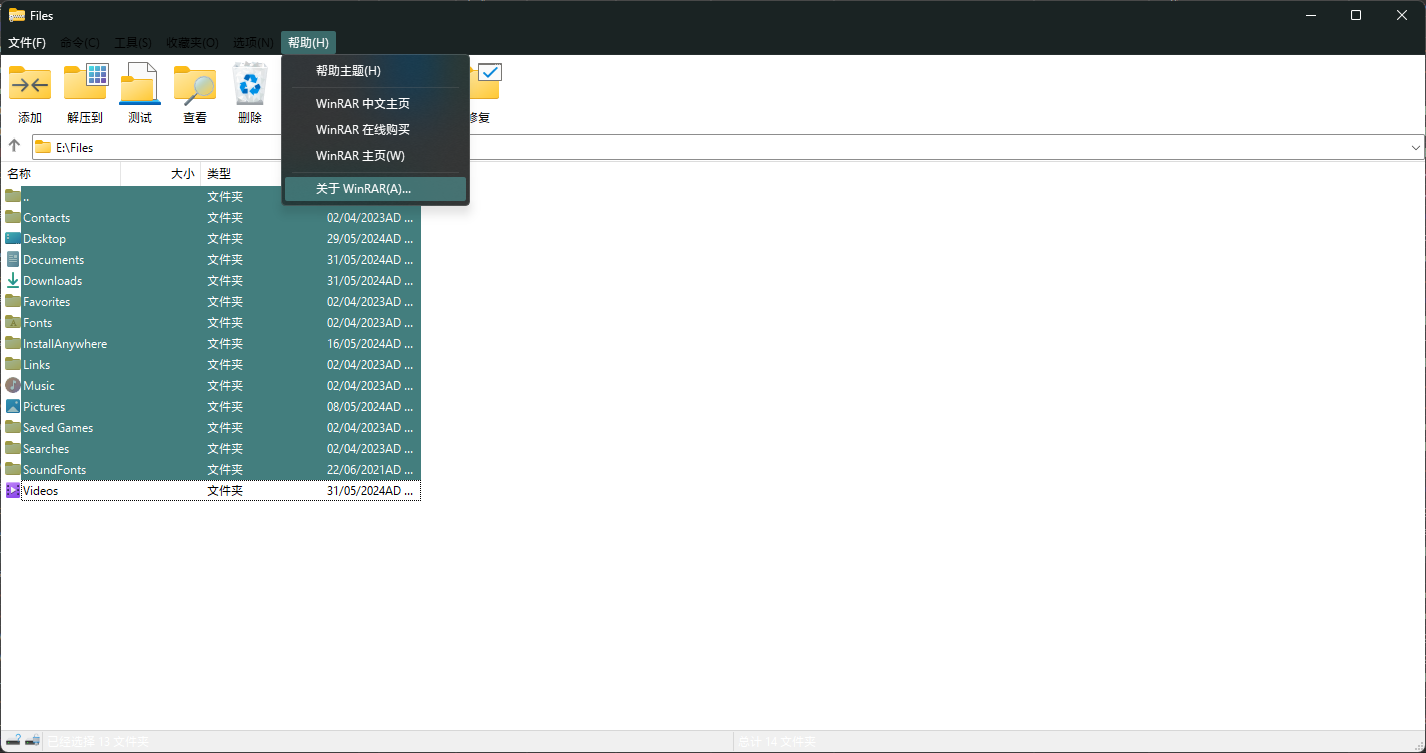
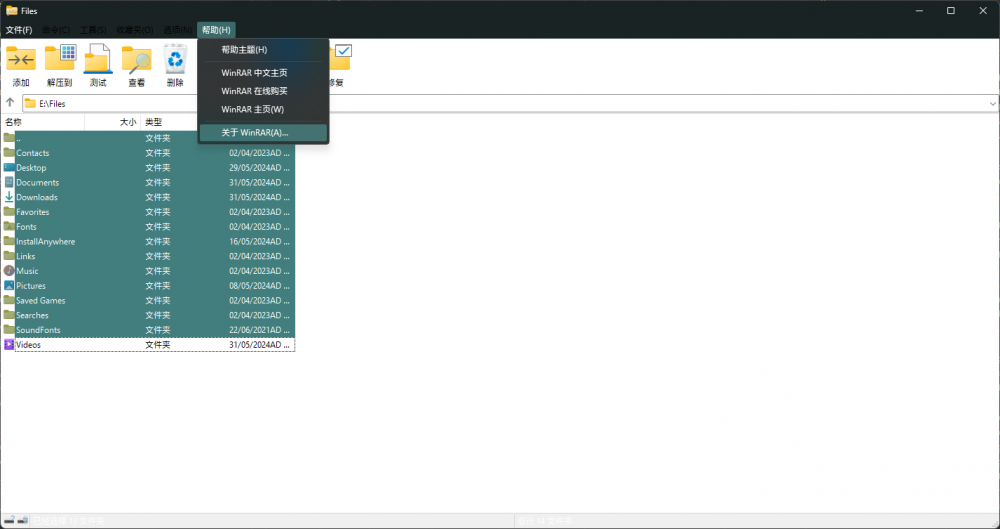
At least two problems on WinRAR: Menu bar's text is black instead of white when the window is first opened (hovering on them restores the proper color) Status bar's text is white instead of black (or the background is the normal white instead of being darkened; Unreadable text)
-
-
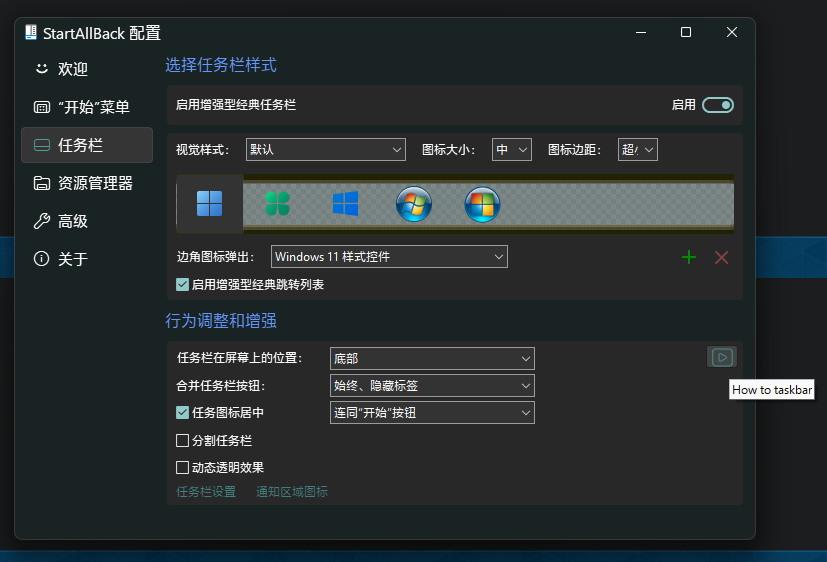
Would like to ask, where and how the “How to taskbar” string will be displayed? --- Edit: Found it here -
-
Reminder: This bug still exists as of 3.0.6. The intended behaviour should be a context menu popping up upon right-clicking on IME icon. An example on vanilla Windows 10 -

-
Yes. Follow Tihiy's instruction to set corner icons to use Windows 10 flyouts (in StartAllBack's taskbar settings), and when you click on the date and time part (not Action Center!), the Windows 10 version of the flyout will appear. Clicking on Action Center button still shows up Windows 11 combined flyout, so you can collapse the Windows 11 calendar to see more notifications without repeatingly expanding and collapsing the calendar part of the combined flyout.
-
Bug: Using Microsoft Pinyin IME, right-clicking on IME icon does nothing. Probably affects other IMEs too. Please check if it can be solved?
-
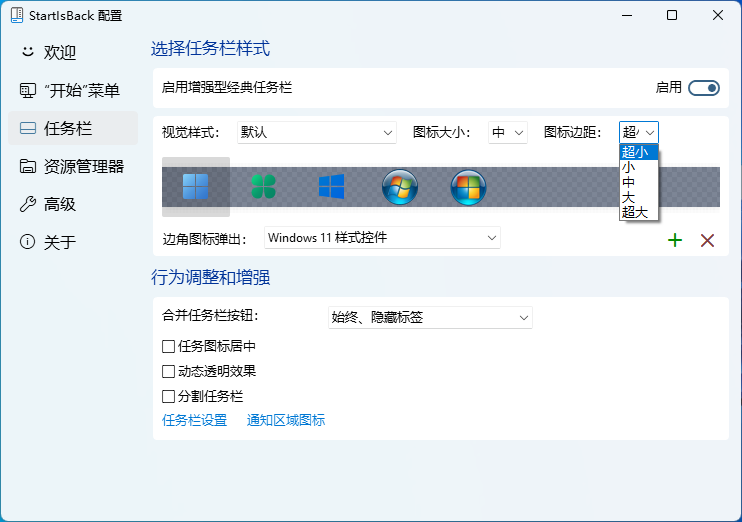
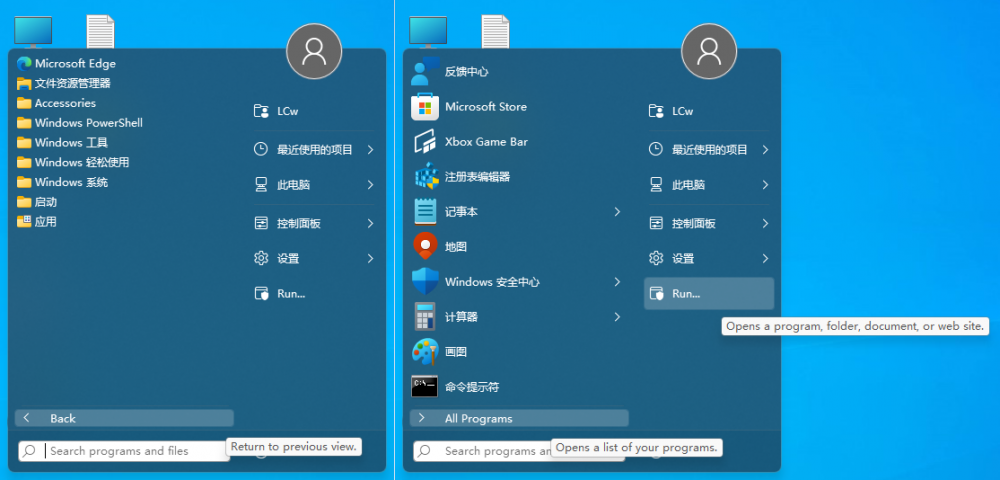
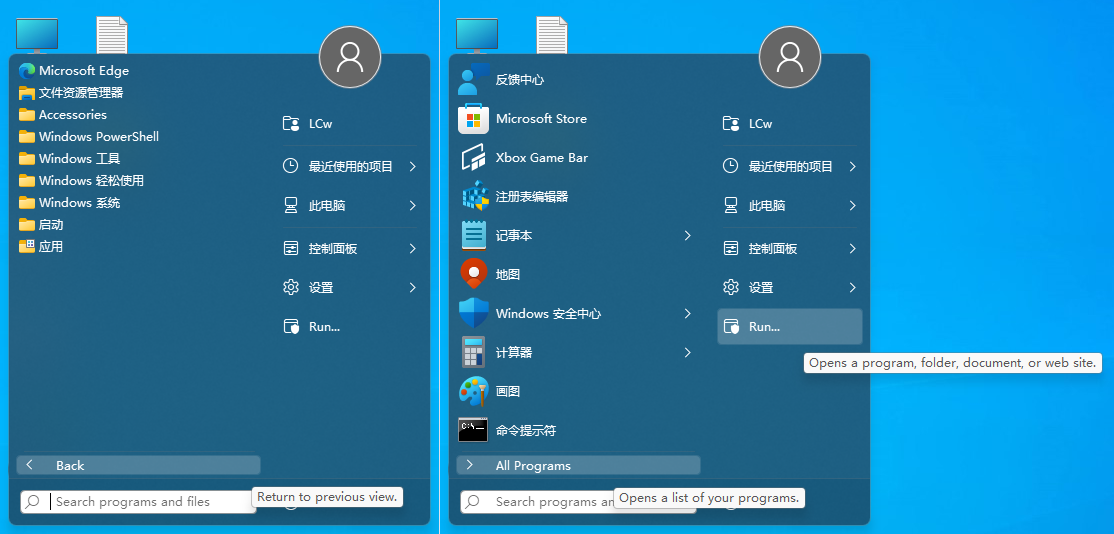
(Sent in e-mail once, still gonna post here for asap visibility) For additional information, the dropdown input elements of sizes are too narrow, as shown in below pic. P/S: In my e-mail I did mention about the dropdown input element of icon margin sizes, but turns out it affects the dropdown input element of icon sizes as well. Also, I found that some UI strings are not localized, and I can't localize them by typing the shown text in my language file. Below are shown the locations of missing localizations as far as I can see - Also the translations for StartAllBack in Simplified Chinese and Traditional Chinese are sent in e-mails to you, @Tihiy. Thank you in advance.