



Skip to content
View in the app

A better way to browse. Learn more.

MSFN

A full-screen app on your home screen with push notifications, badges and more.

To install this app on iOS and iPadOS
  1. Tap the Share icon in Safari
  2. Scroll the menu and tap Add to Home Screen.
  3. Tap Add in the top-right corner.
To install this app on Android
  1. Tap the 3-dot menu (⋮) in the top-right corner of the browser.
  2. Tap Add to Home screen or Install app.
  3. Confirm by tapping Install.

Dan___

Member
  • Joined

  • Last visited

  • Country

    Australia
  1. It would be great to get a rounded corners version of this as well. That would really complete the Windows 7 look!
  2. Aero Glass for Win8.1+ 1.5.5 Windows 10 (version 15063.540) Release version Photo, Edge, People & Calculator apps now have no Min/Max/Close buttons on the taskbar and zero transparency. Right Click can still be used to activate these functions which is a good comprimise while MS rolls out Fluent Design. I will continue to post on this Topic until BM creates a new topic for later versions.
  3. Interesting, for my system the People & Calculator apps are now mat black with zero transparency and are not affected by the blur effect radius.
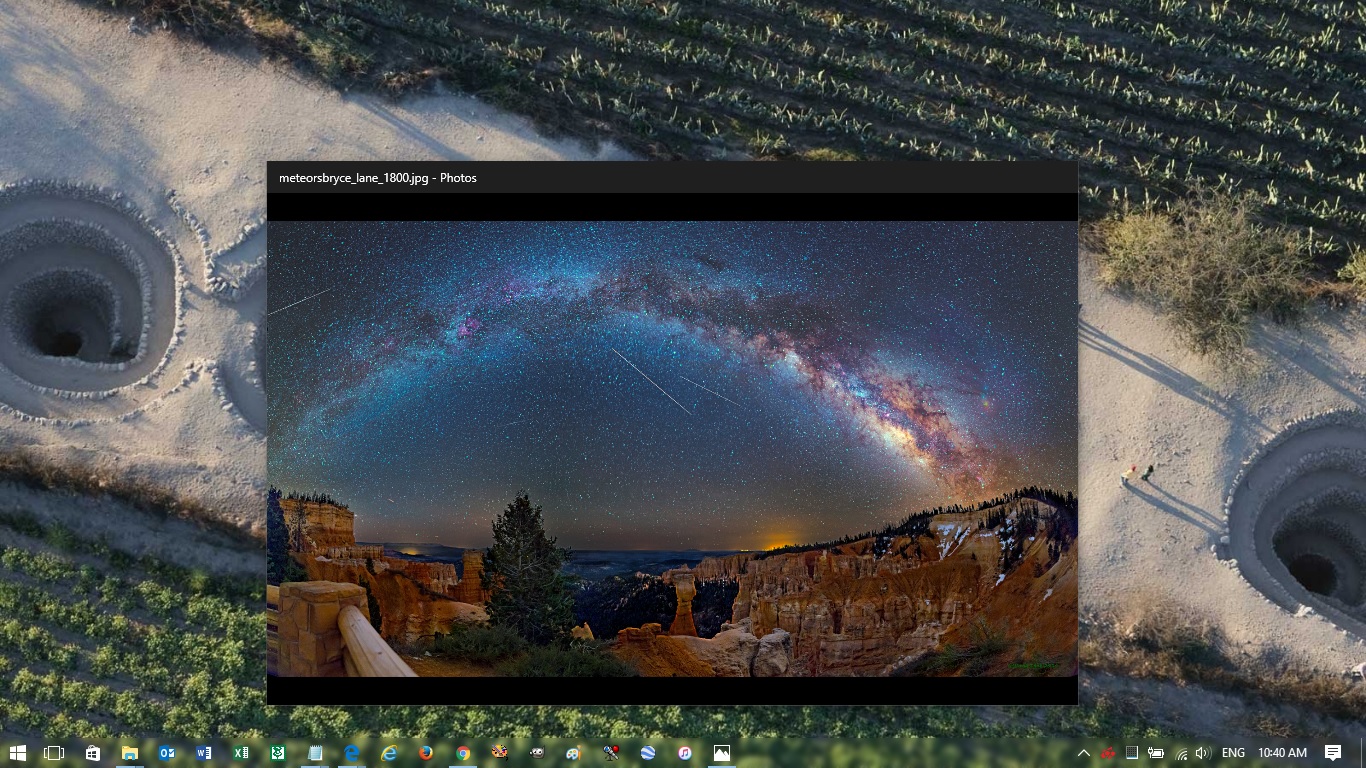
  4. Aero Glass for Win8.1+ 1.5.4 Windows 10 (version 15063.540) Photos App: Erratic behavior with the transparent taskbar disappearing and reappearing unpredictably. When it disappears the min/max/close window buttons cannot be selected.
  5. The Blur Effect in WindowsBlinds is much more blurred than in Windows 7 and cannot be adjusted. WindowsBlinds is also quite buggy.
  6. How do you define the white border around the edge of the window? Is that purely in the .layout file?
  7. Windows 10 error Ox5 this morning following updates; KB4013418 & KB4013429 Aero Glass cannot hook in to DWM, cannot download symbols...
  8. Hi Noel, Do you have a link to the corresponding .layout file for the above "RoundedCorners.png" ? Appears to be exactly what I was looking for
Account

Navigation

Configure browser push notifications

Chrome (Android)
  1. Tap the lock icon next to the address bar.
  2. Tap Permissions → Notifications.
  3. Adjust your preference.
Chrome (Desktop)
  1. Click the padlock icon in the address bar.
  2. Select Site settings.
  3. Find Notifications and adjust your preference.