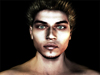
September 30, 200322 yr How is this done? Do you scan a photo of yourself and process it through a 3D application?
September 30, 200322 yr Author Hi AaronThis is done by taking out two photos, one being the front view and the other being the side......Then i use Poser 5.0 the 3d Application proggie where u can edit it by mapping it to the Model and u can make random images....And this was the best I could get out of me!...... Cheers..
October 1, 200322 yr Author Cheers to all You can even change your hairstyleFor more info try this link on this 3d Application Poser 5.0...there are also some exclusive galleries and some tutes!Cheers!
October 1, 200322 yr Author Had to change it to look more good in giving some face morphs like having a nice face cut! Lol!
October 1, 200322 yr Author If u need any help!Please ask me!I will try making some tutes!As well as u can search google for some tutes!Cheers!
October 1, 200322 yr Author @ Widnez_boyYou just need to have some basic knowledge of this proggy!And you shud know how to map textures on to your model!You need the patience to take out a photo having a front view and as well as side.At the beginning you will find it boring, but when it renders and u will see the result, And u can play around with it in Photoshop by giving some contrasts and blending modes.Cheers!
October 1, 200322 yr I will try making some tutes!Please do! ... who knows, maybe it'l make its way into the guides area




Create an account or sign in to comment