




Skip to content
View in the app

A better way to browse. Learn more.

MSFN

A full-screen app on your home screen with push notifications, badges and more.

To install this app on iOS and iPadOS
  1. Tap the Share icon in Safari
  2. Scroll the menu and tap Add to Home Screen.
  3. Tap Add in the top-right corner.
To install this app on Android
  1. Tap the 3-dot menu (⋮) in the top-right corner of the browser.
  2. Tap Add to Home screen or Install app.
  3. Confirm by tapping Install.

TheMouseAvenger

Member
  • Joined

  • Last visited

  • Country

    United States
  1. Here it is again, in case you missed it. :-)
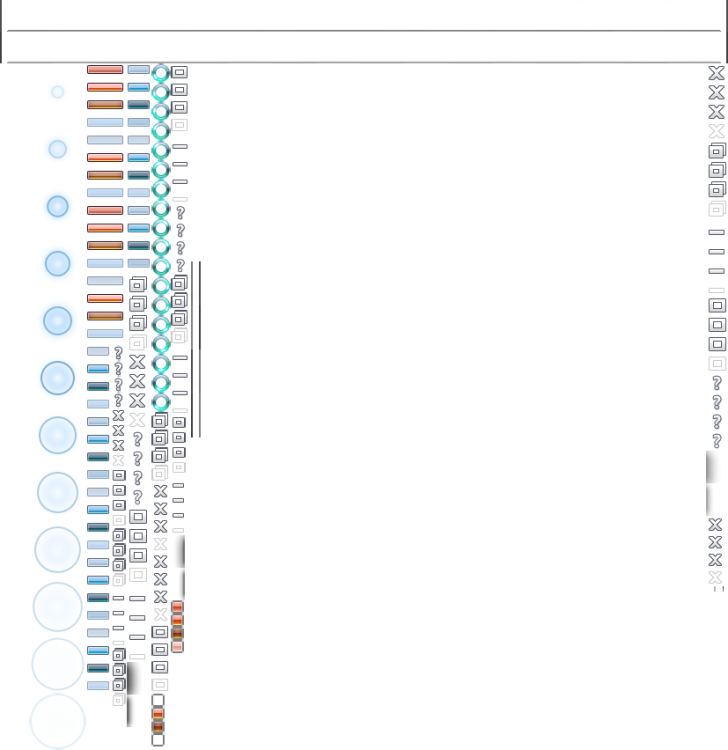
  2. Oh, really? :-) Wow! ^_^ That's awesome...& also a great relief! So, I suppose that answers that question...but I still need help getting the layout of my custom theme atlas right. ^^;;
  3. Hmm, you'd think someone would have responded to my questions right now...
  4. Also, is there a way to keep AeroGlass enabled when loading another Windows theme?
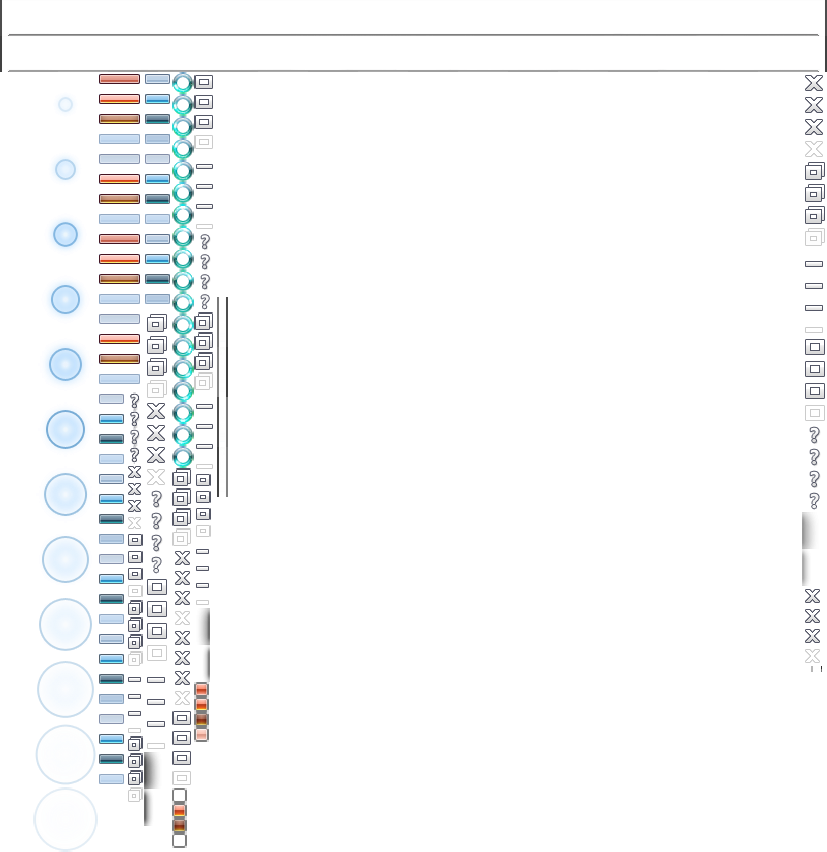
  5. I tried making my own custom atlas theme, combining elements from different theme atlases I downloaded from DeviantArt. Unfortunately, my current theme atlas in use is Aerolite, & I don't think the layout of my custom theme atlas matches Aerolite's theme atlas, because when I selected my custom T.A. in Aeroglass GUI, the minimize/maximize/close buttons & their white symbols didn't show up. :-( Can someone please fix my atlas layout, so that everything will show up properly?

Account

Navigation

Configure browser push notifications

Chrome (Android)
  1. Tap the lock icon next to the address bar.
  2. Tap Permissions → Notifications.
  3. Adjust your preference.
Chrome (Desktop)
  1. Click the padlock icon in the address bar.
  2. Select Site settings.
  3. Find Notifications and adjust your preference.