



Skip to content
View in the app

A better way to browse. Learn more.

MSFN

A full-screen app on your home screen with push notifications, badges and more.

To install this app on iOS and iPadOS
  1. Tap the Share icon in Safari
  2. Scroll the menu and tap Add to Home Screen.
  3. Tap Add in the top-right corner.
To install this app on Android
  1. Tap the 3-dot menu (⋮) in the top-right corner of the browser.
  2. Tap Add to Home screen or Install app.
  3. Confirm by tapping Install.

BJFox

Member
  • Joined

  • Last visited

  • Country

    United States

About Me

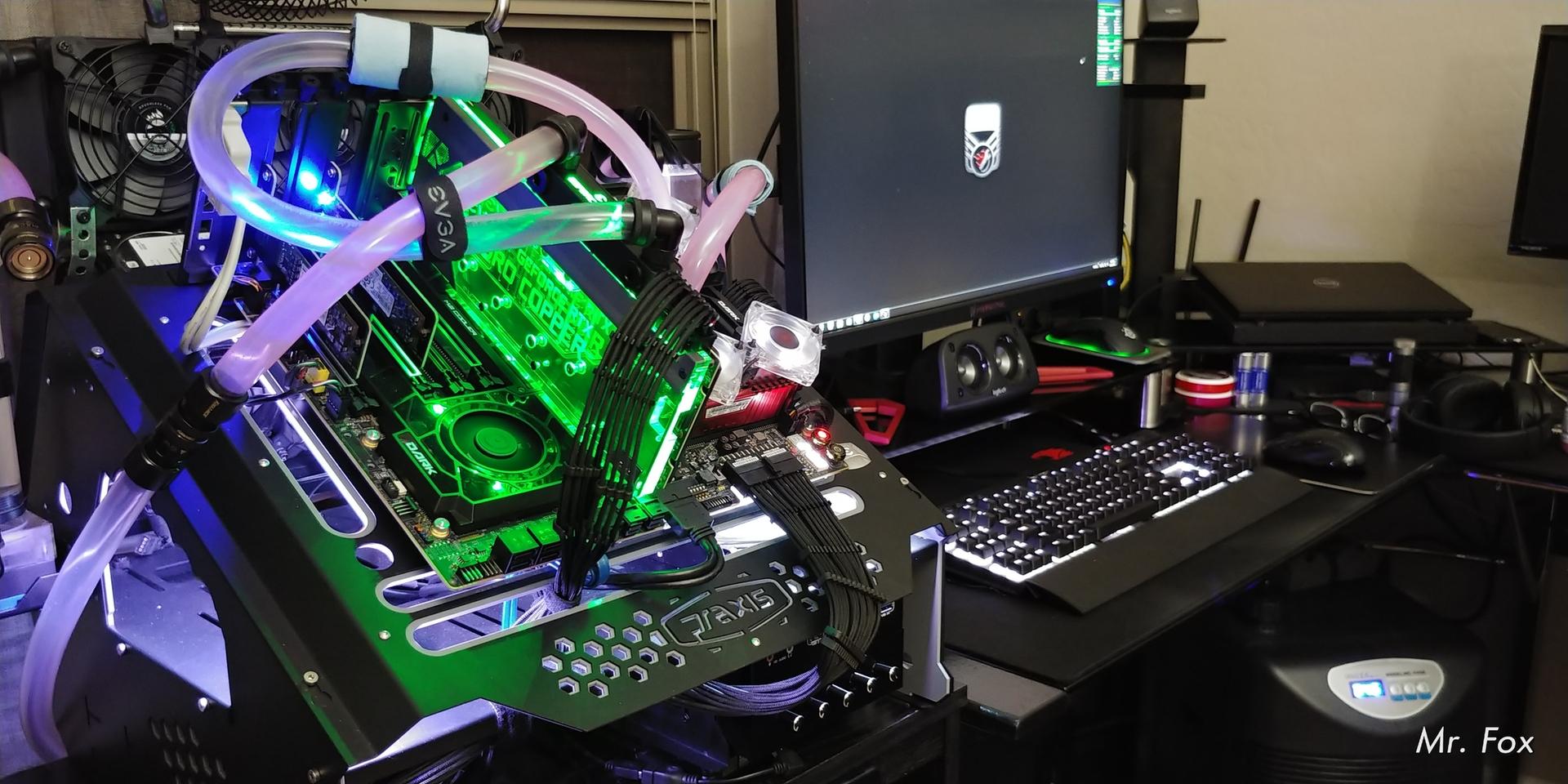
Punisher // EVGA X299 Dark | Core i9-7960X @ 5.3GHz | EVGA RTX 2080 Ti FTW3 Hydro Copper | Corsair 32GB Vengeance LPX DDR4 @ 4200 CL16 | EVGA SuperNOVA 1600 P2 | Hailea HC-500A (1/2HP~790W) Water Chiller | Dual XSPC 360 Radiators | Dual XSPC Photon 270 | Der8auer Die Frame | Windows 7 Ultimate > Windows 10 Enterprise LTSC 2019 > Windows 10 Enterprise 1909 > Ubuntu Linux [Quad-Boot Beast]
Wheezer // Eluktronics MECH-15G2Rx | Core i7-9750H | RTX 2060 [Eluktroboosted] | 32GB DDR4-3000 | 1TB NVME | 1TB M.2 SSD | Windows 10 Enterprise LTSC 2019
Geezer // HP ZBook 15 | Core i7-4800MQ | Quadro K1100M | 16GB DDR3-1600 | SanDisk Ultra 1TB SSD | Kingston UV500 240GB mSATA | Intel AC 7260 | Windows 10 Pro 1903 > Linux Mint 19.2 [Dual-Boot Dinosaur]

Mr. Fox YouTube Channel | Mr. Fox @ HWBOT | Team PremaMod @ HWBOT

Account

Navigation

Configure browser push notifications

Chrome (Android)
  1. Tap the lock icon next to the address bar.
  2. Tap Permissions → Notifications.
  3. Adjust your preference.
Chrome (Desktop)
  1. Click the padlock icon in the address bar.
  2. Select Site settings.
  3. Find Notifications and adjust your preference.