-
@Tihiy I found a bug in the latest version (3.9.4) If I'm using the "Display as flyout menu (Windows XP style)" option, changing the "Display Modern apps in a folder" option will have no effect until I manually restart Explorer.
-
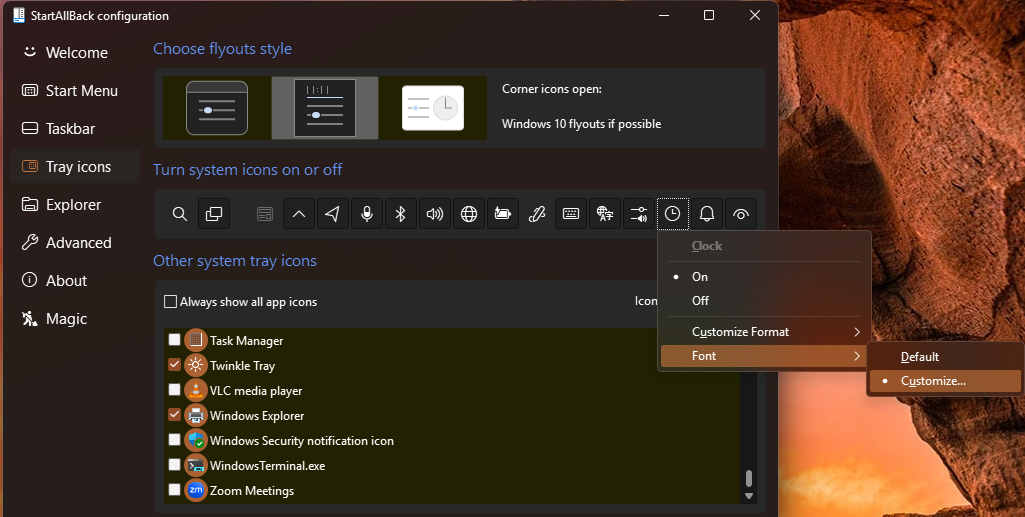
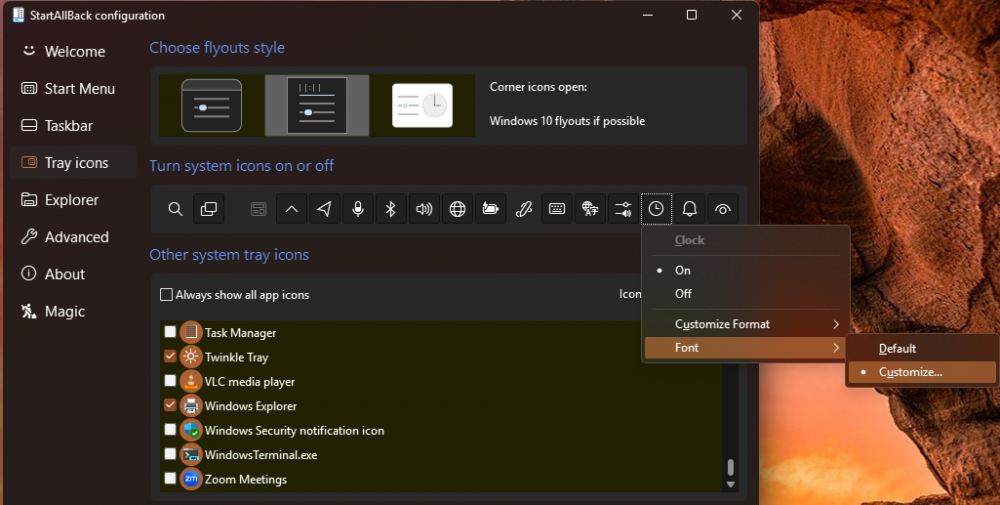
@Darkenmal I was able to get the date back by reducing the font size of the clock. In my case, I'm at 100% scaling so setting it Segoe UI size 8pt was enough. In your case, you might need to choose a different font size.

-
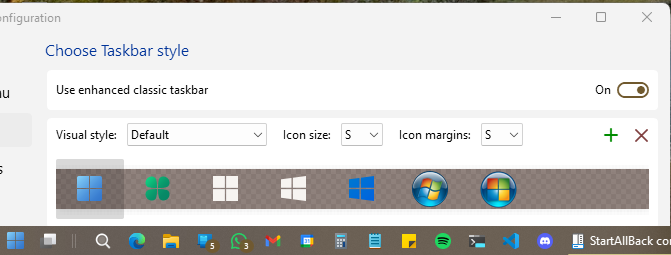
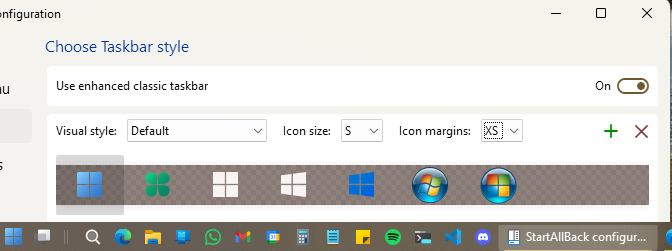
Hi @Tihiy! Icon badges are missing when icon margins are set to XS with the small taskbar. They only appear when set to S or larger. I'm on version 3.8.10.
-
Hi @Tihiy! I've noticed a bug when using Everything Toolbar with StartAllBack 3.8.6. The toolbar spawns a "Deskband host for wpf" button on the taskbar. If I close it, the toolbar disappears. Thanks for your work on this amazing program!


-
Hi! I'm using Everything Toolbar together with StartAllBack 3.8.3. I like to shrink the toolbar until it's a single button, but everytime I either reboot my PC or restart Windows Explorer, the toolbar goes back to full size, squishing all other pinned icons. I also noticed that the toolbar spaws a "Deskband host for wpf" entry on the taskbar that is visible if I shrink the toolbar back to a normal size. If I close it, the toolbar disappears. This bug didn't happen on the previous "classic enhanced taskbar".