-
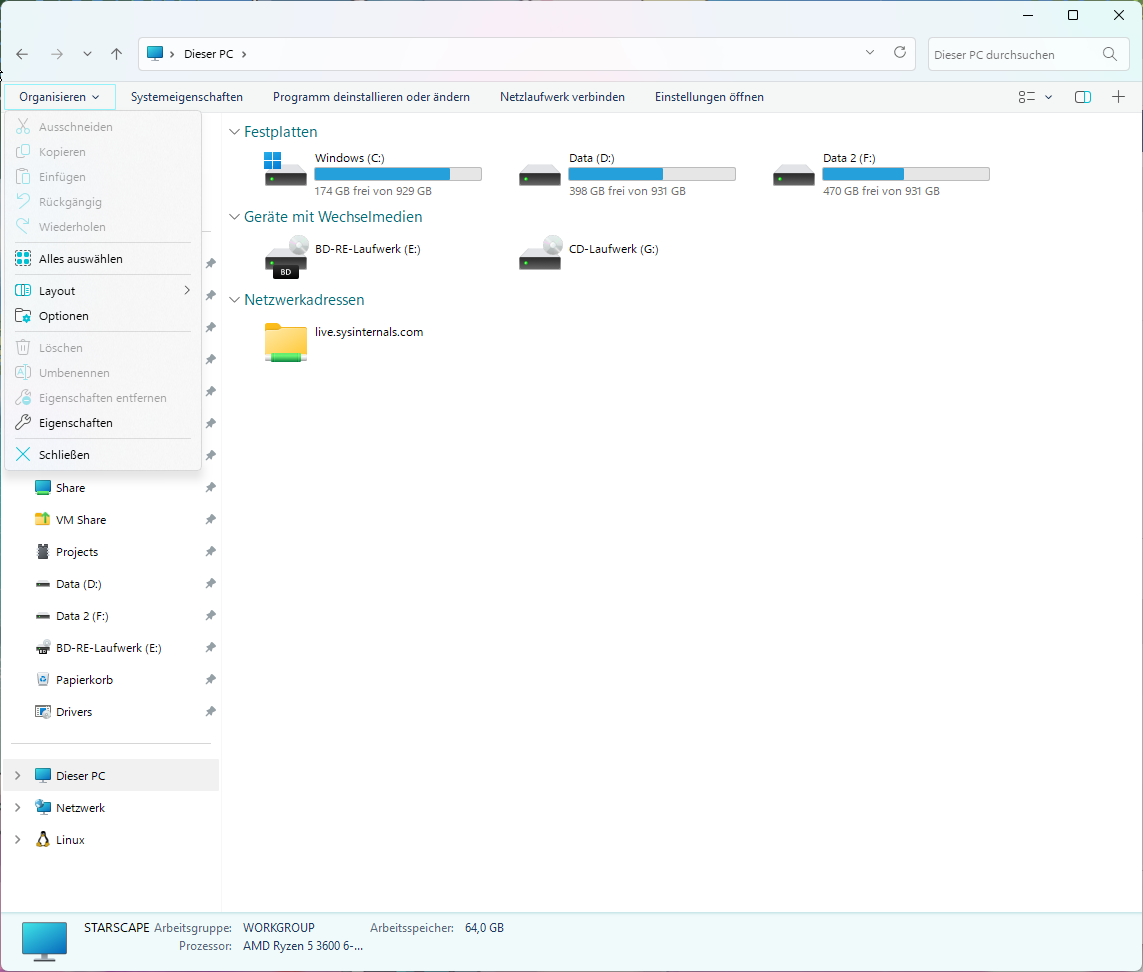
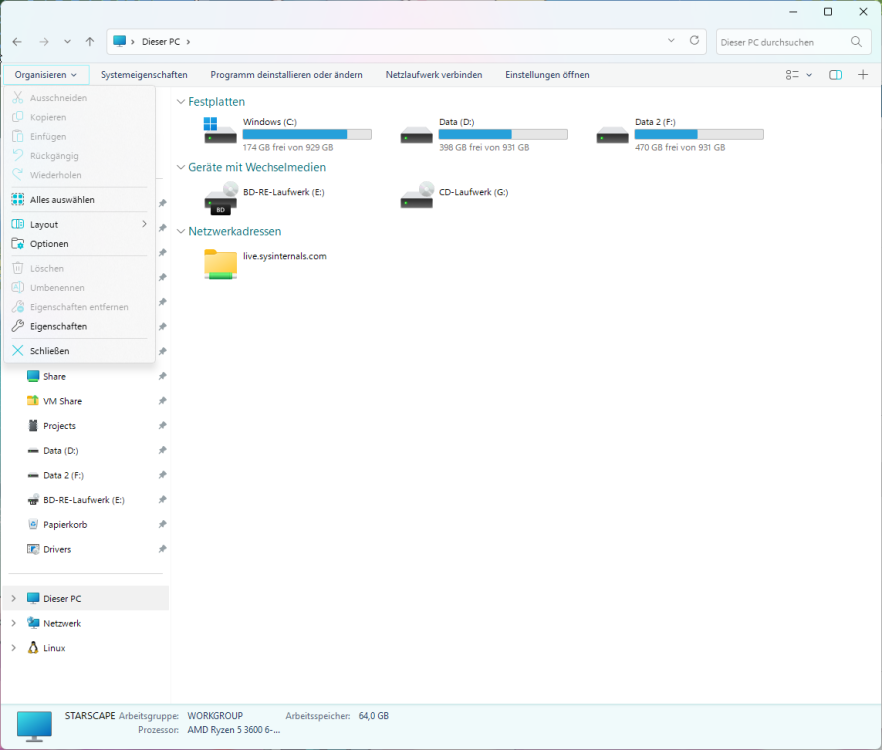
should be this menu
-
Switches between a regular Windows 10 Styled taskbar and a Windows 11 Styled one (thickness, running program indicators and clock positioning)
-
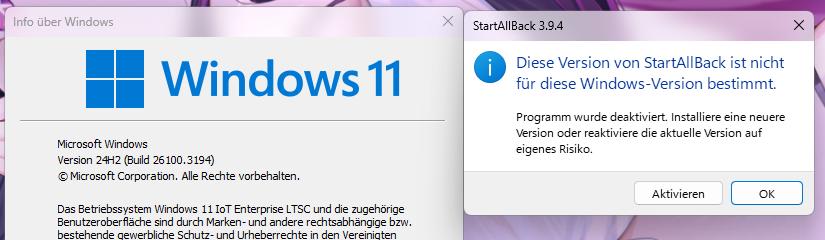
For some reason sab deactivates itself on my system on saying its "incompatible" since i updated my OS to the Feburary 2025 24H2 update.
-
Is most likely a limitation of the default 11 Start Menu since it was never intended to open anywhere but in the middle, bottom left and bottom right (for rtl languages).
-
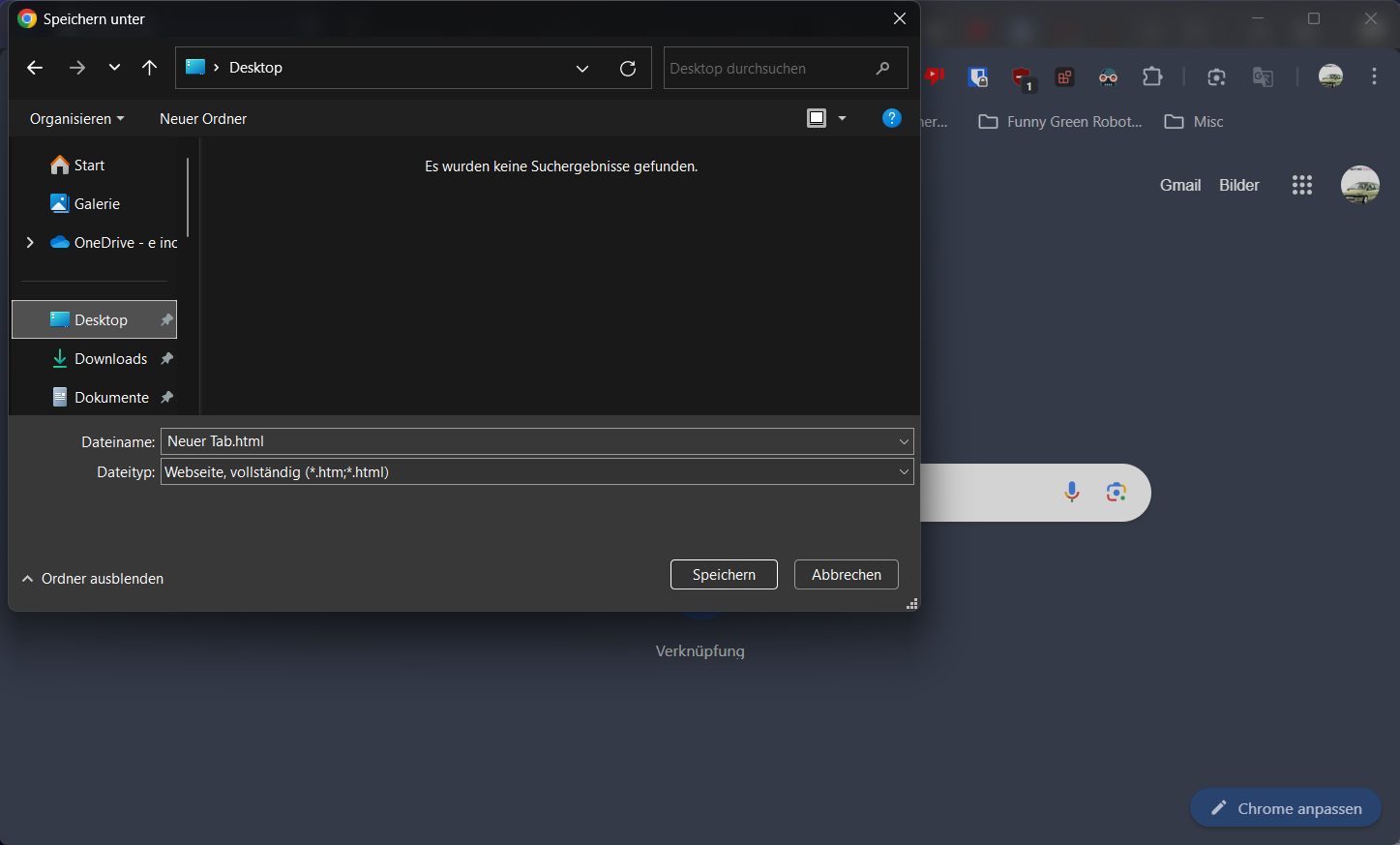
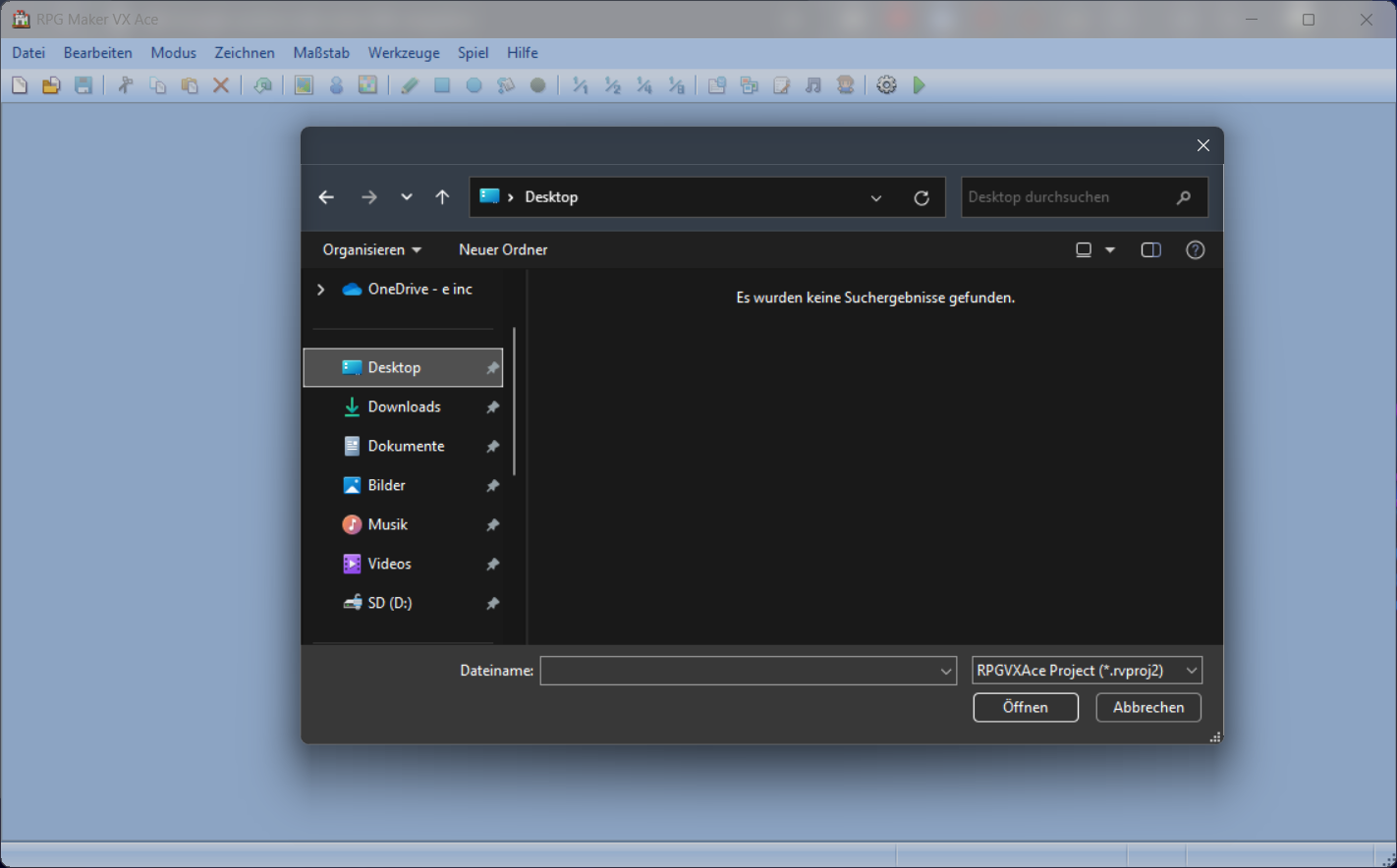
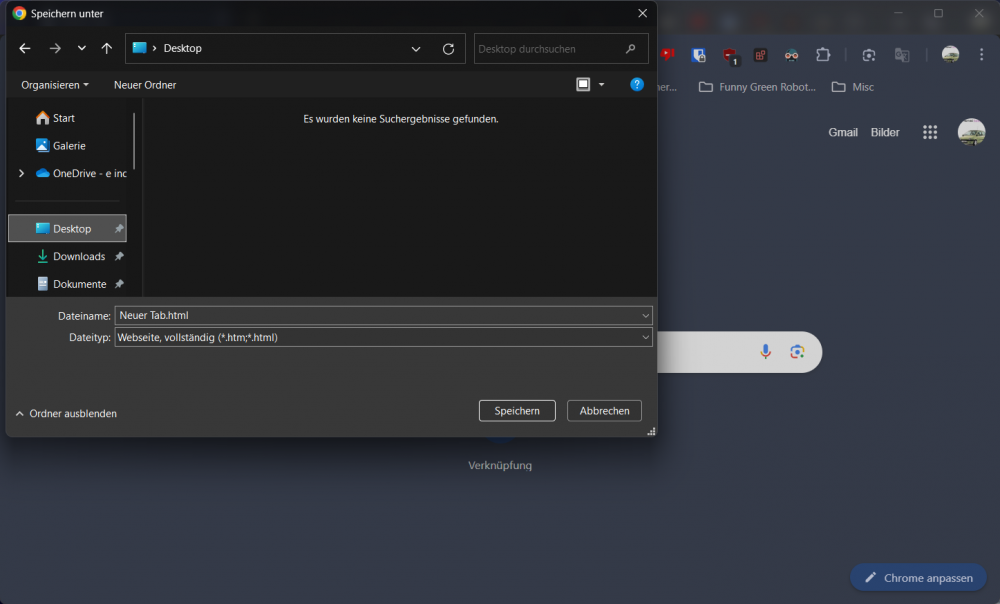
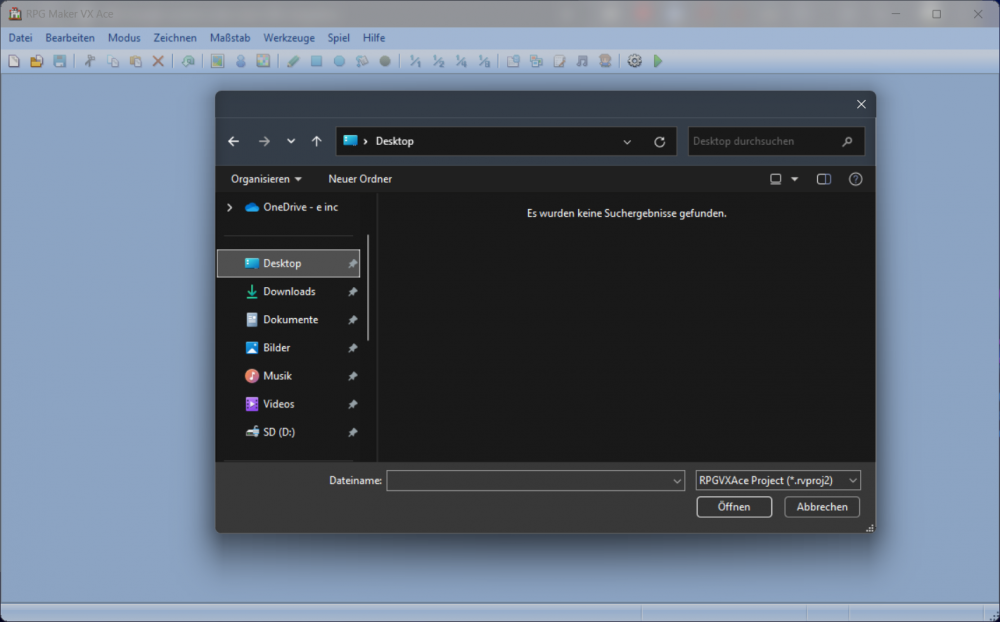
Noticed that Save/Open dialogs opened by Chrome don't get hooked properly. Save/Open dialogs from other Apps (checked Notepad and RPG Maker VX Ace) hook fine and have the style that Explorer windows have, Chrome just ignores the styling fully and behaves like standard 11's Save/Open dialogs. Just to compare, heres how its meant to look. (The blurryness is just cause this version of RPG Maker doesn't support HiDPI.)
-
Enabling Dark Magic does some funky stuff to the Performance graphs in Task Manager on my machine. As seen here: https://files.catbox.moe/yqlf9b.png