-
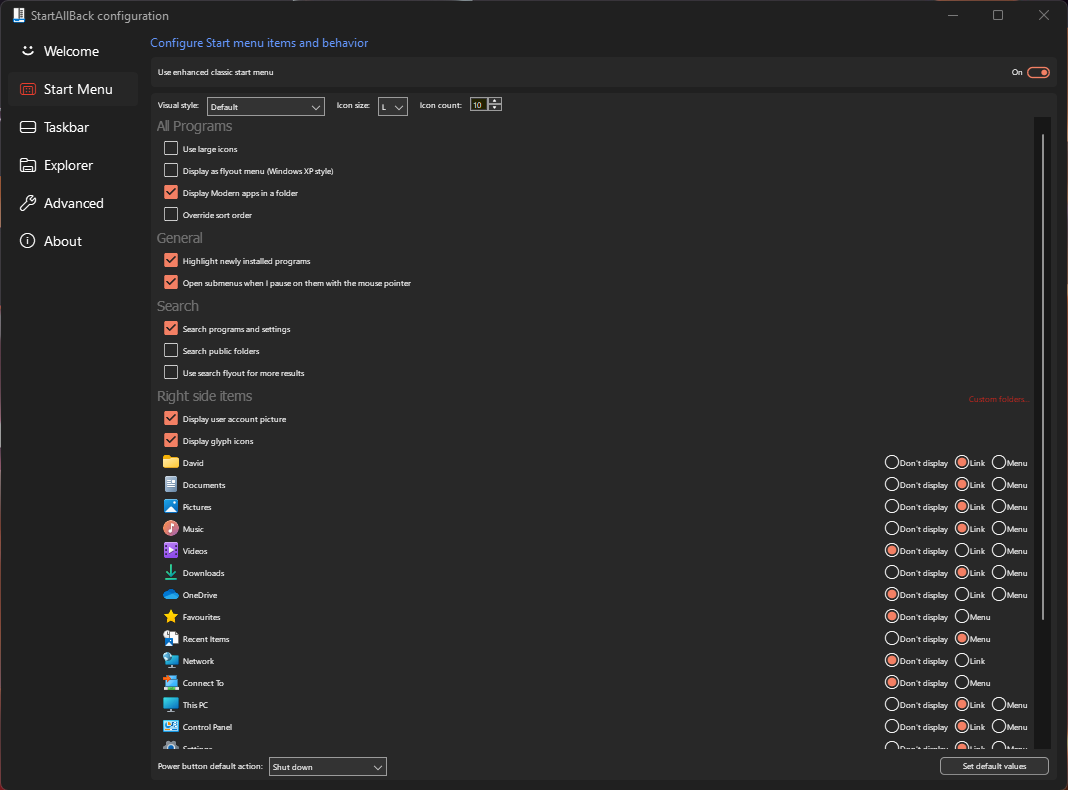
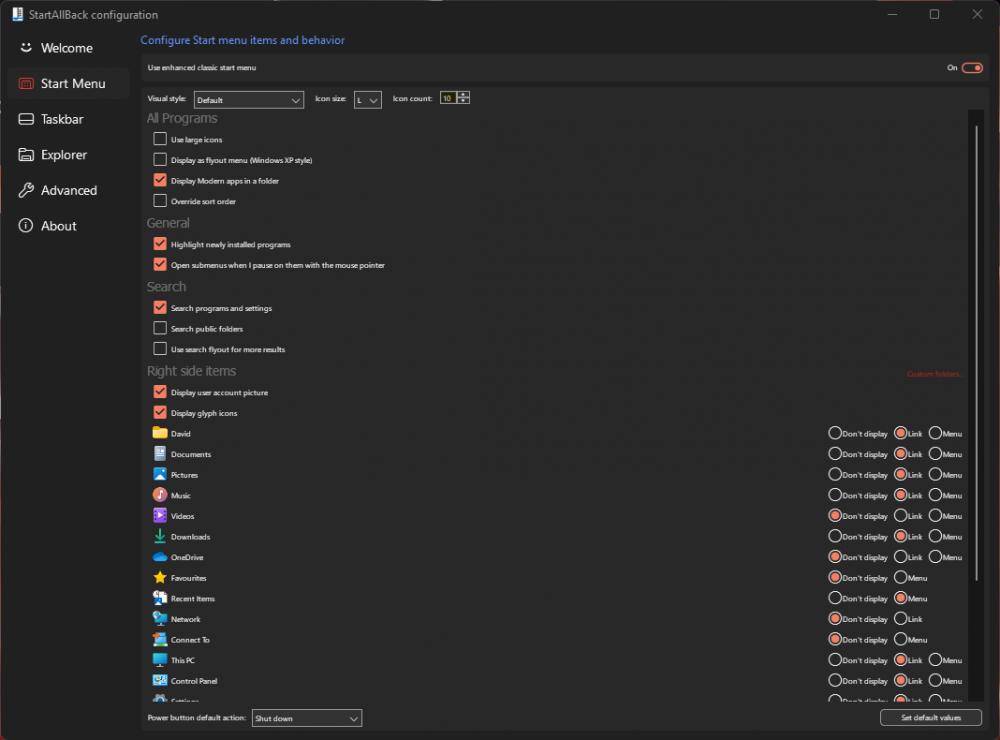
I noticed a minor issue when dragging the StartAllBack configuration window between monitors that have different DPIs (in my case 144 DPI/150% and 96 DPI/100%) - after switching between monitors a few times, the elements get tinier and tinier. The re-rendering is also noticeably laggy. I'm using StartAllBack 3.6 in Windows 11 22H2 22621.1194.
-
I had the same crash as andreymd87, and this latest build seems to have fixed it.
-
Works perfectly - thanks.
-
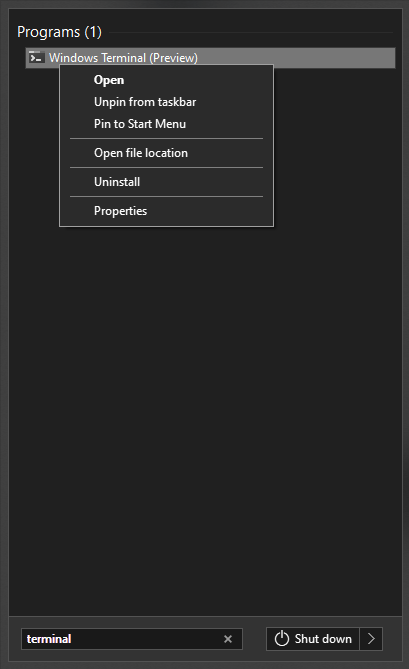
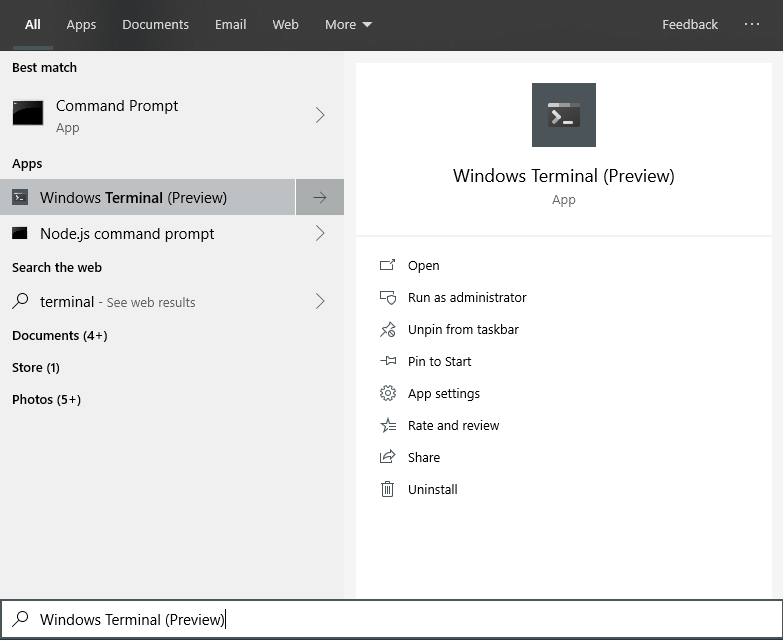
Some Store apps like the Windows Terminal Preview have a 'Run as administrator' jump list item and also support the Ctrl+Shift+Enter shortcut when selected via the native Start menu. Is it possible for StartIsBack++ to support both of these? I think it might be an issue only for Desktop Bridge applications - I do see the jump lists for normal Store apps (e.g. Calculator).
-
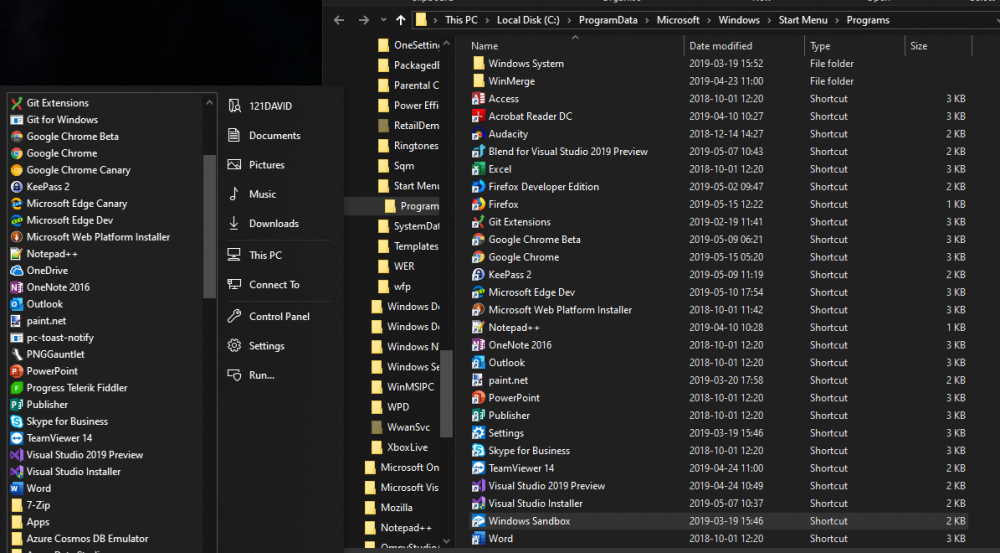
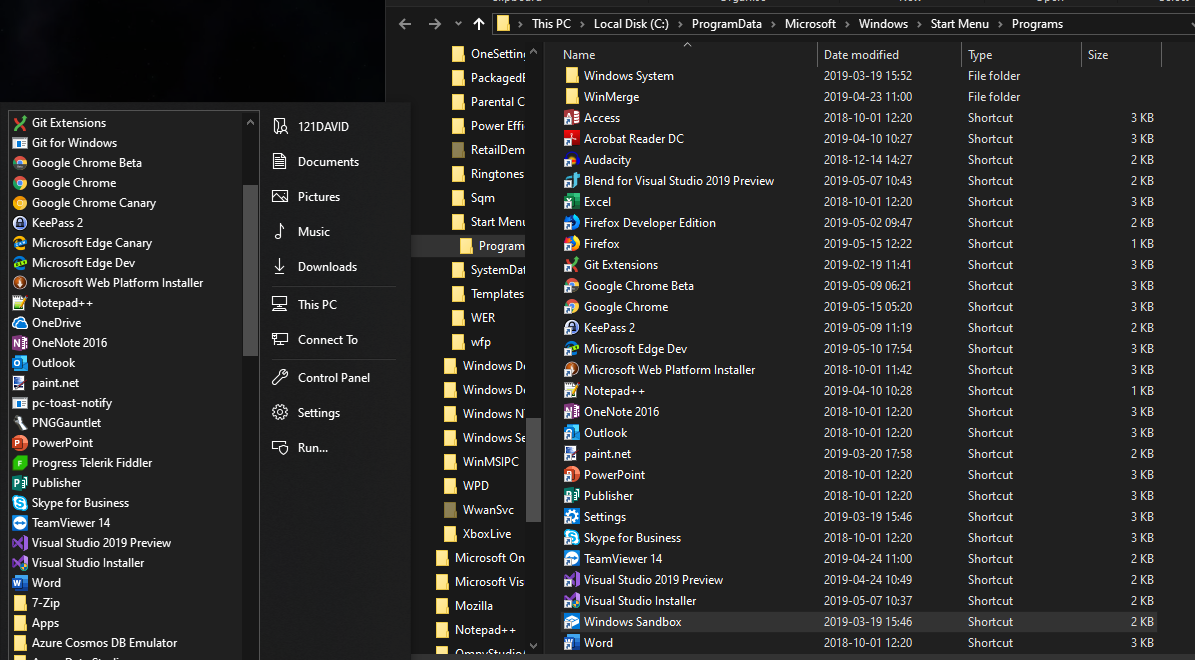
Update: I see this was fixed in 2.8.6 - thank you! For some reason Windows Sandbox isn't showing up in the menu for me (Windows 1903, StartIsBack++ 2.8.5). Other changes get picked up immediately (e.g. if I copy and paste an existing shortcut in the directory). I thought it might be a permissions issue, but the values under the Security tab for the Windows Sandbox shortcut don't look any different to normal.