Skip to content
View in the app

A better way to browse. Learn more.

MSFN

A full-screen app on your home screen with push notifications, badges and more.

To install this app on iOS and iPadOS
  1. Tap the Share icon in Safari
  2. Scroll the menu and tap Add to Home Screen.
  3. Tap Add in the top-right corner.
To install this app on Android
  1. Tap the 3-dot menu (⋮) in the top-right corner of the browser.
  2. Tap Add to Home screen or Install app.
  3. Confirm by tapping Install.

pasito

Member
  • Joined

  • Last visited

  • Country

    United States

Everything posted by pasito

  1. @Dave-H Having the same issue you did/do, been working on it with Wonko the Sane and wanted to know exact make/model of your external case to compare with mine. If you have a moment, pls reply in our thread at reboot.pro. Many thanks! edit: @Dave-H nevermind, sorry bout that, i got it from yr other thread [173265]:
  2. pasito replied to nuhi's topic in nLite
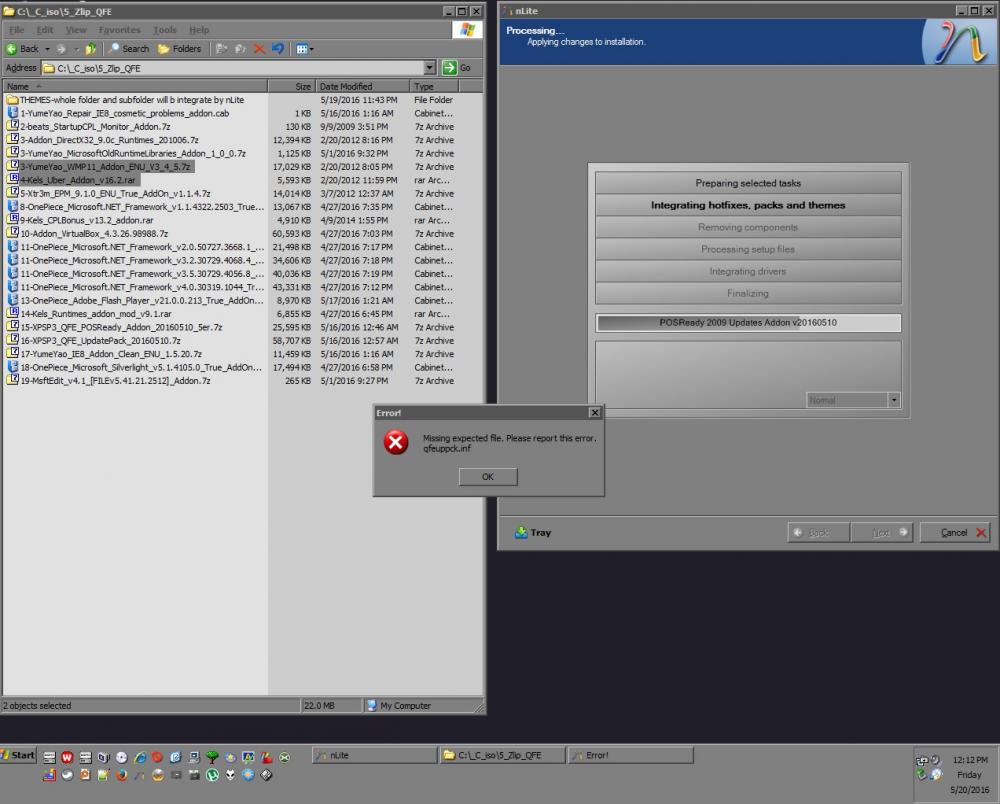
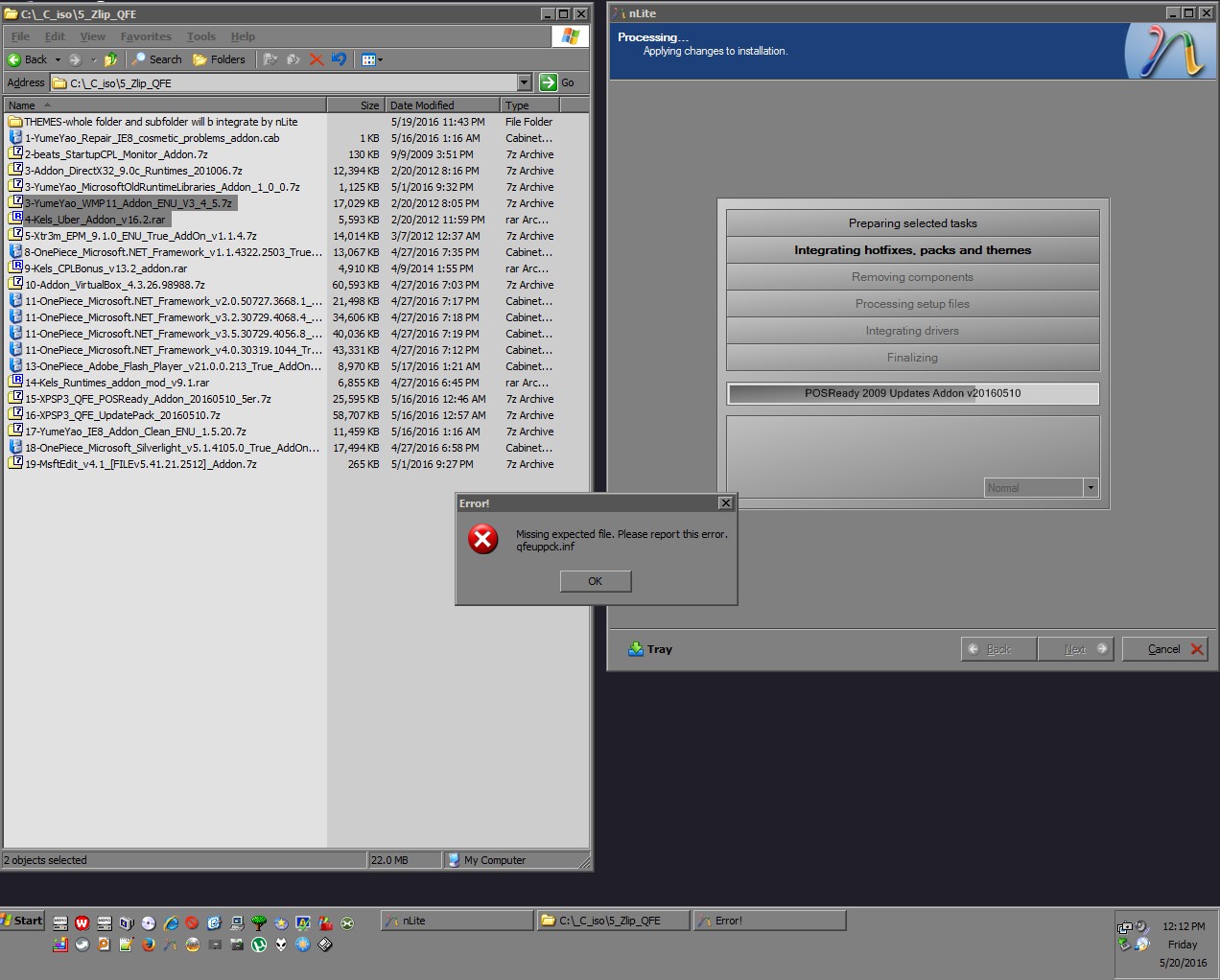
    Hi, nLite requested i post an error and i don't know where to post it. Please let me know and/or move this post. Thanks to all involved with this great program. I'm just doing as requested, reporting the error, and actually not seeking help cuz i can probably reconstrue stuff and get a good integration without really persuing this error. This error may be due to just incorrect sequence in my addon list. I'm a very new nLite user, before this having made just one xp disk --but error free, including the install. I have any and all info/logs that you might ask for if the protocol is to dissect or log such errors for the sake of the forum/application. "Error! Missing expected file. Please report this error. qfeuppck.inf" Attached: -presets last session ini -a quicklook screenshot of addons and the moment of error Last Session_[nLite_Error_[Missing_qfeuppck.inf]_5-20-2016].ini

Account

Navigation

Configure browser push notifications

Chrome (Android)
  1. Tap the lock icon next to the address bar.
  2. Tap Permissions → Notifications.
  3. Adjust your preference.
Chrome (Desktop)
  1. Click the padlock icon in the address bar.
  2. Select Site settings.
  3. Find Notifications and adjust your preference.