Everything posted by Craz1
-
as for the 'Registry way'
-
Put it in: \$OEM$\$$\System32\
-
if you are only trying to create a pause ... why not use the sleep command? http://unattended.msfn.org/files/sleep.zip Usage: start /wait sleep.exe 30 (the above syntax will halt your batch file for 30 seconds)
-
send 10,000 pings? he'd be there all week something more appropiate maybe 3-4 ping -n 3 -w 10000 IP_ADDR > NUL as for the ip to ping, are you sure you are actually able to ping the ip address from the machine at the time this script is running?? try logging by running this just before you run the ping: ipconfig /all >net.log net view >>net.log net statistics workstation >>net.log net config workstation >>net.log then have a quick look @ net.log
-
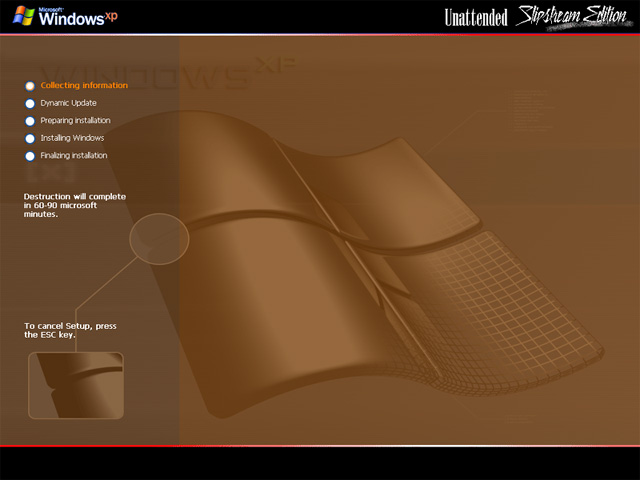
Hey dude great work - can i have a hi res copy of that? perfer in photoshop I would like to change the color Cheers, Felix here you go, i lost the original ( don't know where the heck i put it ) so i remade this one for ya http://craz1.homelinux.com/winntbbu/winntbbu_template.rar will have to change the color with Image->Adjustments->Color Balance that is for PS7 anyway, my be different in older/newer versions
-
Click Here to get it. Enjoy..
-
i had the same problem using 'ResHack' so i tried using 'Resource Tuner' to insert the pic into the dll and all worked fine...
-
Here's my first attempt at a winntbbu.dll ..