-
Hopefully it isnt the one here? http://forum.videolan.org/viewtopic.php?t=38181
-
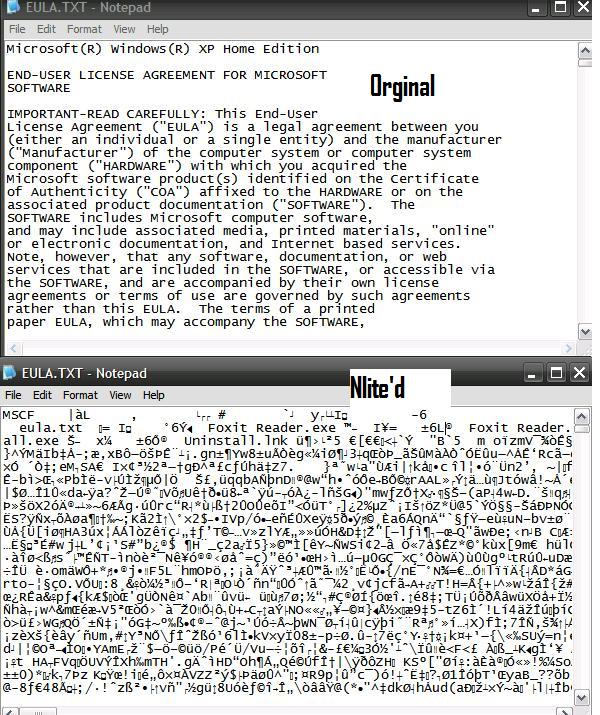
Erm..Ive tried it on different pcs..Making the nlite'd cd that is I've got kaspersky and spybot s&d and its not reporting anything>_< I did a spinrite test and chkdsk like last week and no errors or so The Nlite'd cd's EULA.txt as shown in the picture seems to have all my addons i've placed in nlite in it
-
The eula is intact..Well when i opened it with notepad the first few words are sorta like this MSCF |àL , # ` yI I dont really care about the eula..but if its sorta corrupted etc..I think other parts may be corrupted as well EDIT:Added a picture...ALOT clearer I just made a new iso using nlite(Redid the entire settings step by step) and the EULA is still bugged.Tried Default iso engine and mkisofs but both still give the MSCF thingy in vmware
-
I've tried remaking a new nlite'd cd with the exact same settings(not using the ini tho) on my father's pc and than tested it with VMware but it still gives me that MSCF..thingy
-
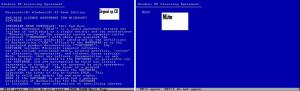
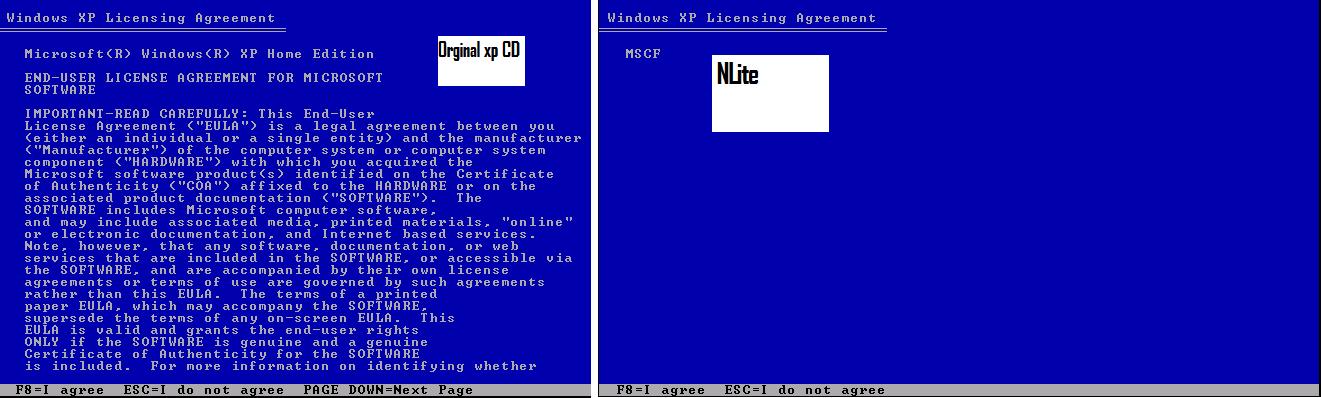
After making the Nlite CD,I attempt to reformat my pc by booting up from the cd..But instead of microsoft's EULA,It writes "MSCF" and all i could do was to press f8(agree).I was wondering,is this intended,and what is MSCF? EDIT:I've added a picture LAST_SESSION.INI