-
As instructed, I did not remove or add any component before/during the slipstream process. It was a straight-through slipstream without doing anything additional. I have just reinstalled WITHOUT the slipstream, and then update the SP1 manually. I can now see all of the Ultimate Extras (BitLocker, EFS, Hold Em Poker, DreamScene). The Windows Features in Programs and Features is also available as normal.
-
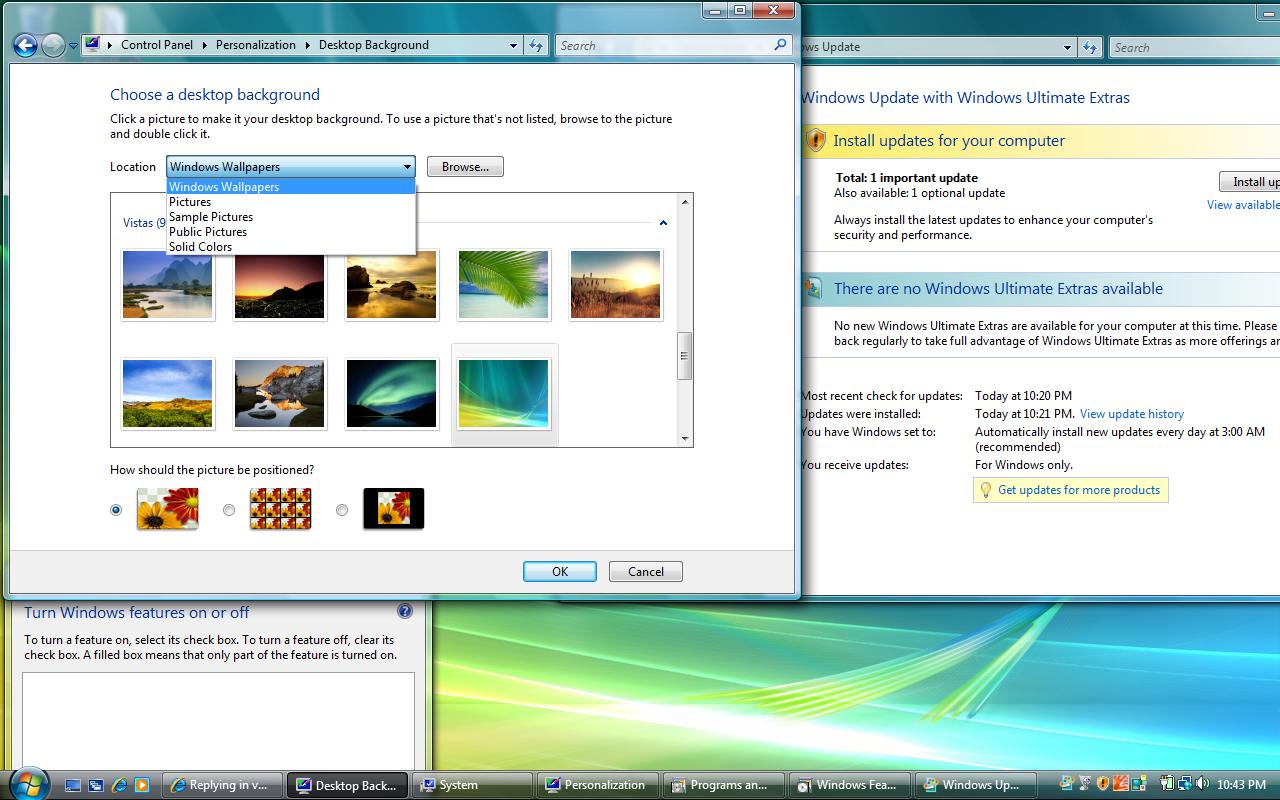
I just integrated my Vista Ultimate 32bit with the beta slipstream option. It works great. The integration process took about 1.5-2 hours to complete. Possible bugs: 1. DreamScene is NOT visible from anywhere including in the Control Panel > Personalization. It's lost for reason. 2. Searching for new Ultimate Extras gives: There are no "Windows Ultimate Extras Available". 3. In the Programs and Features > Windows Features, all the optional features disappeared. All I get is a blank white space.