Skip to content
View in the app

A better way to browse. Learn more.

MSFN

A full-screen app on your home screen with push notifications, badges and more.

To install this app on iOS and iPadOS
  1. Tap the Share icon in Safari
  2. Scroll the menu and tap Add to Home Screen.
  3. Tap Add in the top-right corner.
To install this app on Android
  1. Tap the 3-dot menu (⋮) in the top-right corner of the browser.
  2. Tap Add to Home screen or Install app.
  3. Confirm by tapping Install.

A Warthog

Member
  • Joined

  • Last visited

  • Country

    United States
  1. I can confirm that the issues with broken icons on Microsoft Store apps and the iCUE pop-up issue are both resolved. Good stuff! The issue with the NVIDIA app that I reported earlier today persists, so seems the fixes for the prior issues didn't resolve this one.
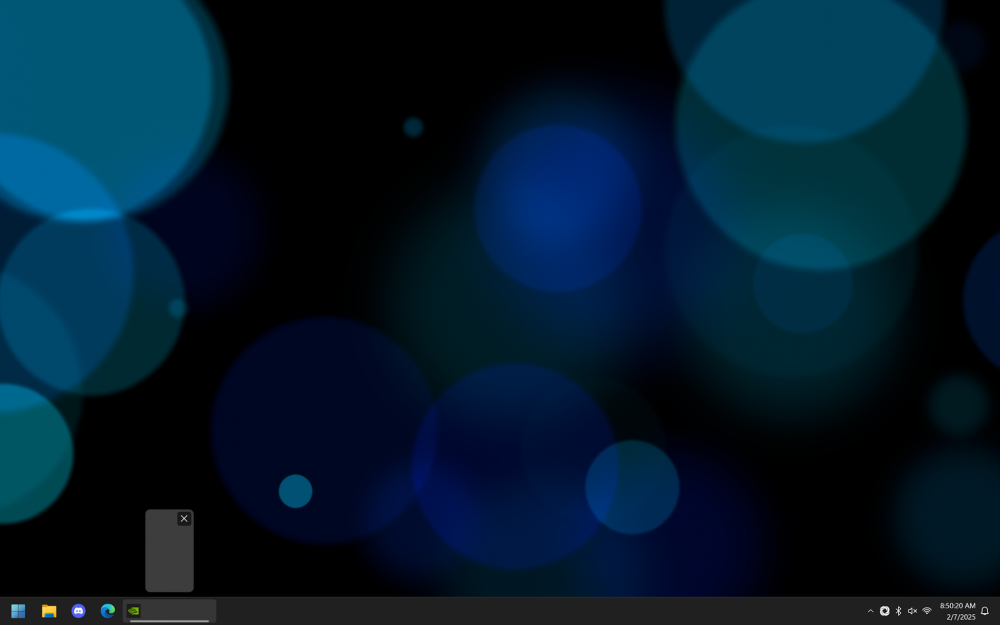
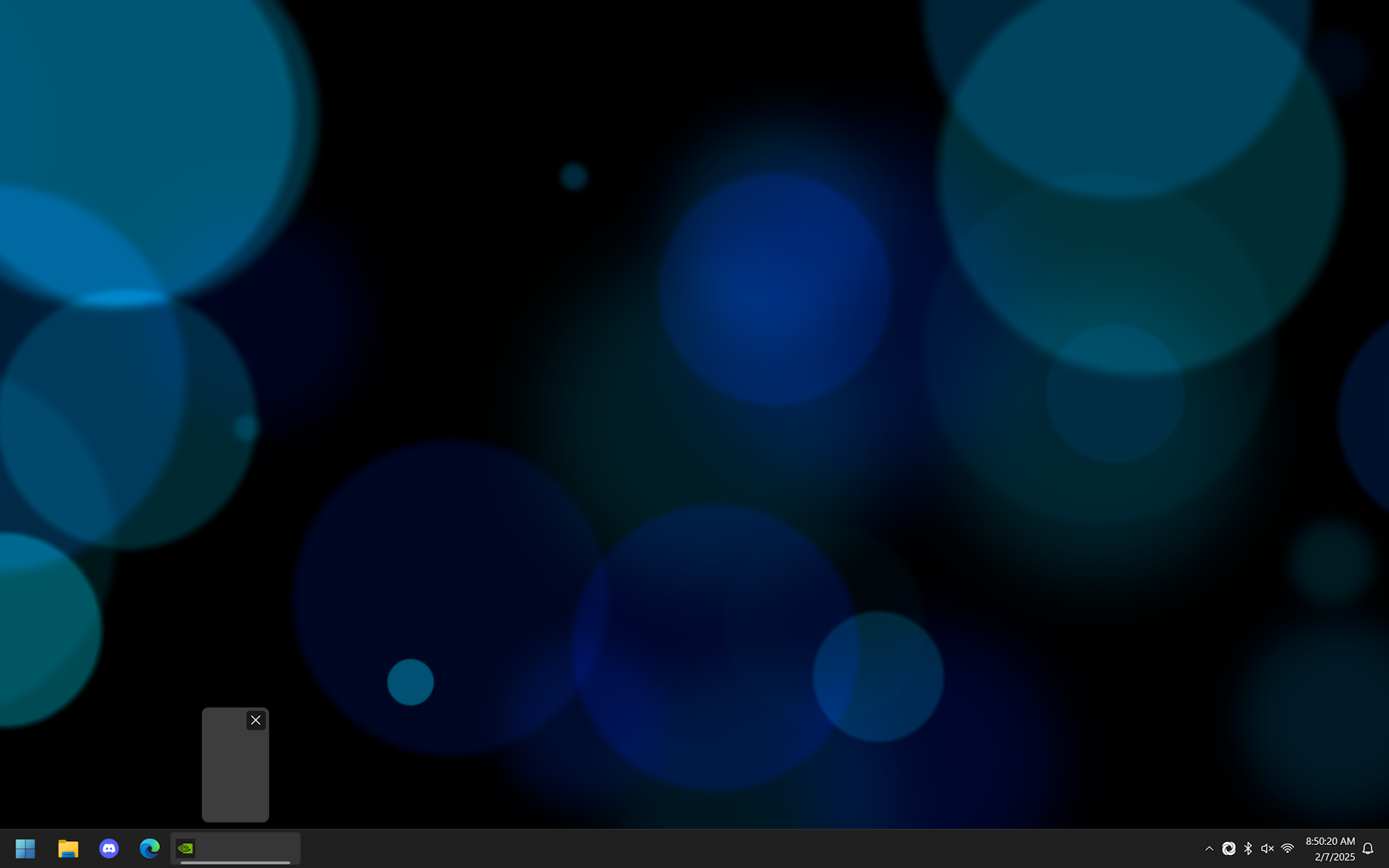
  2. @Tihiy Found one more app that exhibits odd behavior on the new taskbar, similar to iCUE. The new NVIDIA app tends to remain on the taskbar after the main window is closed about 50% of the time, usually showing just an icon with no label (normally says NVIDIA). It will disappear if left clicked on or if you right click → close.
  3. This is the only scenario under which I experience blank icons in shell, and this behavior is consistent across all of my computers running StartAllBack. I can try to get a screen capture of it when I'm home over the weekend. This scenario only seems to happen with applications that can update and relaunch themselves afterwards (i.e. Microsoft Store and Microsoft Teams). It tends to happen if I restart File Explorer before interacting the with relaunched window (i.e. to fix other update Windows Store app icons). It's a very niche scenario, I will admit...
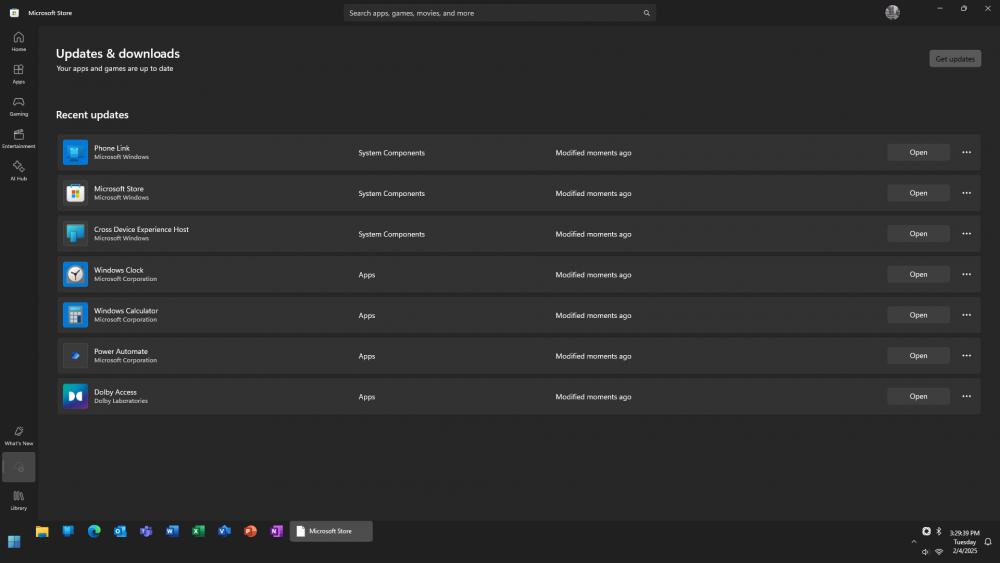
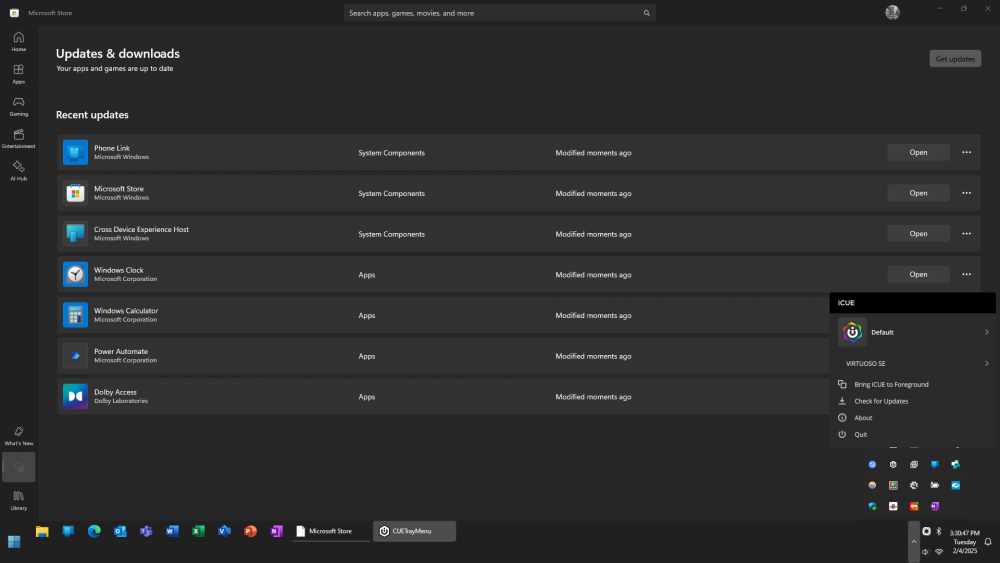
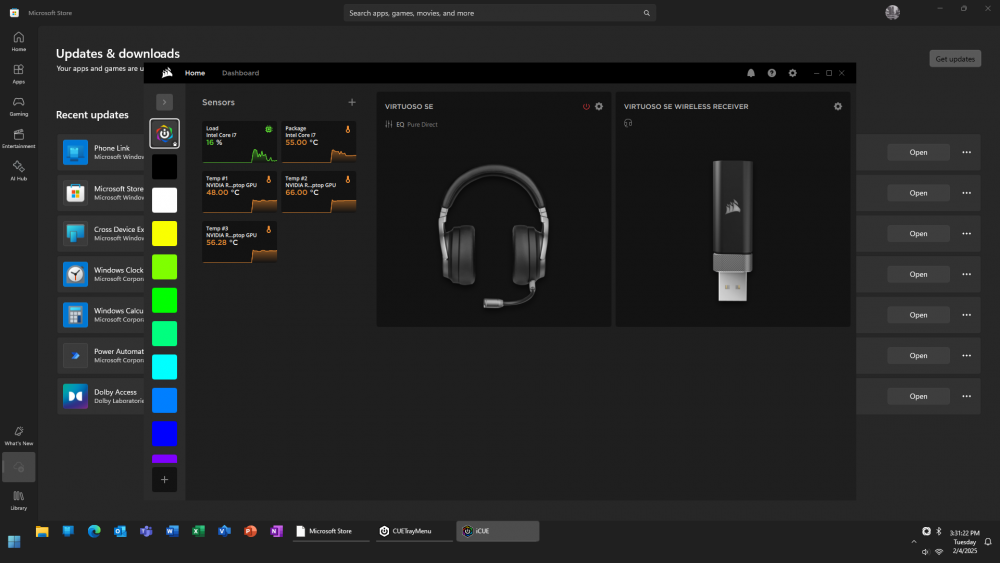
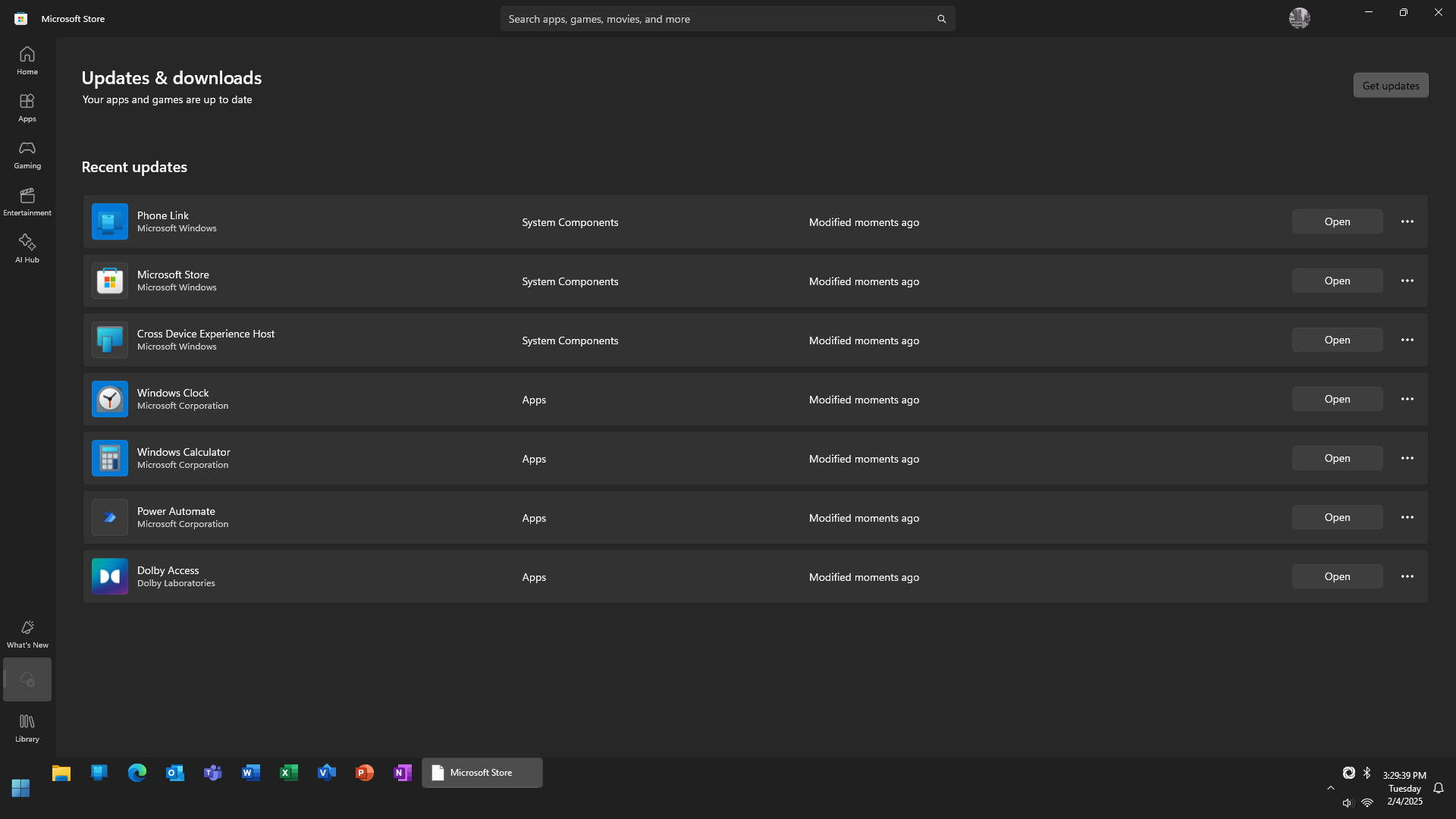
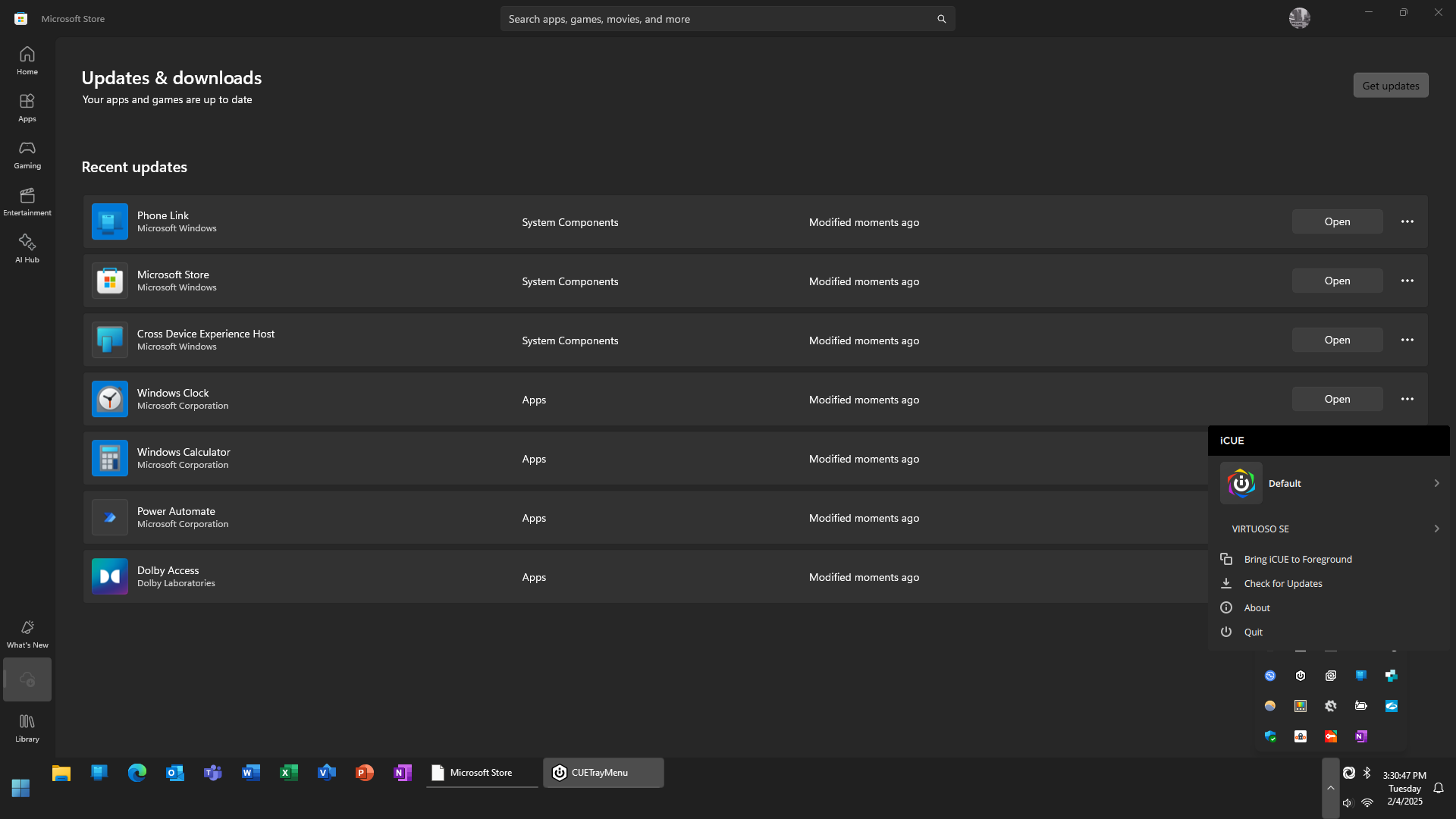
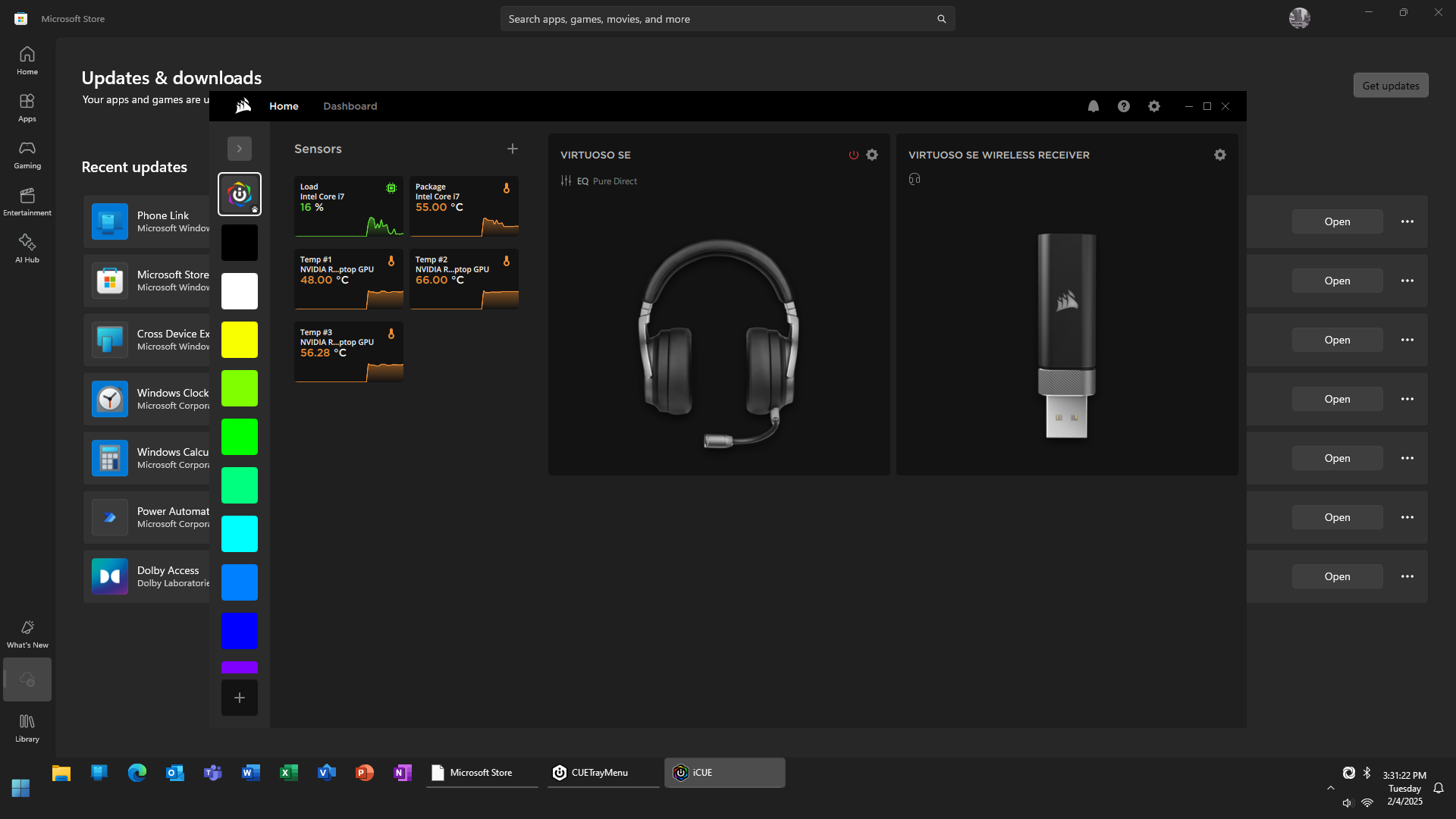
  4. @Tihiy Hi, I've found a few bugs I'd like to report. #1 + #2 (#1) Updating any Microsoft Store app results in a broken icon in the taskbar when launching. The workaround is to restart File Explorer, but this comes with its own issues. (#2) Sometimes, the app will disappear from the taskbar (even after restarting File Explorer) until brought back into focus manually. I've only found this to occur with applications that have the ability to update and open themselves afterwards, like the Microsoft Store or Microsoft Teams. Once the window is brought back into focus, the proper icon will be displayed when the program reappears on the taskbar. An easy way to reproduce the broken icon issue (#1) is the install any application from the Windows Store and open it. These issues started happening when the taskbar was untethered from the standard Windows 10 taskbar (version 3.8) and doesn't happen on the default taskbar. #3 Right-clicking the iCUE icon in the system tray results in a window titled "CUETrayMenu" being added to the taskbar when the pop-up menu appears. iCUE is Corsair's device and RGB management software. Opening iCUE via the pop-up menu opens iCUE as one would expect, but the "CUETrayMenu" window remains on the taskbar unless manually closed by right-clicking and closing. Doing this several times can result in the "CUETrayMenu" getting stuck on the taskbar multiple times, but this doesn't happen consistently. "CUETrayMenu" never appears under any circumstances on the default taskbar, even when the pop-up menu is open. This started happening when the taskbar was untethered from the standard Windows 10 taskbar (version 3.8). Screenshot of broken icon on Microsoft Store: Screenshot of CUETrayMenu in the taskbar with pop-up menu open: Screenshot of CUETrayMenu in the taskbar with iCUE focused:

Account

Navigation

Search

Search

Configure browser push notifications

Chrome (Android)
  1. Tap the lock icon next to the address bar.
  2. Tap Permissions → Notifications.
  3. Adjust your preference.
Chrome (Desktop)
  1. Click the padlock icon in the address bar.
  2. Select Site settings.
  3. Find Notifications and adjust your preference.