Skip to content
View in the app

A better way to browse. Learn more.

MSFN

A full-screen app on your home screen with push notifications, badges and more.

To install this app on iOS and iPadOS
  1. Tap the Share icon in Safari
  2. Scroll the menu and tap Add to Home Screen.
  3. Tap Add in the top-right corner.
To install this app on Android
  1. Tap the 3-dot menu (⋮) in the top-right corner of the browser.
  2. Tap Add to Home screen or Install app.
  3. Confirm by tapping Install.

Ol1v3r

Member
  • Joined

  • Last visited

  • Country

    United States
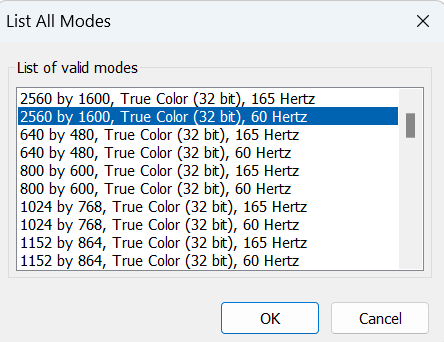
  1. No. I didn't even know about this setting. But I found it eventually. I'm on 32-bit. I updated as well to the latest version now (3.7.6). Unfortunately, no dice.
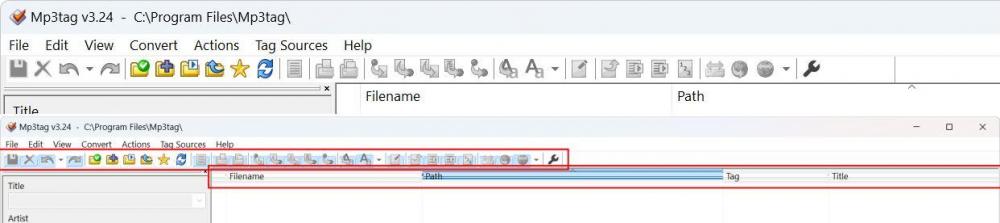
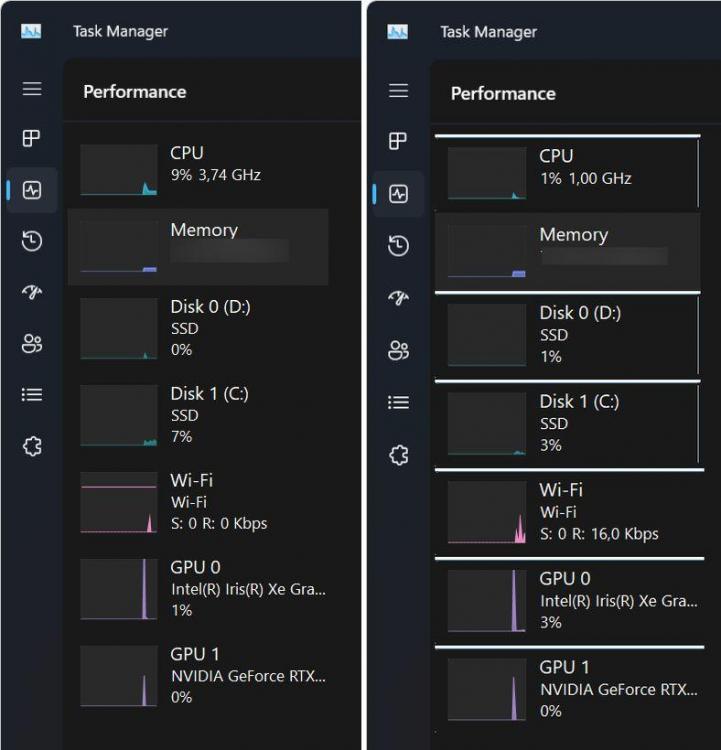
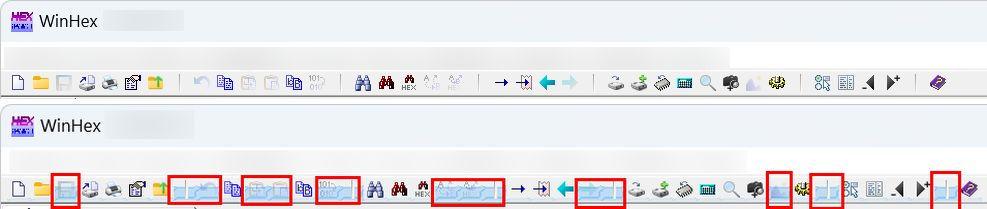
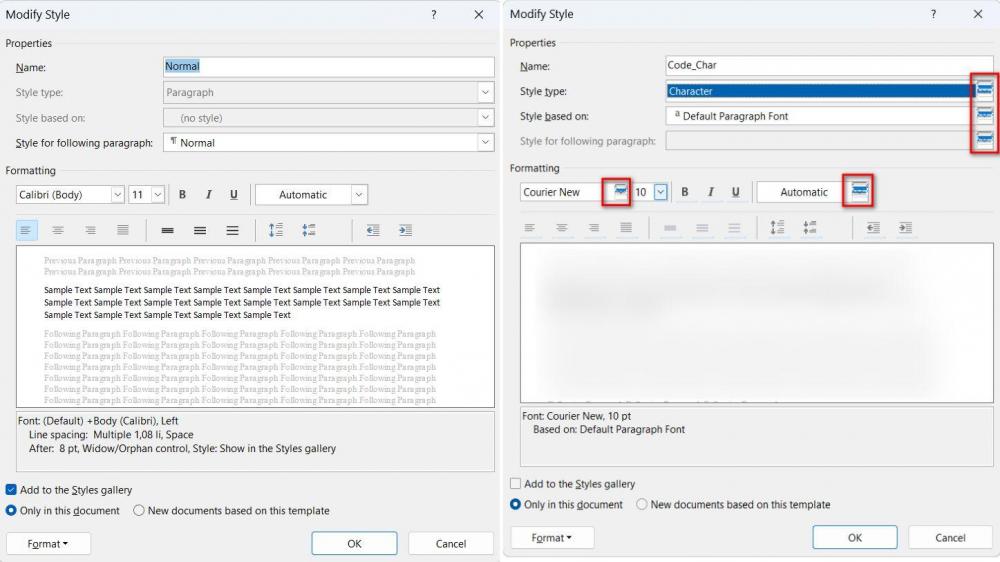
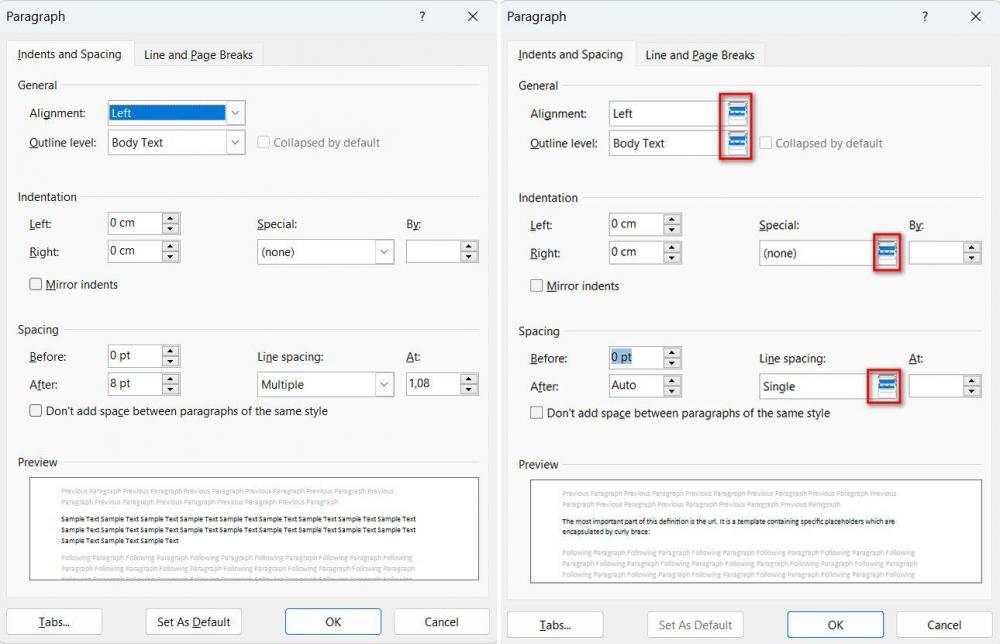
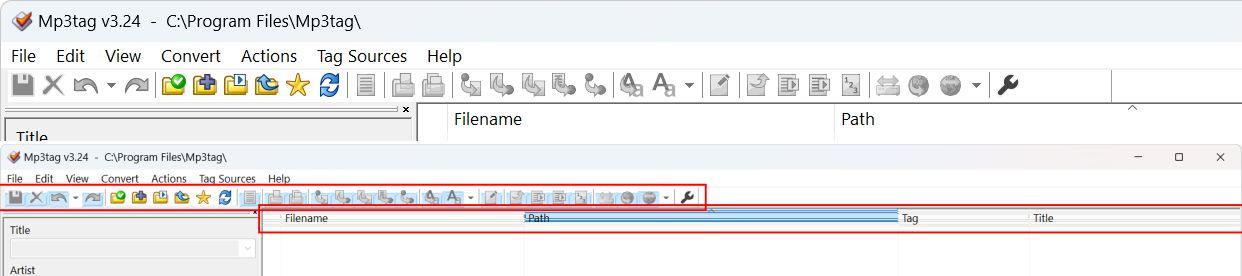
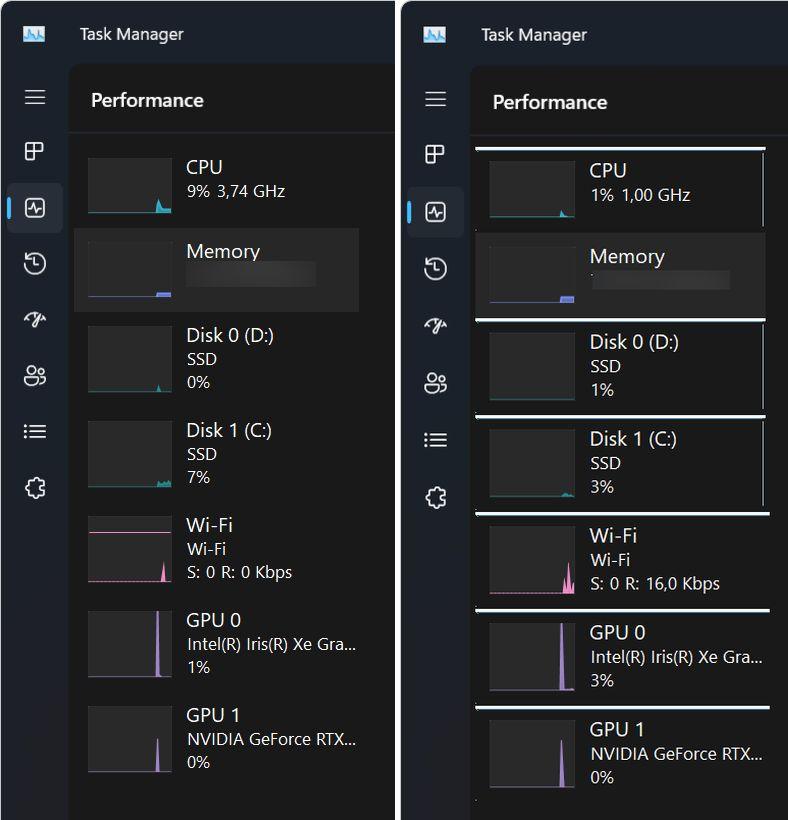
  2. I'm on Win11 23H2 using StartAllBack 3.7.5 and I have all kind of ugly artifacts. mainly on apps with light interface or not fully dark interface (see the attached screenshots). There is an exception though: the Windows Task Manager in the Performance tab. It's obvious that SAB is causing this, because when I disable it and sign out / sign in, there are no artifacts at all. But then all the ugliness of the Start Menu and light run box are back. I was wondering if, in a future version, would be possible to have something like a WhiteList for these apps that are showing the ugly artifacts, so that SAB will leave them untouched?


Account

Navigation

Configure browser push notifications

Chrome (Android)
  1. Tap the lock icon next to the address bar.
  2. Tap Permissions → Notifications.
  3. Adjust your preference.
Chrome (Desktop)
  1. Click the padlock icon in the address bar.
  2. Select Site settings.
  3. Find Notifications and adjust your preference.