-
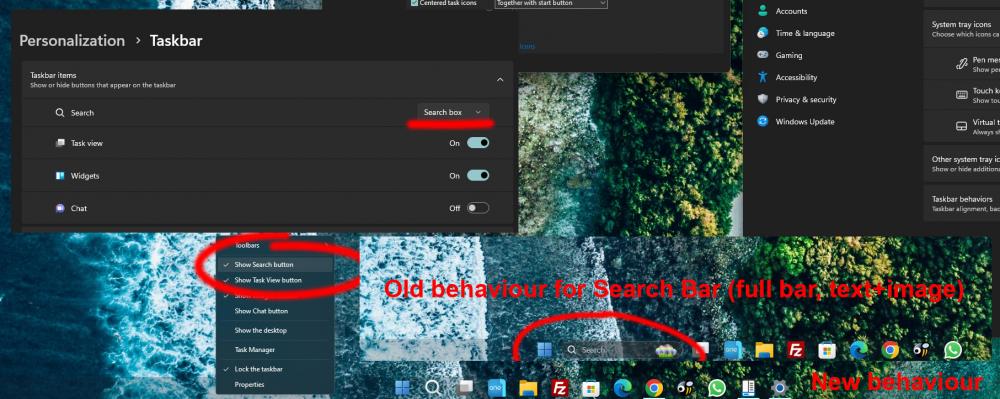
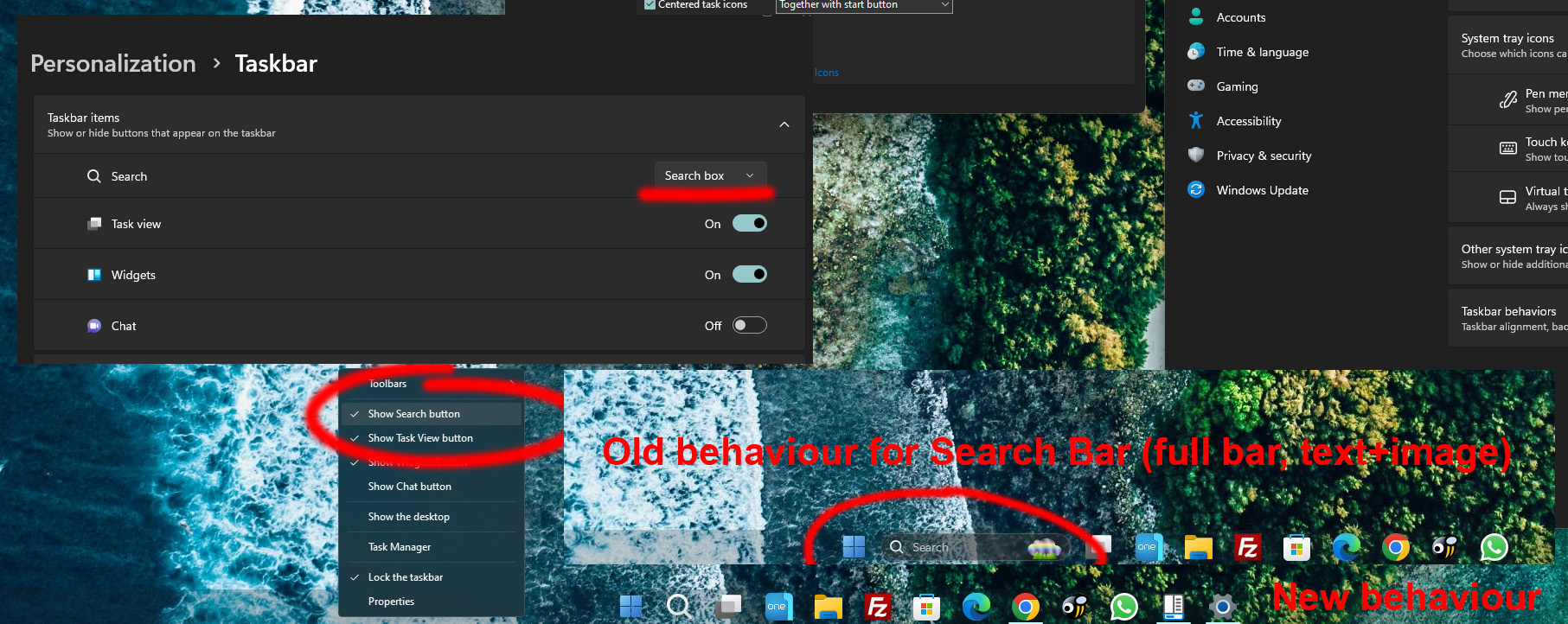
Hello, 1st post here since I never had any issues with using StartisBack since Windows 8 days. I am currently using the StartAllBack latest *stable* version available to me, v.3.6.3 with Win11 22H2 (OS Build 22621.1413) and noticed some issues 2nd day since brand new fresh windows install with the search bar integration into the taskbar. I usually don't use the search bar and completely hide it, but with the latest AI /Bing integrations search is actually very usable and worth it imho, when I tried it first - bottom/standard positioning it loaded ok with icon.icon and label and full bar search... the only times it stopped from working the same way when I positioned the taskbar in any other position/ left, right or up. The same behaviour since yesterday could be observed with the bottom taskbar only showing the "icon layout" , icon and label and full search bar not showing/updating with the software. Would be great it this can be investigated/replicated with a possible fix soon.