Skip to content
View in the app

A better way to browse. Learn more.

MSFN

A full-screen app on your home screen with push notifications, badges and more.

To install this app on iOS and iPadOS
  1. Tap the Share icon in Safari
  2. Scroll the menu and tap Add to Home Screen.
  3. Tap Add in the top-right corner.
To install this app on Android
  1. Tap the 3-dot menu (⋮) in the top-right corner of the browser.
  2. Tap Add to Home screen or Install app.
  3. Confirm by tapping Install.

rdp

Member
  • Joined

  • Last visited

  • Country

    United States
  1. Lol, sorry, assumed the YT video you linked was yours -- hence "[my] much older HW" & link to Omores' vids. If it was a snake, it woulda bit me.
  2. Could've been me ~3 years ago, worked for me but on much older HW (an X99 board with MBR formatted NVMe}.Installed vanilla XP 32 on SSD & started looking for NVMe drivers that both didn't crash after reboot & recognized the NVMe. IIRC one from George King's driver collection worked.Once that was done, i simply cloned the partition onto NVMe (it doesn't need to be the first partition, i think that's a win 98 thing), and pointed EasyBCD to it (make sure to select XP in EasyBCD). Posting from that XP install now (https://imgur.com/7gJ54GG). There's a guy going by Omores who has a much less hacky way of installing XP on modern HW & NVMe -- check out his YT: https://www.youtube.com/@O_mores

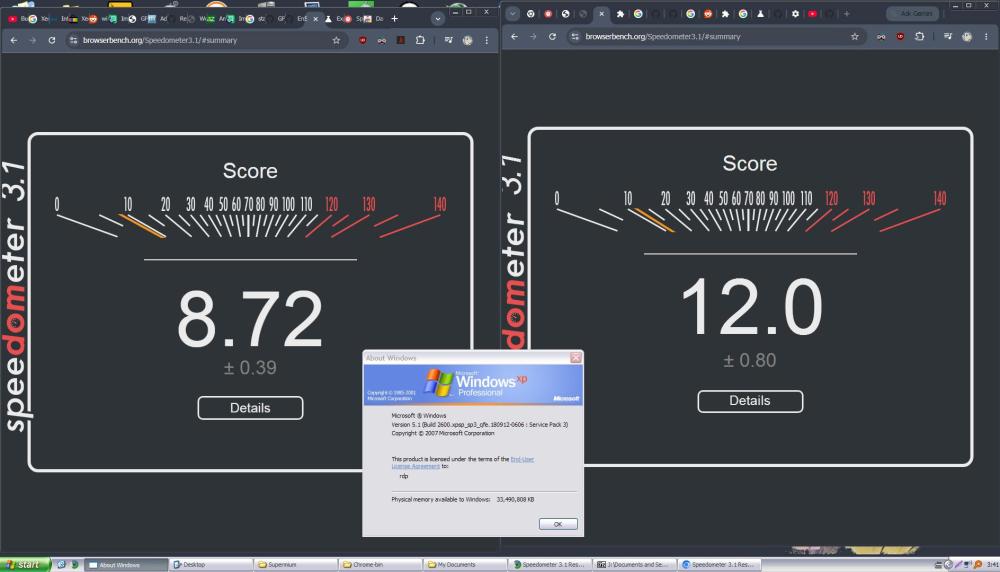
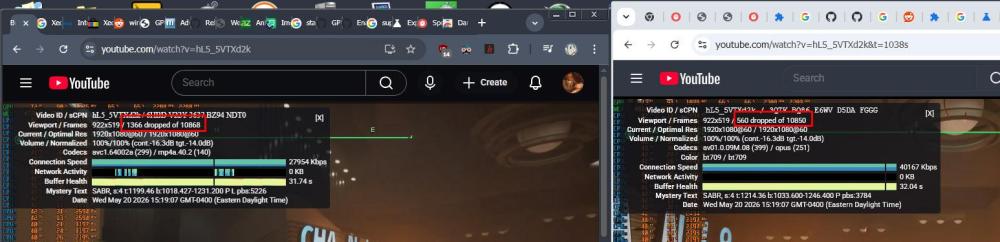
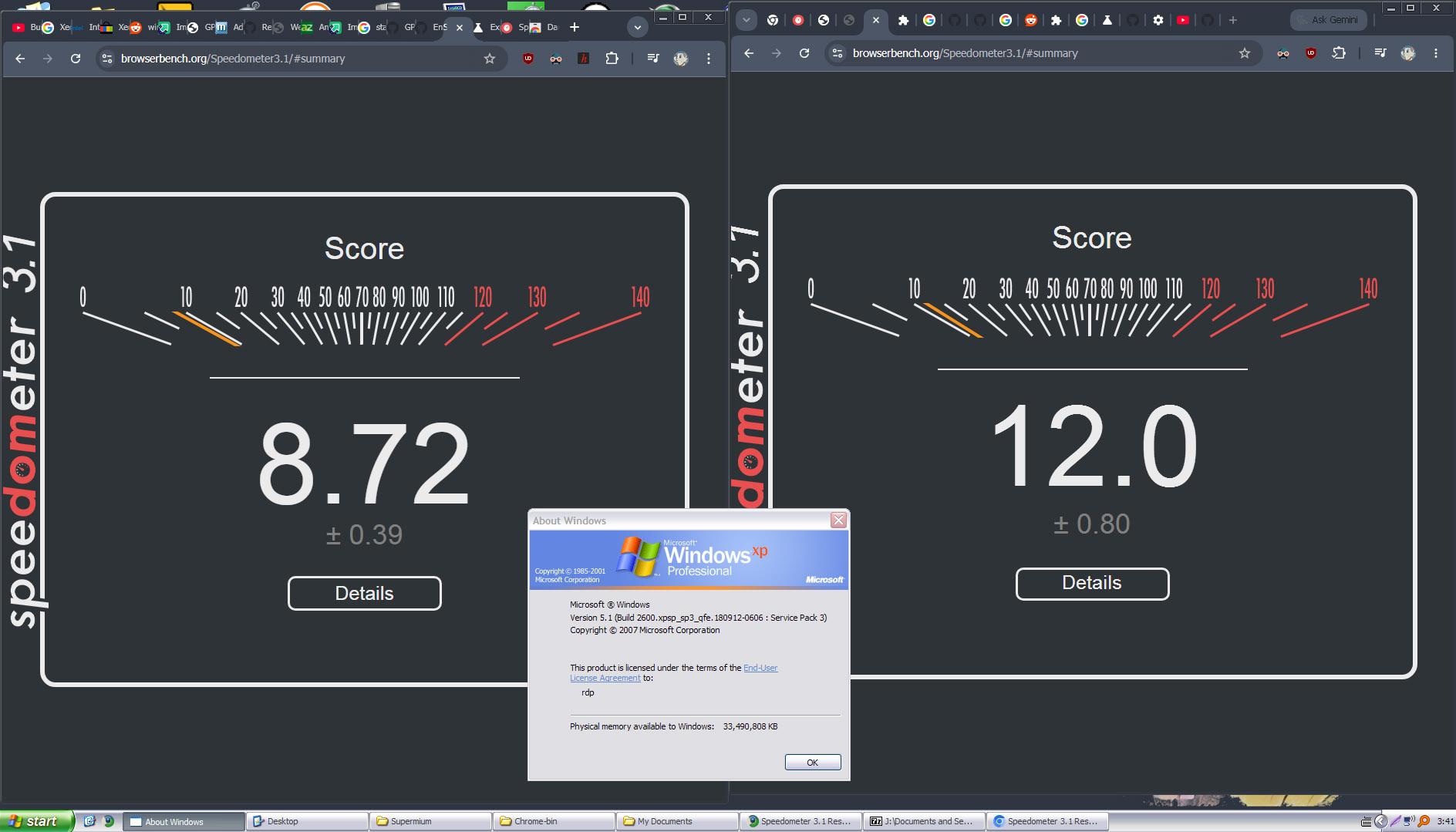
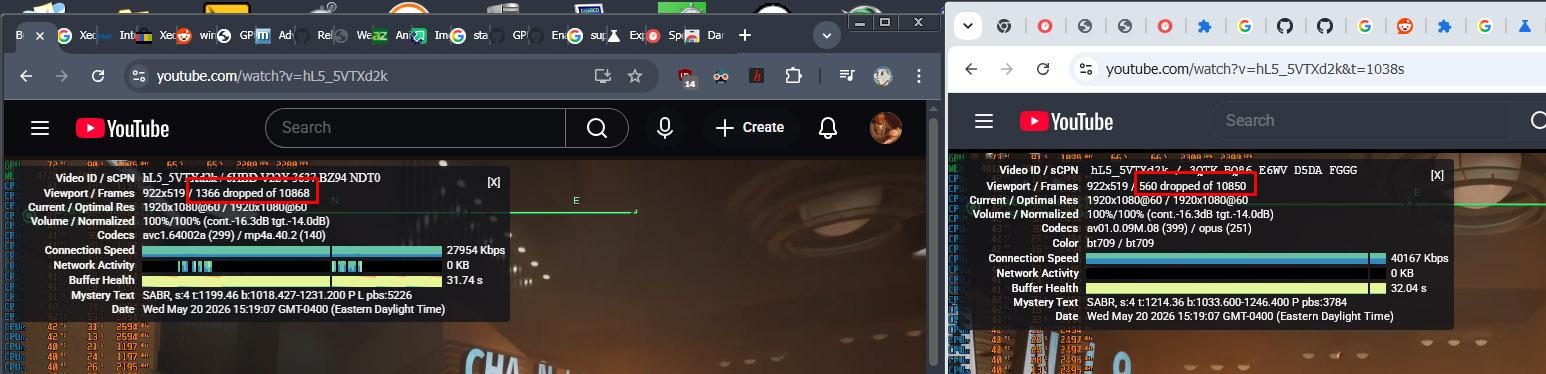
  3. You mean why is it better than Supermium? For me, it seems to bench better (in XP), and seems to drop fewer frames in YT. "Seems" because haven't tested extensively + not sure if anyone other than myself experiences Supermium in XP dropping frames. BTW, win32 knows the author [or maybe just his work] & refers people to him: https://github.com/win32ss/supermium/issues/1183#issuecomment-2688498965 Not endorsing the browser, but am using it with XP & not seeing any drawbacks (other than it's not the devil we know).

Account

Navigation

Configure browser push notifications

Chrome (Android)
  1. Tap the lock icon next to the address bar.
  2. Tap Permissions → Notifications.
  3. Adjust your preference.
Chrome (Desktop)
  1. Click the padlock icon in the address bar.
  2. Select Site settings.
  3. Find Notifications and adjust your preference.