Skip to content
View in the app

A better way to browse. Learn more.

MSFN

A full-screen app on your home screen with push notifications, badges and more.

To install this app on iOS and iPadOS
  1. Tap the Share icon in Safari
  2. Scroll the menu and tap Add to Home Screen.
  3. Tap Add in the top-right corner.
To install this app on Android
  1. Tap the 3-dot menu (⋮) in the top-right corner of the browser.
  2. Tap Add to Home screen or Install app.
  3. Confirm by tapping Install.

hunteds911

Member
  • Joined

  • Last visited

  • Country

    United States
  1. hunteds911 replied to Tihiy's topic in StartIsBack+
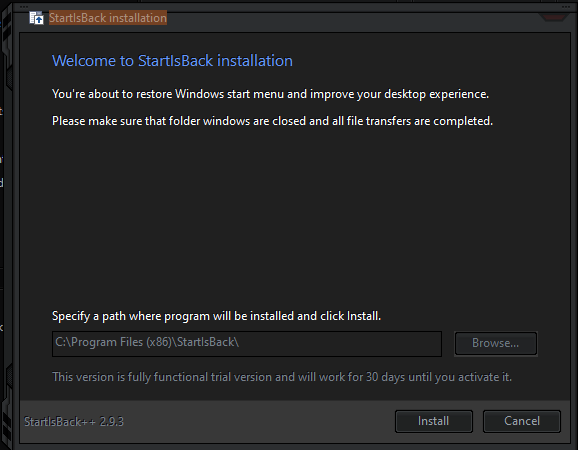
    To start, awesome product and thank you... I downloaded from the link above for 2999 Experimental and it looks to have 2.9.3 stamped at the bottom. Once installed, it goes out for updates and wants to update to 2.9.5
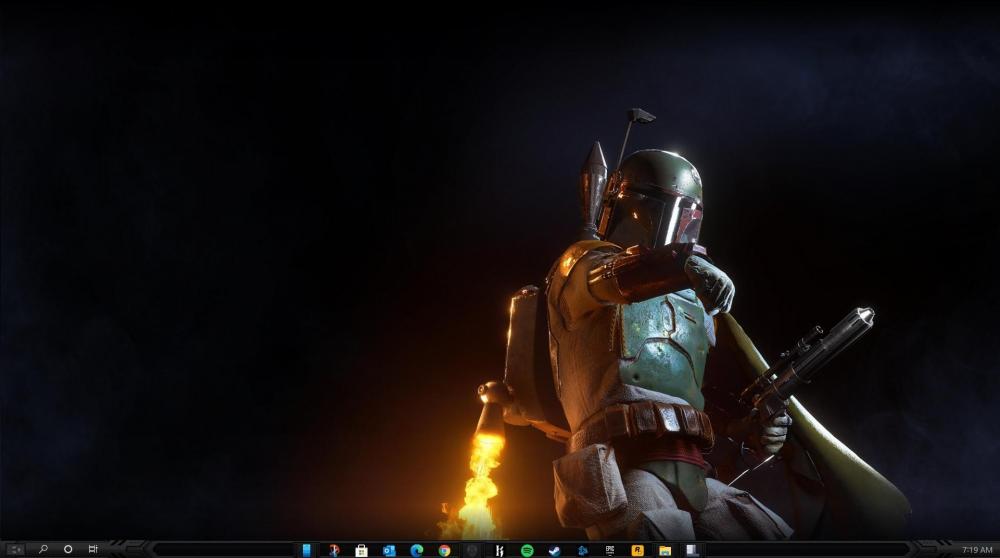
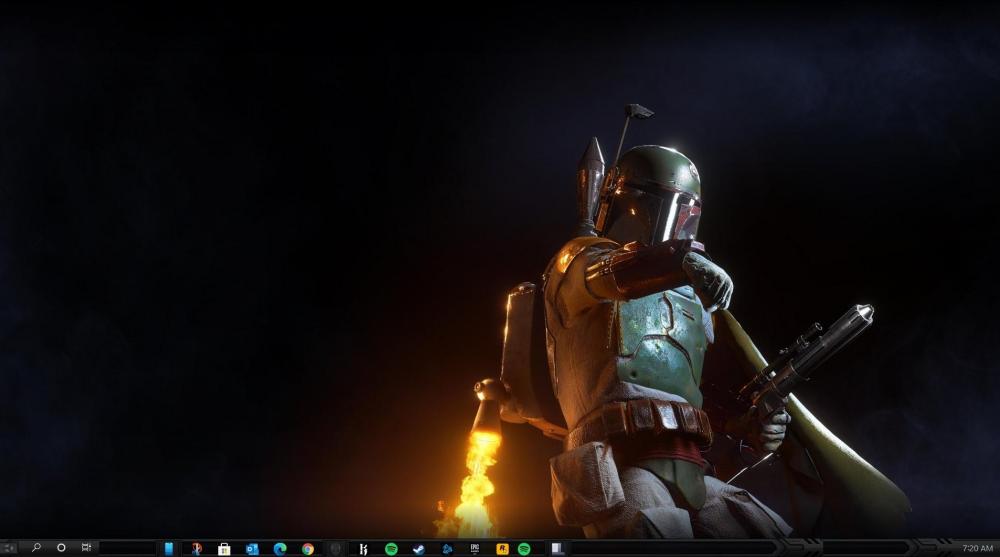
  2. So I tried the Centerd Task Icon option and found that when using dual monitor it has an anomaly. Also I am using version 2.9.5 When you close an open window the icons on the secondary monitor will flash to the left then go back to center. Centered normally. When closing the window this was taken as the app was closing. You can see the shift in the pic below. Once the app is done closing the task icons go back to center.
Account

Navigation

Configure browser push notifications

Chrome (Android)
  1. Tap the lock icon next to the address bar.
  2. Tap Permissions → Notifications.
  3. Adjust your preference.
Chrome (Desktop)
  1. Click the padlock icon in the address bar.
  2. Select Site settings.
  3. Find Notifications and adjust your preference.