




Everything posted by Python Lvl.1
-
Thanks
-
What about the inability to run Jupyter Notebook? Is there anyone who could provide a clue about it?
-
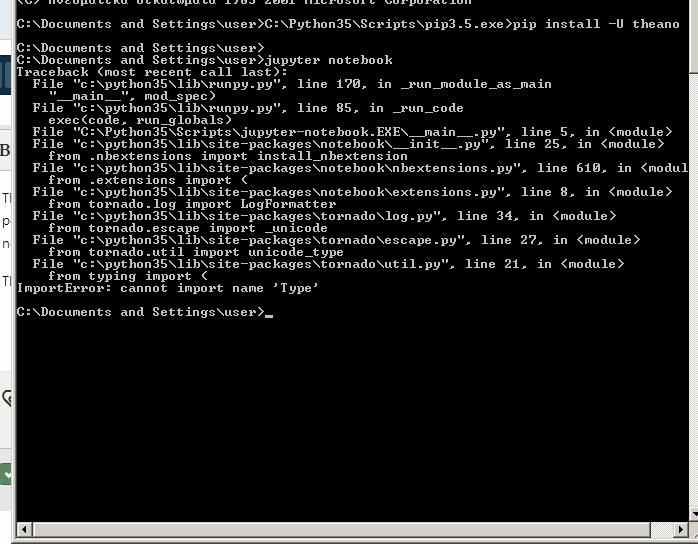
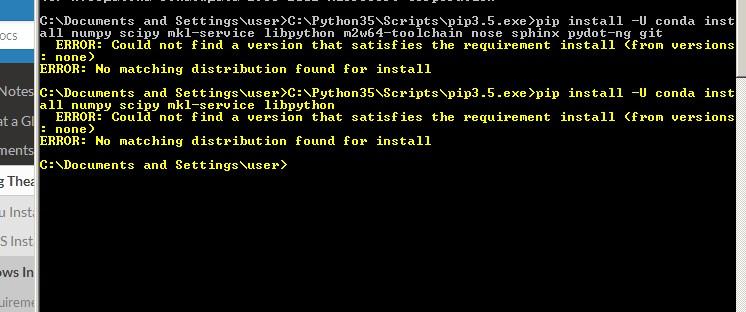
This mostly worked (albeit with pip install -U instead of pip install). However, a new problem arised with the jupyter notebook. Whenever i attempt to run the notebook, it pops up this: ImportError: cannot import name 'Type' This seems to originate from the tornado package. Also, when i attempt to install packages like Theano, Keras, or Cntk, nothing happens. Does anyone in the community have any idea about what's going on? Thank you, P.S. A similar problem arises with cetain installation packages, stating "No matching distributions found"
-
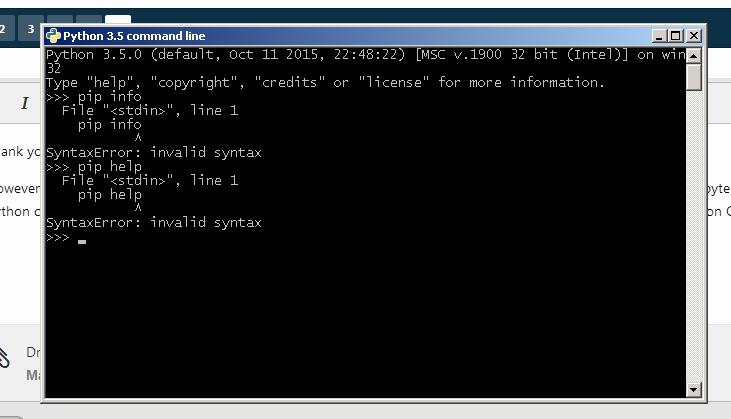
Thank you Mathwiz. However, i would like to use python 3.5 through the Windows Command line, in order to easily upgrade pip, install jupyter, tensorflow, keras, e.t.c. The problem with Python command prompt, in all python versions, is that it routinely pops Syntax Error: Invalid Syntax. This makes Python Command Prompt almost unusable. P.S. I already tried to change system variables > Path, but then the command Python is not recognised at all. Previously, i tried to use Anaconda, but to no avail· it only recognises python 3.4
-
Hello, i just ran the .exe file, acessed through the above mentioned link. However, Python 3.5 is not listed in the Windows programms list, as ordinary .msi packages do. Have i done any mistake during the Installation? How can i fix this issue? Thank you,