Skip to content
View in the app

A better way to browse. Learn more.

MSFN

A full-screen app on your home screen with push notifications, badges and more.

To install this app on iOS and iPadOS
  1. Tap the Share icon in Safari
  2. Scroll the menu and tap Add to Home Screen.
  3. Tap Add in the top-right corner.
To install this app on Android
  1. Tap the 3-dot menu (⋮) in the top-right corner of the browser.
  2. Tap Add to Home screen or Install app.
  3. Confirm by tapping Install.

Viper6

Member
  • Joined

  • Last visited

  • Country

    Australia
  1. Viper6 replied to Tihiy's topic in StartIsBack+
    Thanks so much for moving 'Properties' back to the bottom of that menu in 2.0.5, much much better! I really appreciate it
  2. Viper6 replied to Tihiy's topic in StartIsBack+
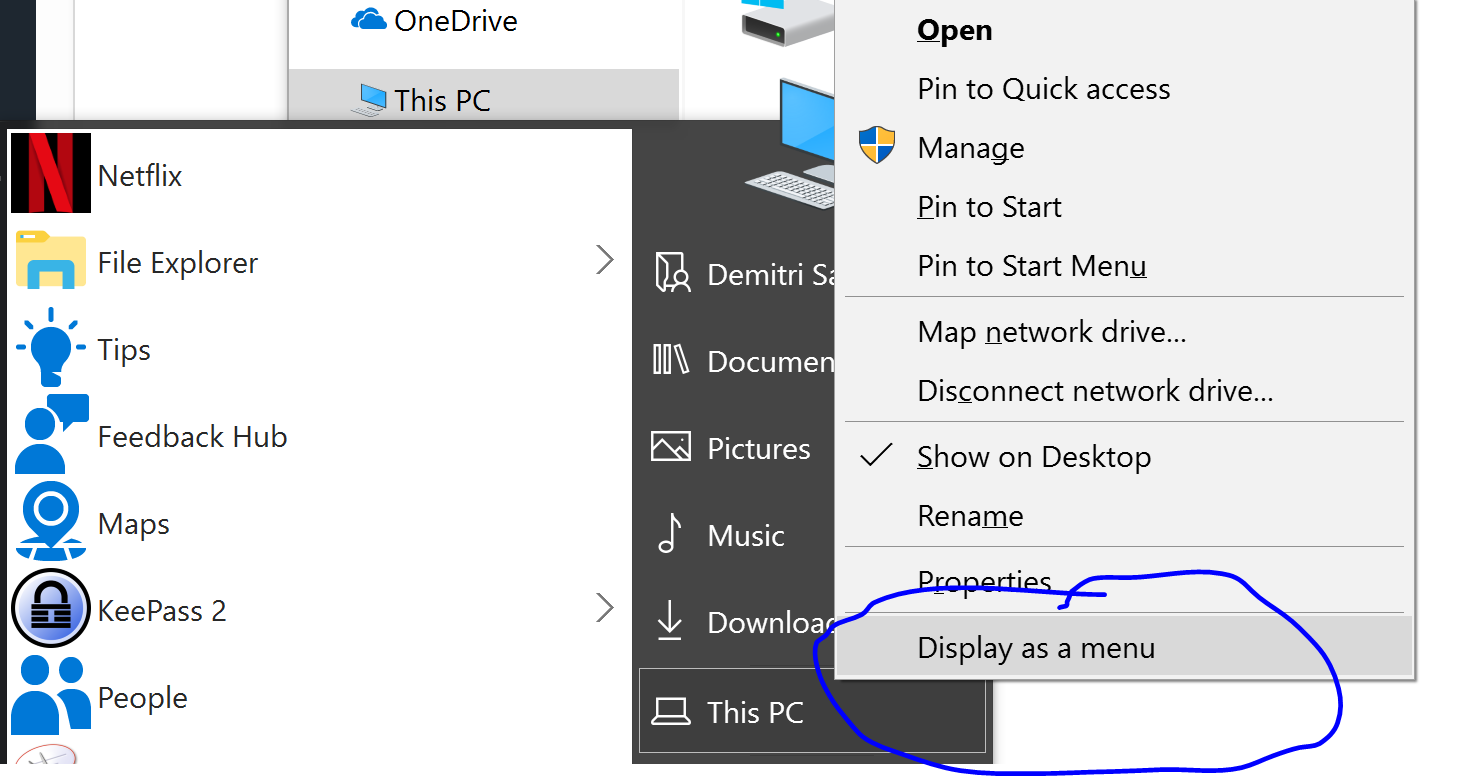
    The option doesn't bother me so much, however the placement of it does. I am used to clicking on Start Menu -> right-clicking on 'This PC' and then clicking on 'Properties' which is always at the BOTTOM of the list of options. Now the BOTTOM option has been changed to 'Display as menu'. Is there a way to re-order that menu or hide 'display as menu'. I just want 'Properties' to be the last option in that list as it has always been.
  3. Viper6 replied to Tihiy's topic in StartIsBack+
    Just installed 2.0.1 How do I get rid of the "Display as a menu" option when right-clicking?

Account

Navigation

Configure browser push notifications

Chrome (Android)
  1. Tap the lock icon next to the address bar.
  2. Tap Permissions → Notifications.
  3. Adjust your preference.
Chrome (Desktop)
  1. Click the padlock icon in the address bar.
  2. Select Site settings.
  3. Find Notifications and adjust your preference.