Skip to content
View in the app

A better way to browse. Learn more.

MSFN

A full-screen app on your home screen with push notifications, badges and more.

To install this app on iOS and iPadOS
  1. Tap the Share icon in Safari
  2. Scroll the menu and tap Add to Home Screen.
  3. Tap Add in the top-right corner.
To install this app on Android
  1. Tap the 3-dot menu (⋮) in the top-right corner of the browser.
  2. Tap Add to Home screen or Install app.
  3. Confirm by tapping Install.

pepanee

Member
  • Joined

  • Last visited

  • Country

    United States
  1. I see what you mean. It took me a while to understand that; I regrouped the items by Name/Total Size/etc.. and now understand what you mean by all that. Thanks
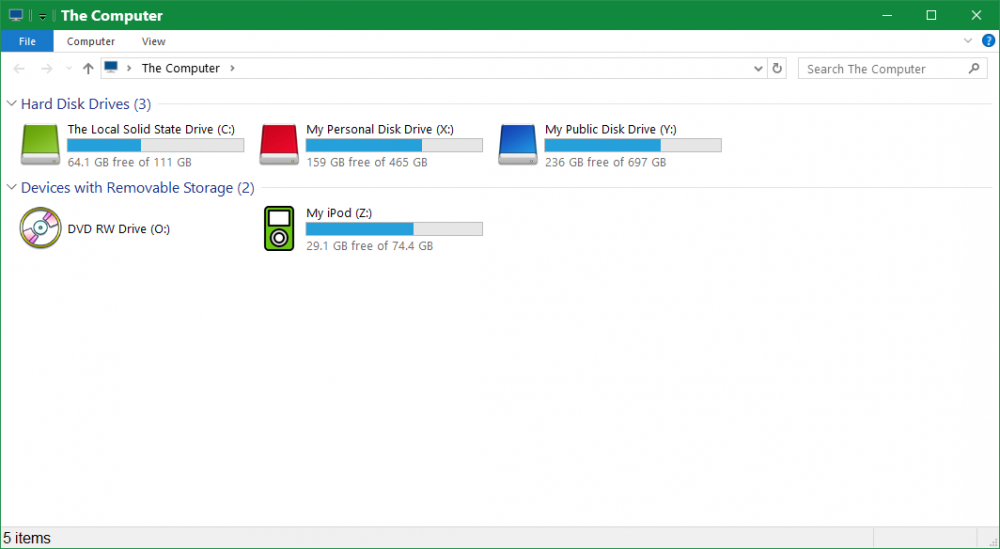
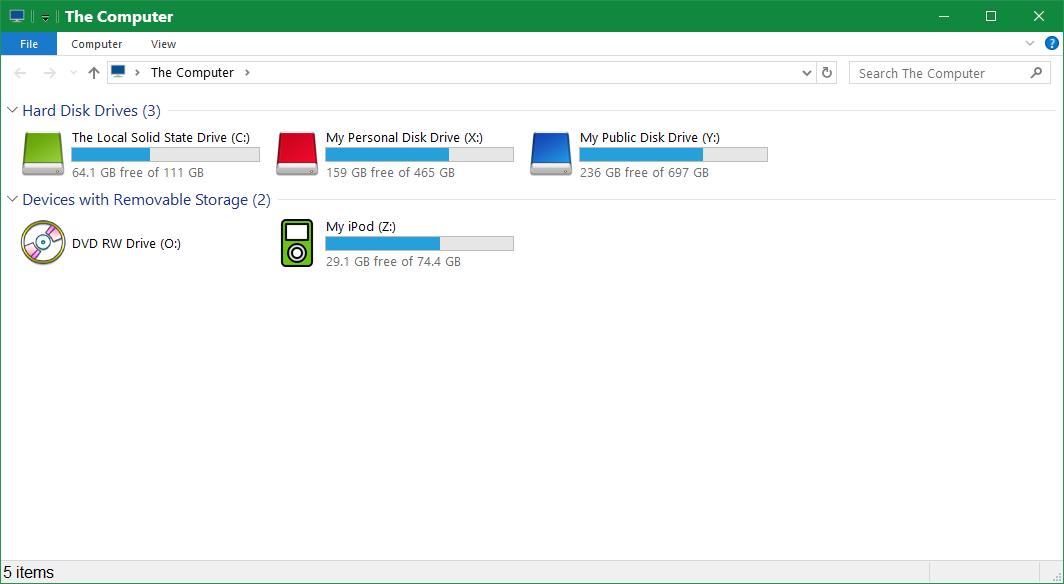
  2. Hello, this message is for the developer: Hi, and thank you so much for this app; I use the "Use classical drive grouping in This PC" option to separate the Hard Drives from the DVD-Rom & the old-skool iPod that I have. Love the way File Explorer looks. Yet times have been changing and now the section for "Hard Disk Drives" isn't completely correct. I have 3 Drives total: 2 of them are Hard Disk Drives, yet the main one is a Solid State Drive =þ I upgraded that muther. Do you think you can update the app to fix that little out-of-date bug? Suggested Examples: • Solid State and Hard Disk Drives • Hard Disk and Solid State Drives Also, do you think you can implement an optional setting for us to manually rename those sections if we want to? For example, I want to rename "Devices with Removable Storage" to "All The Other Devices" Thank you bro

Account

Navigation

Configure browser push notifications

Chrome (Android)
  1. Tap the lock icon next to the address bar.
  2. Tap Permissions → Notifications.
  3. Adjust your preference.
Chrome (Desktop)
  1. Click the padlock icon in the address bar.
  2. Select Site settings.
  3. Find Notifications and adjust your preference.