Skip to content
View in the app

A better way to browse. Learn more.

MSFN

A full-screen app on your home screen with push notifications, badges and more.

To install this app on iOS and iPadOS
  1. Tap the Share icon in Safari
  2. Scroll the menu and tap Add to Home Screen.
  3. Tap Add in the top-right corner.
To install this app on Android
  1. Tap the 3-dot menu (⋮) in the top-right corner of the browser.
  2. Tap Add to Home screen or Install app.
  3. Confirm by tapping Install.

wizzard

Member
  • Joined

  • Last visited

  • Country

    Australia
  1. My Two Cents PLz host images on personal webspace. We try to keep the server load to a minimum to maintain top performance for all our members
  2. Yeah i'd like one that says wizzard, or just wiz. and to have a cartoon exactly like yours. i'd appericate that thanks
  3. yeah it defiently looks good :-). maybe a different range of colours. and a "spikeiness" to it. good job.
  4. Howdy guyz, i really need help on an avatar, ermm i'm really stuck, i've come up with on "ok" one so far but i know you can do better, and any help or any thing would be very much appericated. I would like it to say "Wizzard" or Just "Wiz" either one, which ever is easy for you Thanks alot !!!!!!! Much appericated p.s i made the one i have now as an "idea" for ya. thanks once agian, i really appericate any help that comes in with this.
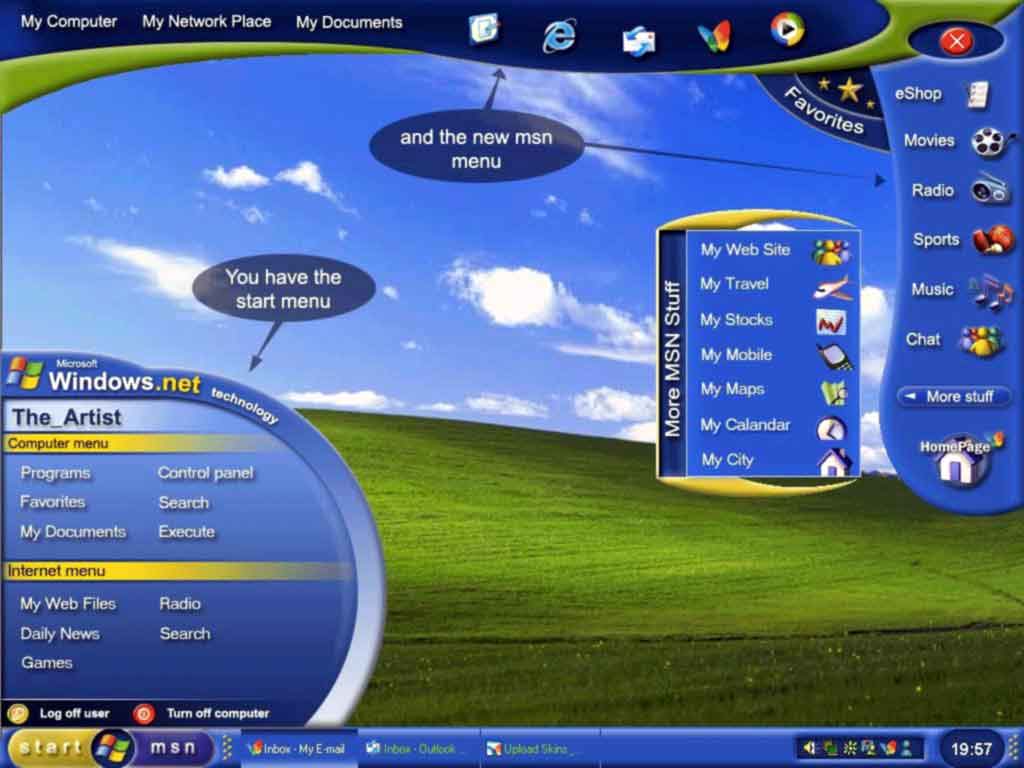
  5. Here is my windows longhorn desktop as it is right now. lookin good i'll say
Account

Navigation

Configure browser push notifications

Chrome (Android)
  1. Tap the lock icon next to the address bar.
  2. Tap Permissions → Notifications.
  3. Adjust your preference.
Chrome (Desktop)
  1. Click the padlock icon in the address bar.
  2. Select Site settings.
  3. Find Notifications and adjust your preference.