



Skip to content
View in the app

A better way to browse. Learn more.

MSFN

A full-screen app on your home screen with push notifications, badges and more.

To install this app on iOS and iPadOS
  1. Tap the Share icon in Safari
  2. Scroll the menu and tap Add to Home Screen.
  3. Tap Add in the top-right corner.
To install this app on Android
  1. Tap the 3-dot menu (⋮) in the top-right corner of the browser.
  2. Tap Add to Home screen or Install app.
  3. Confirm by tapping Install.

zaphodity

Member
  • Joined

  • Last visited

  • Country

    Australia
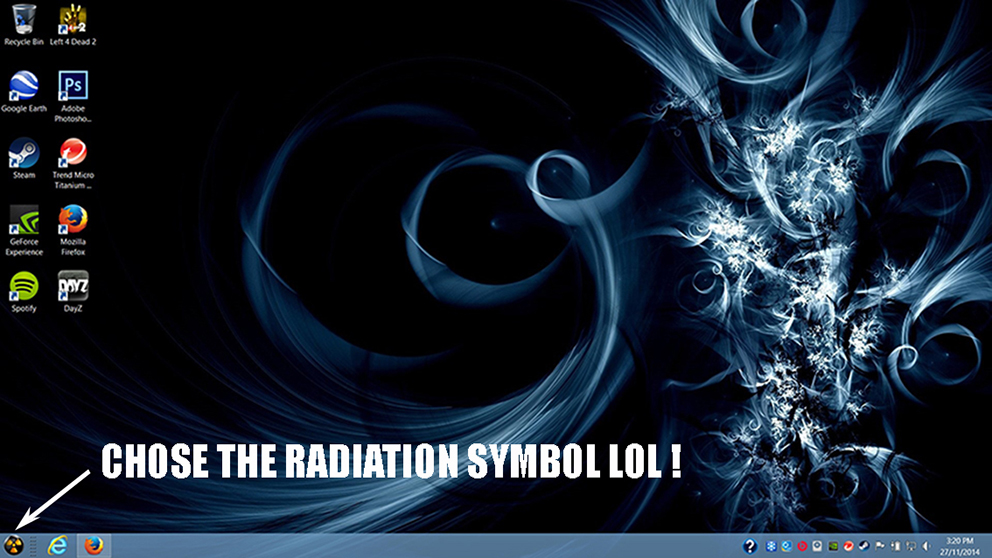
  1. Hi, First off, just let me say that you must be a multimillionaire by now after inventing this wonderful software. I installed StartIsBack awhile ago, but have lost the key password thingy. Just recently my computer keeps asking me to upgrade to Windows 8.1....HELLLLPPP !!!!!....I just keep clicking on 'In 4 Hours' when it asks. I am not sure how to check which version of StartIsBack I have, when I type StartIsBack into search programs and files, it just says 'StartIsBack_Setup'. Sorry, I am not very computer literate. Do I simply download StartIsBack+ and install ? I do NOT mind having to pay another $3 for StartIsBack+. Once again, thank you for this wonderful software, you have saved many peoples sanity. Regards Zaphodity
Account

Navigation

Configure browser push notifications

Chrome (Android)
  1. Tap the lock icon next to the address bar.
  2. Tap Permissions → Notifications.
  3. Adjust your preference.
Chrome (Desktop)
  1. Click the padlock icon in the address bar.
  2. Select Site settings.
  3. Find Notifications and adjust your preference.