Skip to content
View in the app

A better way to browse. Learn more.

MSFN

A full-screen app on your home screen with push notifications, badges and more.

To install this app on iOS and iPadOS
  1. Tap the Share icon in Safari
  2. Scroll the menu and tap Add to Home Screen.
  3. Tap Add in the top-right corner.
To install this app on Android
  1. Tap the 3-dot menu (⋮) in the top-right corner of the browser.
  2. Tap Add to Home screen or Install app.
  3. Confirm by tapping Install.

CanzonE

Member
  • Joined

  • Last visited

  • Country

    Israel
  1. You, sir, are a genius O_O Thank you sooo much!
  2. Umm, I don't get what this has to do with my problem, can you please elaborate?
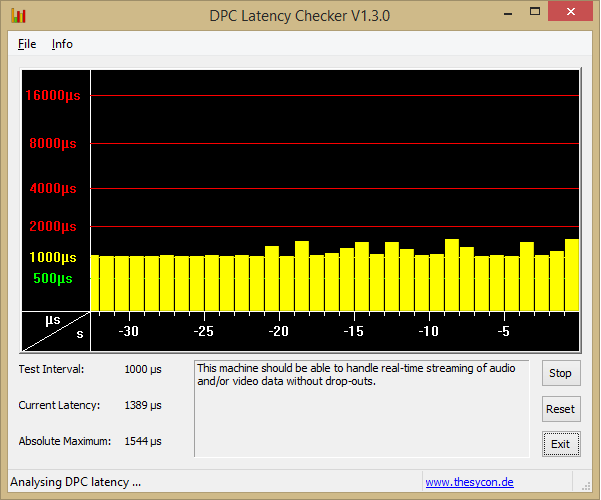
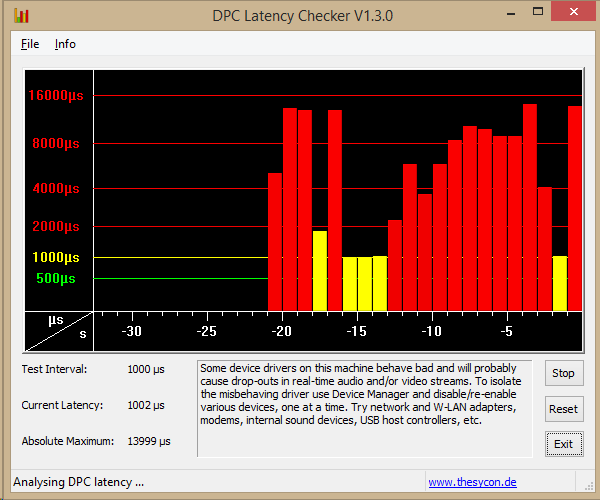
  3. Unfortunatley, the problem is still there: It did indeed look like what you posted up until I opened up my music folder
  4. I know there are some incomatabilities, but the fact is the sound on my computer is lagging and crackling. Trying this right now
  5. Hi guys, not sure if this is the correct place to post this, but I'm out of options... I'm having major issues with the DPC on my computer. Before and after I installed any programs on w8.1 i have been having audio drops and cutouts, I have tried: * Installing the newest sound drivers * Resetting the BIOS configurations * Installing the newest Motherboard drivers from Intel * Installing newest drivers from Nvidia * Cleaning my computer from dust as well as cleaning the RAM and graphics card contacts * Discharging my speakers of current The problem still persists after all that. I checked using xperf and found that the "culprit" is ntoskrnl.exe (at least I think that is what it says...) I'm running on a pretty old customized computer: Motherboard: GigaByte G41M-Combo Ver 2.0 CPU: Intel Core 2 Quad Q6600 2.4GHz Display card: Nvidia Geforce 630 GT 1GB RAM: 8GB My sound card is in my Motherboard. I'm adding the .etl file here: https://www.dropbox.com/s/pejj430ks5ymx0f/CPU.etl Thanks in advanced

Account

Navigation

Search

Search

Configure browser push notifications

Chrome (Android)
  1. Tap the lock icon next to the address bar.
  2. Tap Permissions → Notifications.
  3. Adjust your preference.
Chrome (Desktop)
  1. Click the padlock icon in the address bar.
  2. Select Site settings.
  3. Find Notifications and adjust your preference.