-
Thanks for the suggestions. Firstly, apologies to the forum, when I entered my topic it wouldn't "post" so I must have pressed "post" a couple of times. I have been through Control Panel - Programs & Features and I do no see Bing as an installed update. Also it does not come up when I go Start - "Bing" search, there is no mention in my Program list either under Bing, Microsoft or Windows. JorgeA, thanks for your suggestions. There's no ref. to Bing in the "Turn Windows Features on/off" section. And no process in Task Manager. Still working on it . . .
-
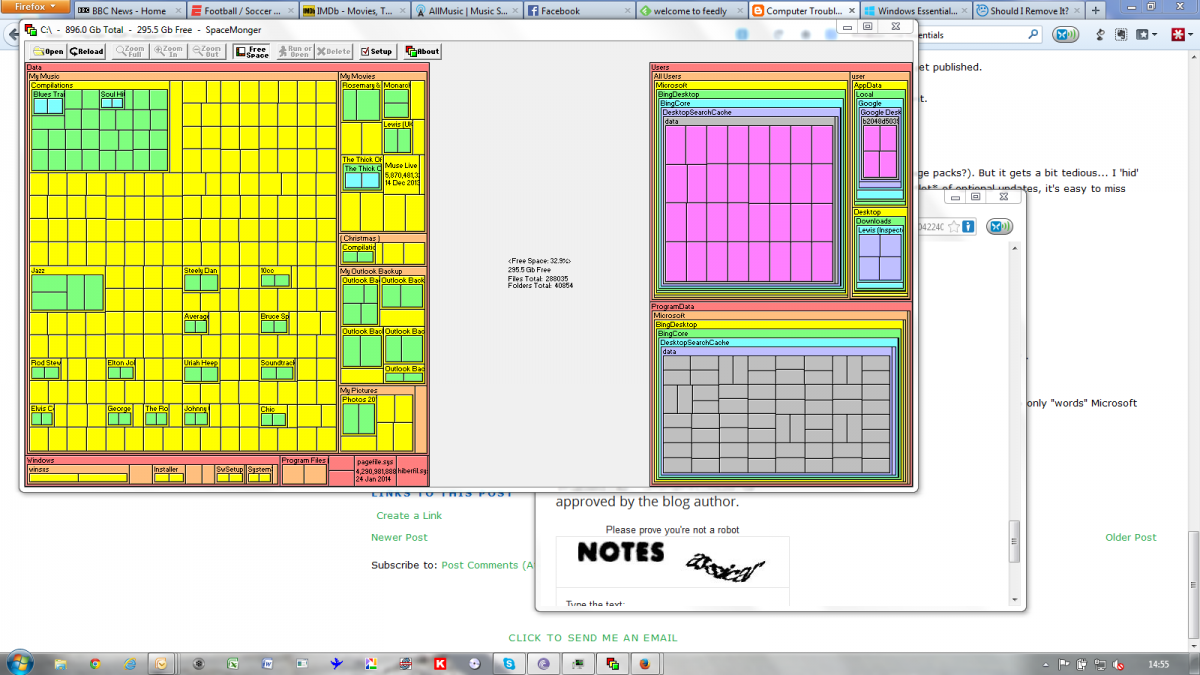
Hi folks, I never use Bing Desktop, however it's been installed on my PC by Microsoft Update I'm sure. Today I ran my old Spacemonger utility and noticed that Bing Desktop is taking up 162 GB's in each of two locations - Program files and Program files (X86). So I've got 325 GB's of my precious hard being disk being eaten up by rubbish I don't want. Bing Desktop does not show up in my Program lists in the Start Menu, Control Panel or elsewhere so I can't find a conventional way of uninstalling it. When I try to delete it in Spacemonger I'm told it's running and I can't delete it. I also can't find any reference to this isuse on the net that doesn't say "uninstal it from Control Panel". Does this sound familiar to anyone? I've read references to "hiding" Bing desktop in Windows Updates and that sounds fine going forward. But how do I get rid of what's sitting there on my system now? Many thanks in advance, Gordon