Skip to content
View in the app

A better way to browse. Learn more.

MSFN

A full-screen app on your home screen with push notifications, badges and more.

To install this app on iOS and iPadOS
  1. Tap the Share icon in Safari
  2. Scroll the menu and tap Add to Home Screen.
  3. Tap Add in the top-right corner.
To install this app on Android
  1. Tap the 3-dot menu (⋮) in the top-right corner of the browser.
  2. Tap Add to Home screen or Install app.
  3. Confirm by tapping Install.

atx32

Member
  • Joined

  • Last visited

  • Country

    United States
  1. atx32 replied to Tihiy's topic in StartIsBack+
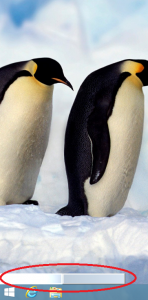
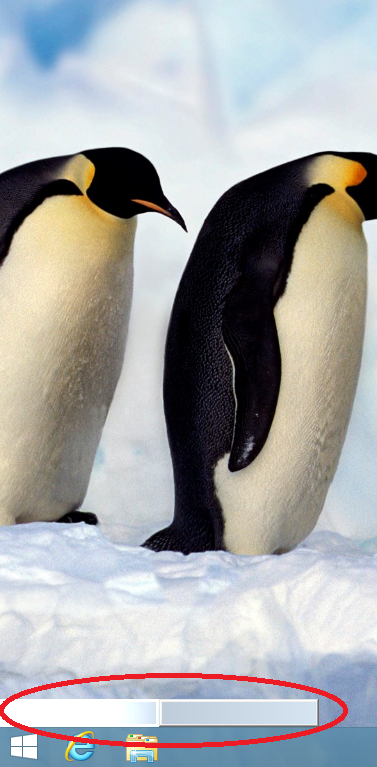
    I see an issue when SIB+ is used together with Win8.1's built-in family safety feature. I have a child account set up with time limits, SIB+ active and set to go to the desktop on login. In many cases when family safety takes over the screen but before the desktop is shown (such as after login or resume when you need permission for more time) once you get to the desktop all the icons are missing. There are what appears to be 1 or 2 minimized windows instead and double clicking on one gives you the icons back. I attached a portion of a screen shot. It is a bit inconsistent when this happens, but it never occurs if SIB+ is disabled for that account. I think the most consistent way to recreate it is to let the users time expire, put the PC to sleep, then wake it and add more time. If you need any more info or help to get this fixed I'll be happy to assist.

  2. atx32 replied to Tihiy's topic in StartIsBack+
    I've been trying out SIB+ 1.0.5 and really liked the feature to customize screen corner behavior, but in 1.5 this has changed. I normally enable the bottom left corner and could then click on the windows icon to get the start menu, or go all the way into the corner to get the original Win8.1 start button behavior. This capability seems to be intentionally removed from 1.5, so I'm now missing one of the main features I liked in the product. Any way to bring that old behavior back as an option?

Account

Navigation

Configure browser push notifications

Chrome (Android)
  1. Tap the lock icon next to the address bar.
  2. Tap Permissions → Notifications.
  3. Adjust your preference.
Chrome (Desktop)
  1. Click the padlock icon in the address bar.
  2. Select Site settings.
  3. Find Notifications and adjust your preference.