Everything posted by hcge
-
No, but you can right-click it - Properties - set Hidden - Apply to this folder only. I don't think there will be a checkbox for that, one checkbox too many. Thanks, that worked, and thank you for this great program! Didn't the old StartIsBack for Windows 8 have this option? It's ok without it, beause it's easy to hide manually now that I know how.
-
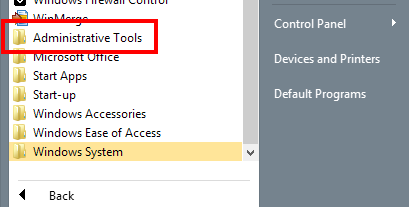
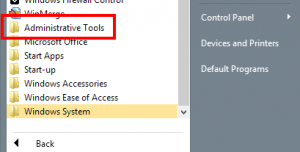
Is there an option to hide this Administrative Tools folder from the All Programs section of the Start menu in StartIsBack+ ? I'm currently using v1.0.5. The option in the StartIsBack configuration window seems to only show or hide the Administrative Tools folder on the right side of the menu, and the option on the Start screen -> Settings charm -> Tiles -> Show Administrative Tools doesn't seem to affect the desktop Start menu, only the Metro All Apps view.
-
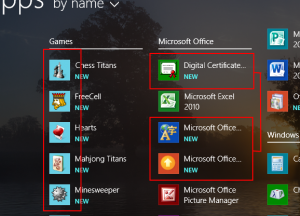
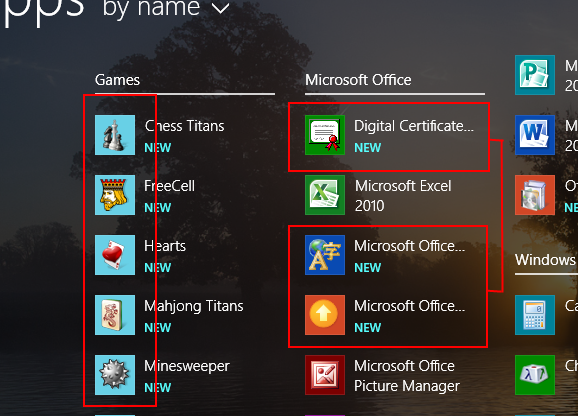
I recently upgraded to 8.1, and noticed a few odd things with the new All Apps view. * Games that were registered in Games Explorer seem to not use the icon colour for the background like other programs, but instead always use a light blue coloured background, like in my screenshot. I guess this is a bug? * Some programs (like the MS Office related ones in my screenshot) always show the 'new' label under them, even though I opened them many times to try to get it to disappear. Is there any other way to hide this 'new' label?