Everything posted by albza97
-
Please export the following keys with regedit: HKEY_CURRENT_USER\Software\StartIsBack HKEY_CURRENT_USER\Software\Microsoft\Windows\CurrentVersion\Explorer\Advanced HKEY_CURRENT_USER\Software\Microsoft\Windows\CurrentVersion\Explorer\StartPage HKEY_CURRENT_USER\Software\Microsoft\Windows\CurrentVersion\Explorer\StartPage3 and attach here Like this? HKEY_CURRENT_USER Software Microsoft Windows CurrentVersion Explorer Advanced.reg HKEY_CURRENT_USER Software Microsoft Windows CurrentVersion Explorer StartPage.reg HKEY_CURRENT_USER Software Microsoft Windows CurrentVersion Explorer StartPage3.reg HKEY_CURRENT_USER Software StartIsBack.reg
-
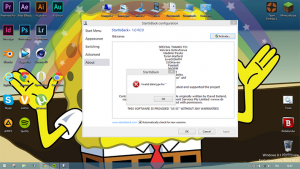
I guess something wrong in the registry. Do you have any error before you press Activate button? Try uninstalling StartIsBack+ with checkbox 'Remove settings and license data'. Yes, it shows this error also when I right-click start-botton and then click Properties, but then it opens and Start-Menù tab (in properties) its blank... i tryed unistalling (with "Remove settings and license data" checked) but nothing changed
-
I just bought StartIsBack+ but when I add the code it say me this and it doesn't activate... can somebody help me please? Invalid data type for " Beta 4 works, RC doesn't