Everything posted by mmtrt
-
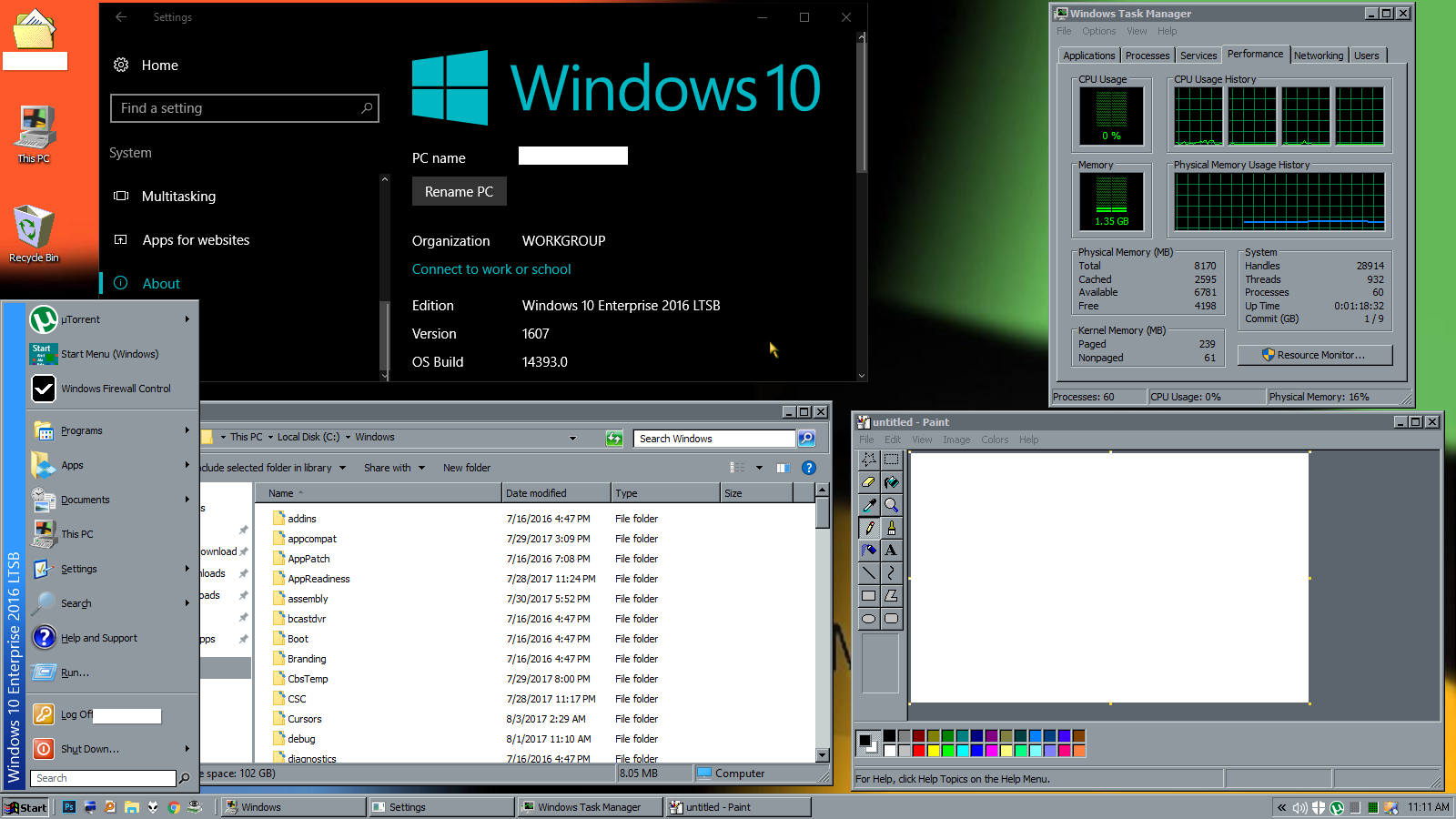
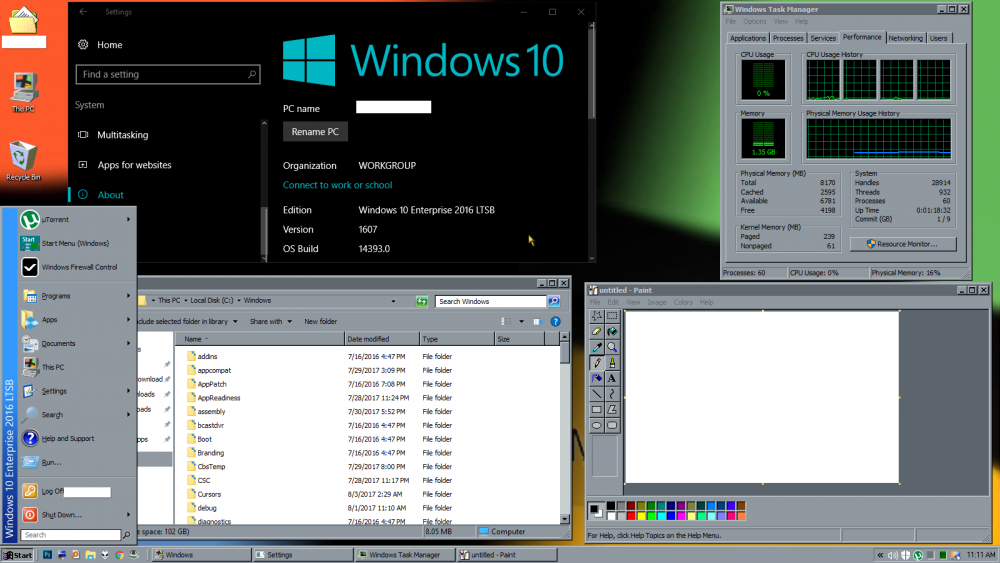
Great Stuff these guys doing good job in making windows 10 worth. Running Classic stuff without winclassic.exe with ros explorer old even modren apps work fine. That paint is mspaint98. Backup your system before doing anything. If anyone want to try it head over to their forum for goodies Link
-
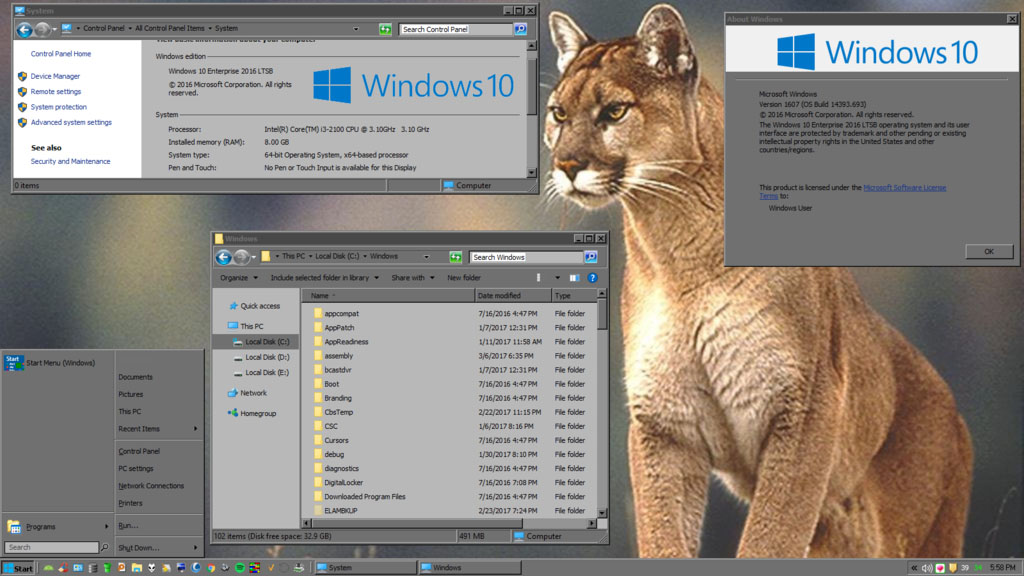
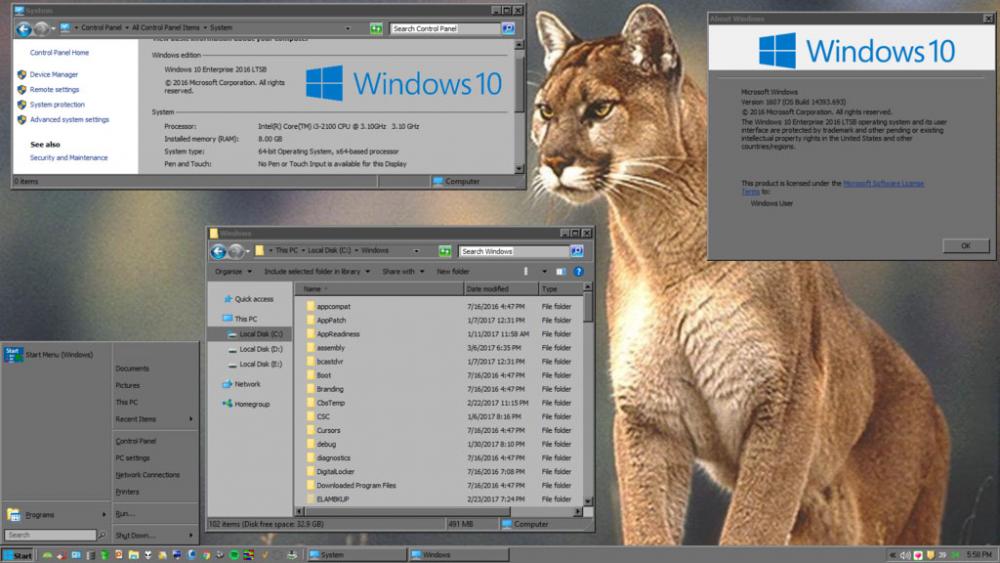
well at least I'm happy about this so far. ROS Explorer old with (classicshell startmenu) + win10 explorer (as shell) + classictheme.exe + DWM (gives some apps transparent one UI glitches for chrome fix change its theme for other IDK ATM + NO Modren apps Support.)
-
very cool what version you used for this reactiOS 0.4 what link for download you used too w8classic.exe? got from dailybuilds livecd-xxx-dbg from here https://www.reactos.org/getbuilds & http://bertrand.deo.free.fr/TEMP/w8classic.zip use classic taskmanager or you will end up restoring windows get taskmgr from here http://www.guidingtech.com/18977/get-back-windows-7-task-manager-windows-8/ you can always logout to previous state as normal.
-
Using classictheme provided by ibmpad, using reactos newer explorer, desktop is broken on it, working startmenu & it works with capability XP, partial tray icons & classy windows 10.