Skip to content
View in the app

A better way to browse. Learn more.

MSFN

A full-screen app on your home screen with push notifications, badges and more.

To install this app on iOS and iPadOS
  1. Tap the Share icon in Safari
  2. Scroll the menu and tap Add to Home Screen.
  3. Tap Add in the top-right corner.
To install this app on Android
  1. Tap the 3-dot menu (⋮) in the top-right corner of the browser.
  2. Tap Add to Home screen or Install app.
  3. Confirm by tapping Install.

Sonic5317

Member
  • Joined

  • Last visited

  • Country

    United Kingdom
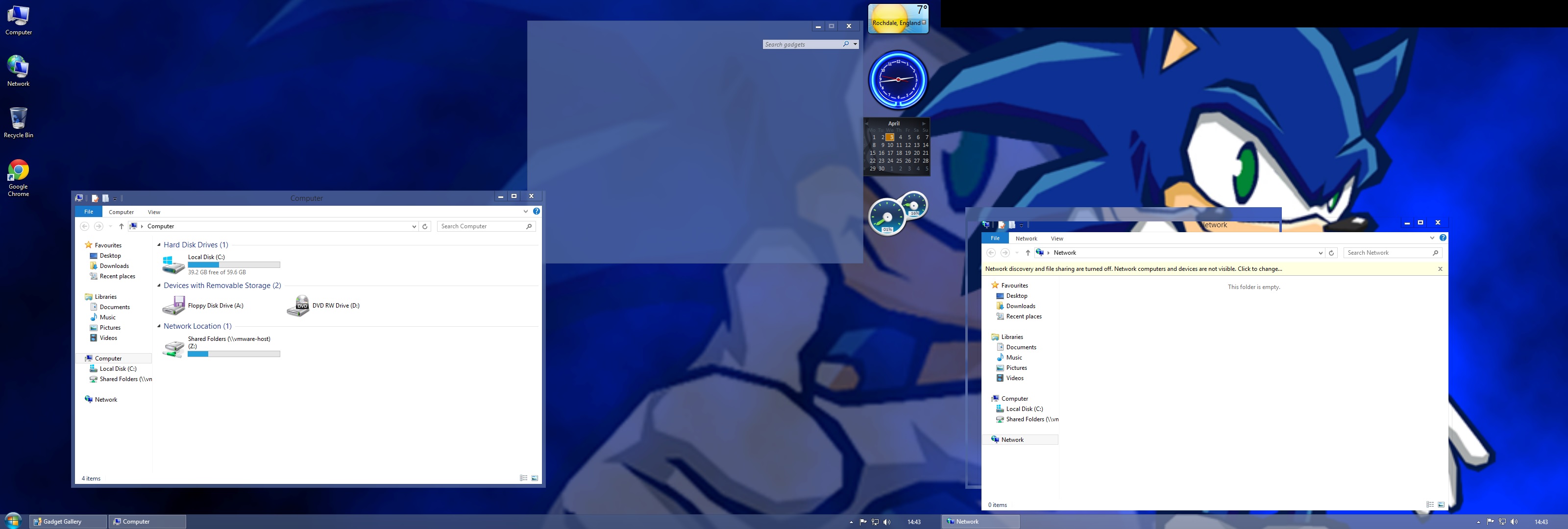
  1. A few more bugs when I tested beta on VMware with dual screens.. the glass effect seems to be completely off as i drag the window but its fine of the first monitor.. not sure if this is VMware or not but it worked fine back when i tested 0.3.. the desktop gadgets menu also still doesnt work D:
  2. Start8 will install with the launcher running but once it resets it doesn't work.. but anyway heres a screenshot of my VM desktop. I quite like w8 glass more than 7 it just feels...cleaner? Can't wait for release
  3. Just signed up because of this thread! Can't thank you enough for bringing Aero Glass to Windows 8 as this is the only reason I chose not to upgrade.. Found a few issues though while testing in VMware, it seems to be really hit and miss when it chooses to work and after I install programs such as Start8 and or Decor8 it breaks the DWMLoader and does not load the Glass feature once ether of these programs are installed. I can run the Loader while installing Start8 and glass stays...until a reboot :/ Oh! and one last thing there are two graphical bugs ive noticed.. the Gadgets menu (when installed) doesn't respond but is usable and UAC prompts seem to act funny as you drag them. Hope you can fix the issues above so i can move to W8 Ive attached a debug log for you..would have attached screenshots but i cant upload more than 500k..debug.txt Thanks


Account

Navigation

Configure browser push notifications

Chrome (Android)
  1. Tap the lock icon next to the address bar.
  2. Tap Permissions → Notifications.
  3. Adjust your preference.
Chrome (Desktop)
  1. Click the padlock icon in the address bar.
  2. Select Site settings.
  3. Find Notifications and adjust your preference.