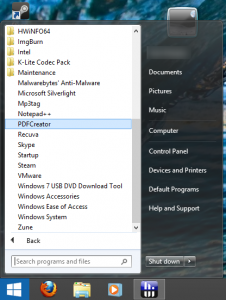
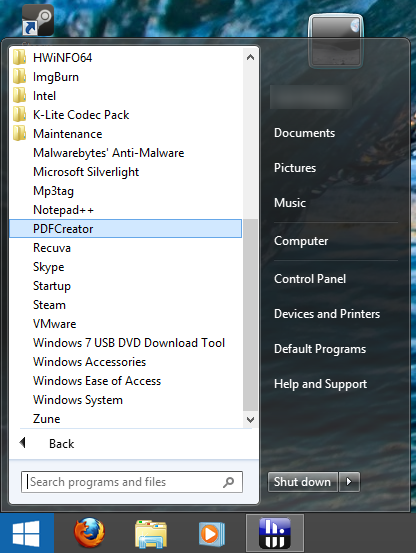
Hey Tihiy, First of all, awesome application you have created! Love the features and customization. Very light and no extra services. I liked it that much, I bought 10 licenses, even though I only have 2 PCs running Windows 8 Now, I may be 'nitpicking' a little bit here, as the program is otherwise seemingly perfect, but I have found the following issues and inconsistencies: When using two-finger scrolling on a notebook touchpad, the user profile picture pop behind the start menu, cutting half of it off. I have not been able to replicate it with a mouse. See attachment. After using the 'Search programs and files' search bar, the text still remains grey, rather than changing to black, like in Windows 7. Not sure if design choice, though. Upon opening the SIB start menu for the first time, immediately or otherwise after a fresh boot/restart, many of the icons/folders take a considerable amount of time to appear. Computer is rather modern, so shouldn't be a speed issue. Maybe a issue with caching? See attachment. I have tried clean installing the latest version (v1.33) to correct the above issues, but to no prevail. Thank you for your time and effort! Keep up the great work! Cheers, Naito.