




Posts posted by chymax3m
-
-
-
and what about Properties of .msi? I met some programs, which you could set the default language, destination directory and so on using Properties of MSI package, how would it be done with a new part of code?I suggest to add a new command inside installer.js (line 1209) using: msiexec.exe /i %WPIPath%\Program.msi /qn -
Edited by chymax3m
Seems like some troubles with site, the attachment it the same as in previous post...
-
-
-
-
-
Edited by chymax3m
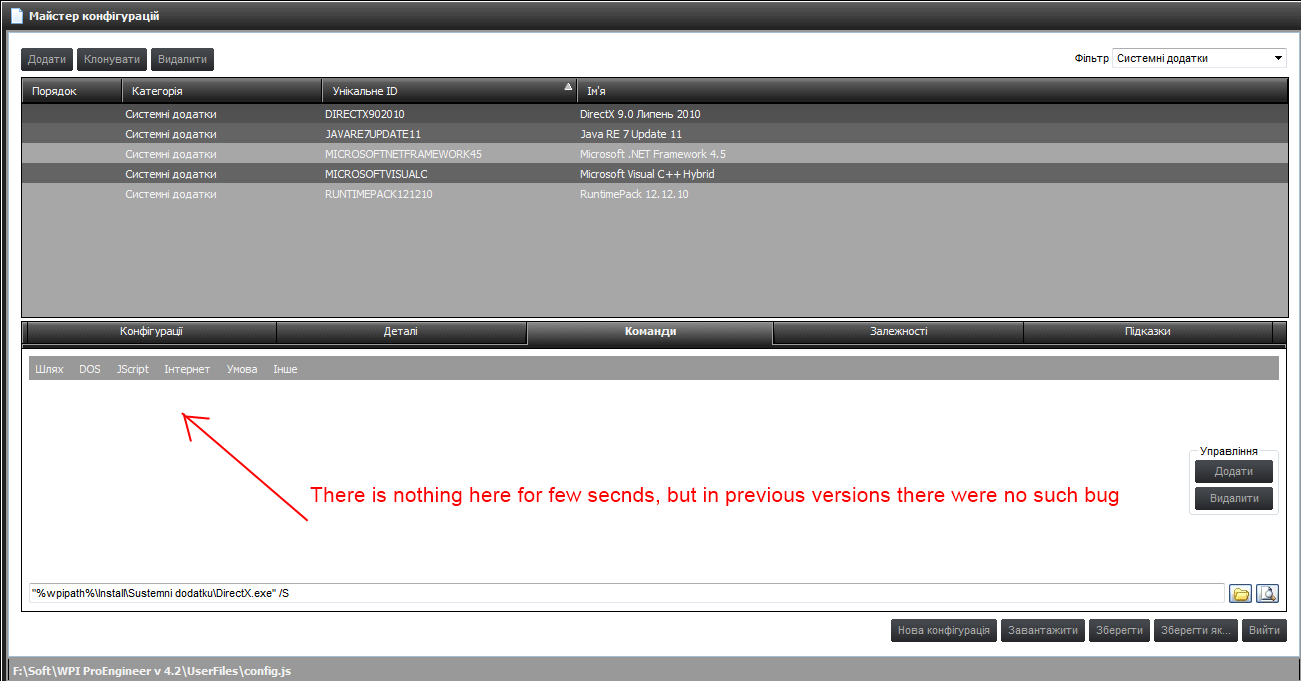
Hello everybody, using WPI v 8.6.3 met one thing that made me reinstall OS (i thought i killed it with frequent install/uninstall software for testing) but the result is the same(look the attachment). Could You help? And one more thing (this i meet for a long time) launching wpi.exe i see the main page with blue background only. This last for few seconds but looks not pretty, exiting the config or options wizard does the same.
-
Edited by chymax3m
Nice!

You can center the images inside Chapter-4 (ua).
See attachment!
*Edit: On Chapter - 1 :
(Open Chapter 5) and not Chapter 6
And it's needed to change the title translated to :
<li>Opens the Theme Wizard. (<a href="Chapter-5.html">Chapter 5</a>)</li>
Sorry, but i can't understand what to do? Is there any troubles with opening chapter 5 from the chapter 1 page? Розділ means chapter in English. In the content (Page Home) chapter 5 - Theme Wizard overview, and clicking in the head of chapter 1 on chapter 5 we can open the page - Theme Wizard overview. Oh, found some more mistakes in translation (it's because of old manual which i used before) and finally got what You meant, please download the attachment
-
-
-
-
-
Hi everyone! Found a bug on http://www.wpiw.net/ : clicking the DOWNLOAD button starts downloading WPI_v8.5.9 not the latest 8.6.0, fix it please.
-
-
-
-
Inside your lang_ua.js you can add a new line added inside lang_en.js: look at line 550
txtMustAddCommand[lang] = ['You must add a command entry through the \'Add\' button before being able to perform this operation.'];
Done, see the attached file.
-
-
-
-
-
-
Need lang files and mods!
in Windows Post-Install Wizard (WPI)
Already posted here