Skip to content
View in the app

A better way to browse. Learn more.

MSFN

A full-screen app on your home screen with push notifications, badges and more.

To install this app on iOS and iPadOS
  1. Tap the Share icon in Safari
  2. Scroll the menu and tap Add to Home Screen.
  3. Tap Add in the top-right corner.
To install this app on Android
  1. Tap the 3-dot menu (⋮) in the top-right corner of the browser.
  2. Tap Add to Home screen or Install app.
  3. Confirm by tapping Install.

astrouga

Member
  • Joined

  • Last visited

  • Country

    United States

Everything posted by astrouga

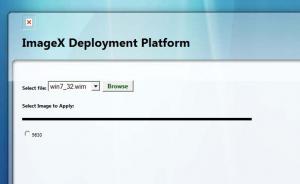
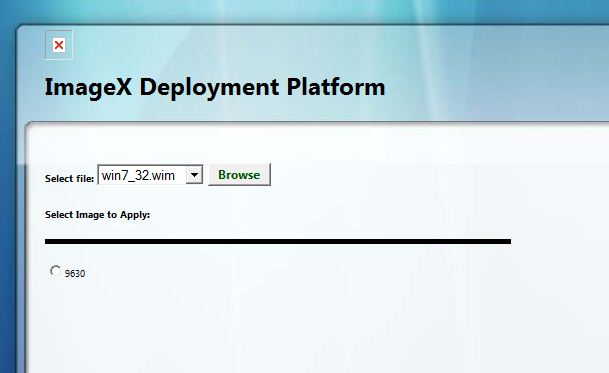
  1. I am testing this on Win PE 3.0 for Windows 7 imaging. I got SETRES working. Now, when I have a file selected on my image server, it lists the file name in the pull down menu, then under "Select Image to Apply:" I see a single radio button with "9630" next to it. I couldn't determine what this was referring to from the code. Any ideas? I have attached a snap. Also, any progress on v91?
  2. I installed version 71 and the GUI seems to mostly function, but I am having trouble getting the window and image to fit the screen. It looks like several changes would be needed to get this to work -- at least altering the css and changing the background image size. On another note, I found this HTA designed for Ghost project first and really liked that it loads a text file with the image details when you select an image radio button. Is this something that I can do with this HTA? Thanks.
Account

Navigation

Search

Search

Configure browser push notifications

Chrome (Android)
  1. Tap the lock icon next to the address bar.
  2. Tap Permissions → Notifications.
  3. Adjust your preference.
Chrome (Desktop)
  1. Click the padlock icon in the address bar.
  2. Select Site settings.
  3. Find Notifications and adjust your preference.