Skip to content
View in the app

A better way to browse. Learn more.

MSFN

A full-screen app on your home screen with push notifications, badges and more.

To install this app on iOS and iPadOS
  1. Tap the Share icon in Safari
  2. Scroll the menu and tap Add to Home Screen.
  3. Tap Add in the top-right corner.
To install this app on Android
  1. Tap the 3-dot menu (⋮) in the top-right corner of the browser.
  2. Tap Add to Home screen or Install app.
  3. Confirm by tapping Install.

hawgorn

Member
  • Joined

  • Last visited

  • Country

    Finland
  1. Thank you for a speedy reply. So I'm all set then. Thanks for your help, much apprecitiated.
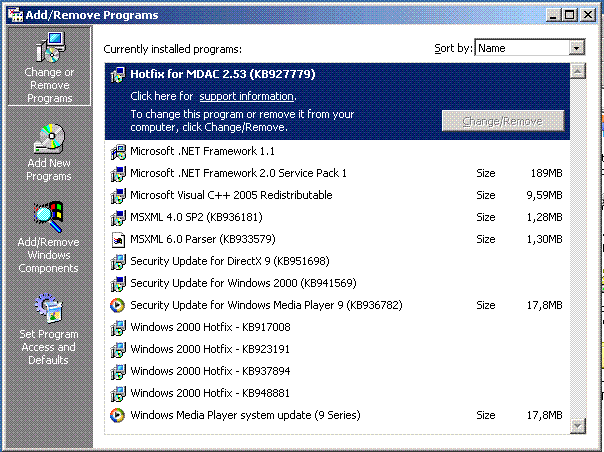
  2. What am I doing wrong? I am a newbie when it comes to nlite so it was predictable that I'd manage to f**k up with creating a workable installation media even with your excellent guide. After several iterations I got a working base installation media without any bells and whistles, but Hotfixes still give me a headache. Only a handful will install (see attachment). I manually checked that they were in right order after adding them to Nlite, but no go. I only get those to install, with or without using the right order. I'm using Virtual Machine 2004. I'd be very grateful for any advice, I don't think I've had this much headache since trying to optimize dos 6.22 memory usage way back when.


Account

Navigation

Configure browser push notifications

Chrome (Android)
  1. Tap the lock icon next to the address bar.
  2. Tap Permissions → Notifications.
  3. Adjust your preference.
Chrome (Desktop)
  1. Click the padlock icon in the address bar.
  2. Select Site settings.
  3. Find Notifications and adjust your preference.