-
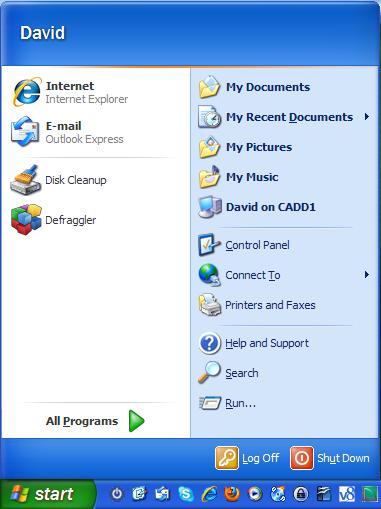
Forget about it. I guess the avatar does not show up when you don't use the welcome screen option. Thanks again for a nice little fan pack. Dave
-
Pretty nice release but it blew away my avatar picture. All that shows now is my log-on name. Do you know how to get the avatar picture to show up again? Thanks, Dave
-
That's good. See what you can workout. I know beggars can't be choosy but here’s to hoping.
-
Never mind. I was in the process of manipulating files and I guess I goobered it up. I was using the standard WinXP style at the time. I switched it to Windows Classic style, reran XPize and all is good. I blame myself for this one. Thanks for the rapid response. Any chance of updating the Windows Defender icons to the green forward/back arrow buttons as was in XPize Darkside or do I still have a problem on my end? Thanks again.
-
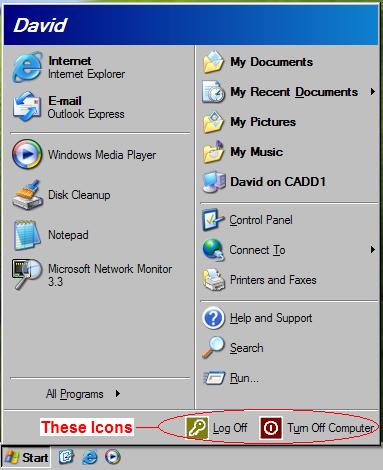
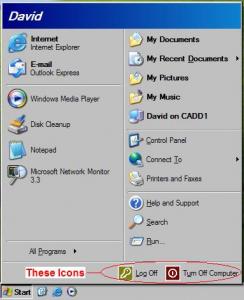
Looking forward to the offical XPize 5 release. Just wondering if it could be possible to update the Log Off & Turn Off Computer icons in the start menu under "Windows Classic Style"? See attached image.
-
Any idea of when we can hope to have a SP3 compatable Darkside? As of right now with version 2.1, the logon screen doesn't work with widescreen. I am running at 1440x900. Do you have any current fix for this in the meantime while we wait for the SP3 compatable version? Thanks for all of your hard work!