



Skip to content
View in the app

A better way to browse. Learn more.

MSFN

A full-screen app on your home screen with push notifications, badges and more.

To install this app on iOS and iPadOS
  1. Tap the Share icon in Safari
  2. Scroll the menu and tap Add to Home Screen.
  3. Tap Add in the top-right corner.
To install this app on Android
  1. Tap the 3-dot menu (⋮) in the top-right corner of the browser.
  2. Tap Add to Home screen or Install app.
  3. Confirm by tapping Install.

sniffles

Member
  • Joined

  • Last visited

  • Country

    United States

Everything posted by sniffles

  1. What surprises me is that the installer even ran at all. Does XPCREATE just scan the PRE folder for ANY exe's and add them with the same cmd line switches?
  2. The program is just packaged in a ZIP. Put it in the Program Files area of your $OEM$ folder and it will be installed.
  3. Ack... nevermind. I solved the problem by putting the installer in the correct folder... I had it sitting in PRE! Oops!
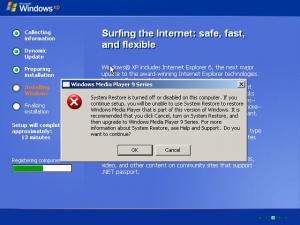
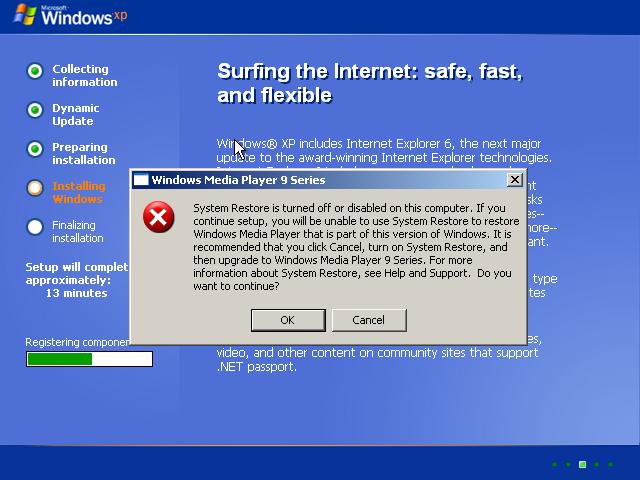
  4. During the "Registering Components" phase of the XP install process, the WMP9 installer runs and fails. I am using a non-modified XPCREATE ISO with just the Type 1 and 2 hotfixes and the XP installer for Windows Media Player 9. A screenshot is attached. Thanks in advance!
Account

Navigation

Configure browser push notifications

Chrome (Android)
  1. Tap the lock icon next to the address bar.
  2. Tap Permissions → Notifications.
  3. Adjust your preference.
Chrome (Desktop)
  1. Click the padlock icon in the address bar.
  2. Select Site settings.
  3. Find Notifications and adjust your preference.