-
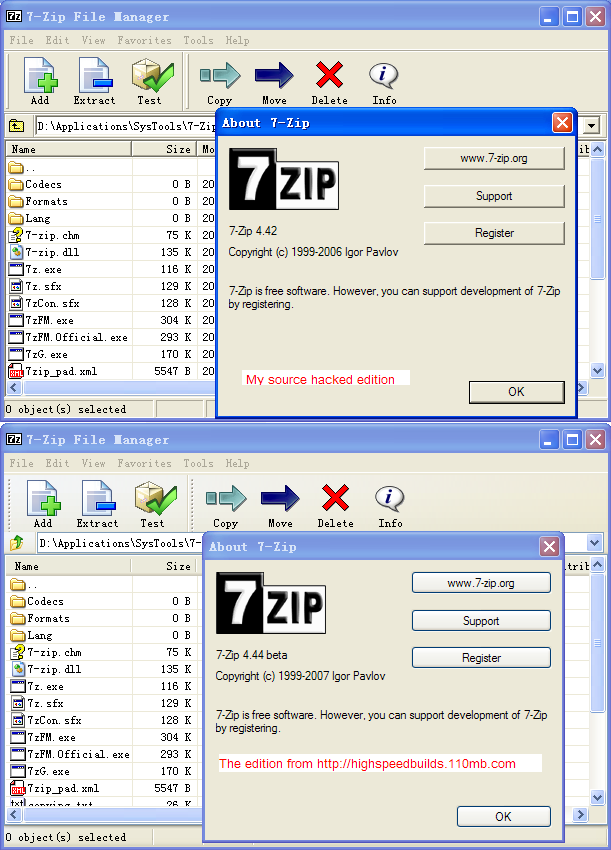
The compare of my source hacked edition and the edition from http://highspeedbuilds.110mb.com/phpbb2/viewtopic.php?t=2

-
I can sure that change of this line is the only one condition to support multi-color, you can apply this pack to the edition I posted . The attachment does not include the reshacker.exe because it's too large, you need to get it from bledd's icon pack. 7zFM_Toolbar.7z
-
Thanks for your work first, I'm using your icon pack now No, I didn't decompile the exe, I can edit the file "App.cpp" because that 7-zip is an Open-Source software, I can modify its source code and compile my own version. But I think this change could not complete by commandline -- Maybe a cracker could do it, I'm just a programmer .
-
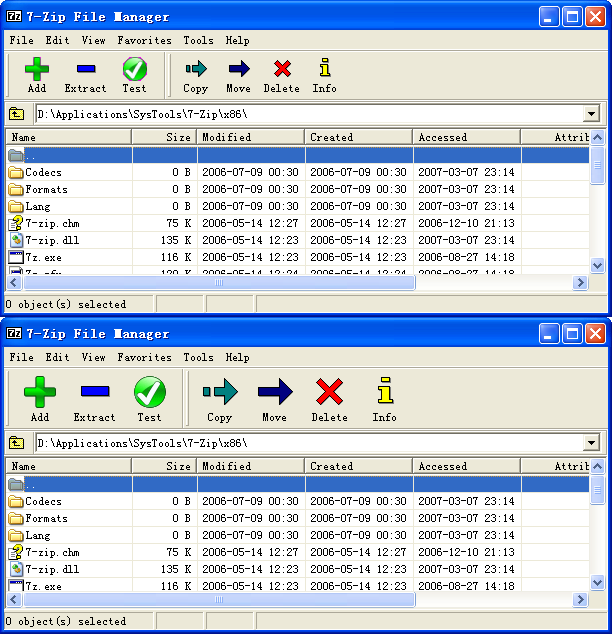
A capture of this edition .

-
To made 7Zip File Manager support Multi-Color toolbar image, you need just change one line code: File name: 7zip\FileManager\App.cpp Line 152, Change original code imageList.Create( LargeButtons ? 48: 24, LargeButtons ? 36: 24, ILC_MASK, 0, 0); to imageList.Create( LargeButtons ? 48: 24, LargeButtons ? 36: 24, ILC_COLORDDB | ILC_MASK, 0, 0); Then compile it, you will get a your own edition with Multi-Color toolbar support. The attachment is the result I compiled, and I replaced the image of "Add" and "Test" button with Multi-Color image to show the affect. Just download and replace the official 7ZFM.exe with this one. I hope that someone could create a beautiful file manager by multi-color images Enjoy it! 7zFM_Support_MultiColor.zip