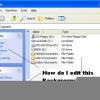
September 12, 200619 yr Where are the fonts and strings for (1), (2), (3) and (4) in the picture? Also is part of shellstyle? John
September 28, 200619 yr These strings have imho nothing to do with shellstyles. They're located in the shell32.dll's string table resources.System Tasks: 31232@1953 and 31317@1958File and Folder Tasks: 31233@1953Other Places: 31272@1955Details: 31274@1955They can be easily changed with a tool such as Resource Hacker. If changes won't take effect, just clean MUI cache in the registry. The cache could be also the way how to safely change that strings via REG files.Windows Registry Editor Version 5.00[HKEY_CURRENT_USER\Software\Microsoft\Windows\ShellNoRoam\MUICache]"@shell32.dll,-31232"="System Tasks""@shell32.dll,-31272"="Other Places""@shell32.dll,-31274"="Details""@shell32.dll,-31317"="System Tasks""@shell32.dll,-31233"="File and Folder Tasks"
November 11, 200718 yr Author Where in this is the drop down list box labeled "system tasks?" <hwndview resid=main id=atom(main) sheet=styleref(main) layout=borderlayout()><ScrollViewer id=atom(scroller) sheet=styleref(taskpane) layoutpos=Left xscrollable=false width=210rp><element id=atom(sectionlist) layout=verticalflowlayout(0,0,3)/></ScrollViewer><Element layoutpos=Client layout=filllayout()><Element id=atom(clientviewhost) layout=borderlayout()></Element><Element id=atom(blockade) layout=borderlayout()><Element id=atom(blockadeaccent) layoutpos=left width=1/><Element id=atom(blockadeclient) layoutpos=client layout=borderlayout()><Element id=atom(blockadetitle) layoutpos=top/><Element id=atom(blockademessage) layoutpos=top/><Element id=atom(blockadeclear) layoutpos=top layout=borderlayout()><Button id=atom(blockadeclearbutton) layoutpos=left layout=borderlayout()><Element id=atom(blockadecleartext) layoutpos=left/></Button></Element></Element></Element></Element></hwndview><expando resid=mainsection layout=borderlayout() width=186rp><element layoutpos=top layout=filllayout()><button id=atom(header) layoutpos=bottom layout=borderlayout()><element id=atom(title) layoutpos=client/><element id=atom(arrow) layoutpos=right/></button><element id=atom(icon) layoutpos=left/></element><clipper layoutpos=top><element id=atom(watermark) layoutpos=top layout=filllayout()><tasklist id=atom(tasklist) layout=verticalflowlayout(0,0,0)/></element></clipper></expando><expando resid=section layout=borderlayout() width=186rp><button id=atom(header) layoutpos=top layout=borderlayout()><element id=atom(title) layoutpos=client/><element id=atom(arrow) layoutpos=right/></button><clipper layoutpos=top><tasklist id=atom(tasklist) layout=verticalflowlayout(0,0,0)/></clipper></expando><linkelement resid=AppletLink layout=borderlayout()><element id=atom(icon) layoutpos=left/><element layoutpos=client layout=flowlayout(0,2,0,0)><element id=atom(title) layoutpos=client/></element></linkelement><linkelement resid=TaskLink layout=borderlayout()><element id=atom(icon) layoutpos=left/><element id=atom(title) layoutpos=client/></linkelement><linkelement resid=CategoryLink layout=borderlayout()><element id=atom(icon) layoutpos=left/><element layoutpos=client layout=flowlayout(0,2,0,0)><element id=atom(title) layoutpos=top/></element></linkelement><element resid=CategoryList id=atom(view) sheet=styleref(CategoryListSS) layout=borderlayout()><element id=atom(separator) layoutpos=left width=1/><scrollviewer sheet=styleref(ScrollerSS) layoutpos=client xscrollable=false><element id=atom(watermark) layout=filllayout()><element id=atom(container) sheet=styleref(CategoryListSS) layout=verticalflowlayout(0,0,0)><element id=atom(directive) sheet=styleref(DirectiveSS)/><element id=atom(categorylist) layout=gridlayout(5,2)/></element></element></scrollviewer></element><element resid=CategoryView id=atom(view) sheet=styleref(CategoryViewSS) layout=borderlayout()><element id=atom(separator) layoutpos=left width=1/><element id=atom(banner) layoutpos=top layout=filllayout() sheet=styleref(BannerSS)><element layout=borderlayout()><element id=atom(header) layoutpos=top layout=borderlayout() height=35rp><element id=atom(title) layoutpos=client/></element></element><element id=atom(iconsite) layout=borderlayout()><element id=atom(icon) layoutpos=left/></element></element><scrollviewer sheet=styleref(ScrollerSS) layoutpos=client xscrollable=false><element id=atom(watermark) layout=filllayout()><element id=atom(container) sheet=styleref(CategoryViewSS) layout=verticalflowlayout(0,0,0)><element id=atom(barricadetitle) sheet=styleref(BarricadeSS)/><element id=atom(barricademsg) sheet=styleref(BarricadeSS)/><element id=atom(directive) sheet=styleref(DirectiveSS)/><element id=atom(categorytasklist) layoutpos=top layout=verticalflowlayout(0,0,0)/><element id=atom(directive2) layoutpos=top sheet=styleref(DirectiveSS)/><element id=atom(appletlist) layoutpos=top layout=gridlayout(-1,2)/></element></element></scrollviewer></element>So I can put a picture in the box? John




Create an account or sign in to comment