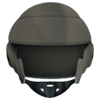
June 12, 200620 yr Starship Troopers Helmets: From Rico's Roughnecks To Your DesktopWould You Like To Know More ?Dedicated to my favorite sci-fi movie. Most people hate this movie or even worst, they love it because arms and legs fly over the screen.These people can't understand the satirist and sarcasm behind it. Based on a novel written by R. Heinlein, the movie is a parody of a future military goverment where you need to join the Mobile Infantry to obtain certain 'citizen' priviledges.This is exposed on a scene I particulary love, the one with the man recruiting people. With no legs, only one of his arms is still there, "the 'Mobile Infantry' made the man I am today".Dedicated to fans. For the rest out there I encourage people to give it a look.No technical details about the icons, the important part is on this text. The zip file just contains the ordinary uniform helmets on PNG format.Although only two of them where on the movie by Verhoeven, I decided to make some color mods. A total of seven are included.C'mon you apes! You wanna live forever!?For personal use only, if you want to share nor use them on commercial software, get in contact please.




Create an account or sign in to comment