Skip to content
View in the app

A better way to browse. Learn more.

MSFN

A full-screen app on your home screen with push notifications, badges and more.

To install this app on iOS and iPadOS
  1. Tap the Share icon in Safari
  2. Scroll the menu and tap Add to Home Screen.
  3. Tap Add in the top-right corner.
To install this app on Android
  1. Tap the 3-dot menu (⋮) in the top-right corner of the browser.
  2. Tap Add to Home screen or Install app.
  3. Confirm by tapping Install.

merlinhoot

Member
  • Joined

  • Last visited

  • Country

    United States

Everything posted by merlinhoot

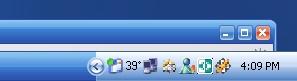
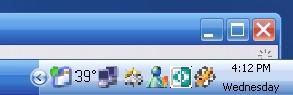
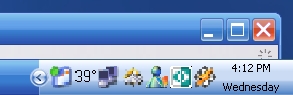
  1. This problem is the whole reason I registered for this forum by the way. I installed XPize and love it apart from the icons in the taskbar being pixelated. After Rebooting after install my taskbar was thick and I was happy to see the day was shown under the time which I'd never seen before which only means it is always there but is not shown because of the sizing. I've set it to 18 but now I don't like how small it is. This also affected the top of the browser and it's minus and close button size. This is active titlebar at 28 but the Icons in question are not pleasing to the eye. What's the difference in Caption bottons and Active titlebar as they seem to be the same when I play with the size?


Account

Navigation

Configure browser push notifications

Chrome (Android)
  1. Tap the lock icon next to the address bar.
  2. Tap Permissions → Notifications.
  3. Adjust your preference.
Chrome (Desktop)
  1. Click the padlock icon in the address bar.
  2. Select Site settings.
  3. Find Notifications and adjust your preference.