Skip to content
View in the app

A better way to browse. Learn more.

MSFN

A full-screen app on your home screen with push notifications, badges and more.

To install this app on iOS and iPadOS
  1. Tap the Share icon in Safari
  2. Scroll the menu and tap Add to Home Screen.
  3. Tap Add in the top-right corner.
To install this app on Android
  1. Tap the 3-dot menu (⋮) in the top-right corner of the browser.
  2. Tap Add to Home screen or Install app.
  3. Confirm by tapping Install.

Striker

Member
  • Joined

  • Last visited

  • Country

    Netherlands
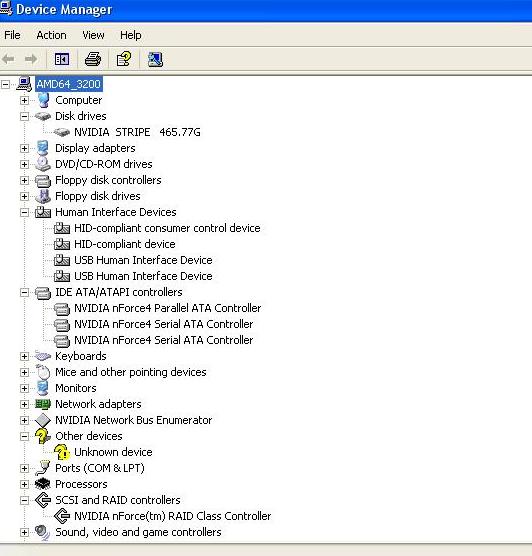
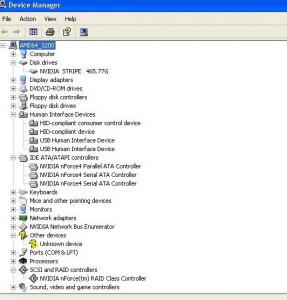
  1. yeah i had already found that too, it seems to work just installed xp again using your 1st method. it has some other ide controllers installed, see pic and what happend with the human interface devices?? something not really ok? now going back to your second method. Are there any other nice hotfixes, patches, tweaks to include that you can recommend? thanks for the help so far
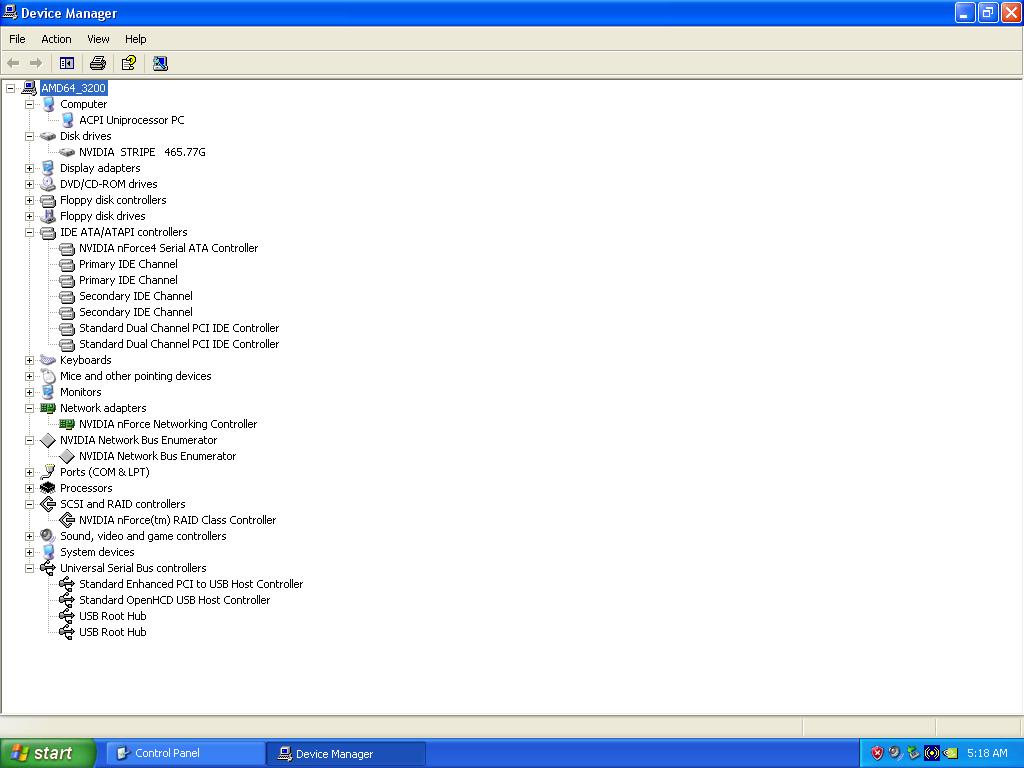
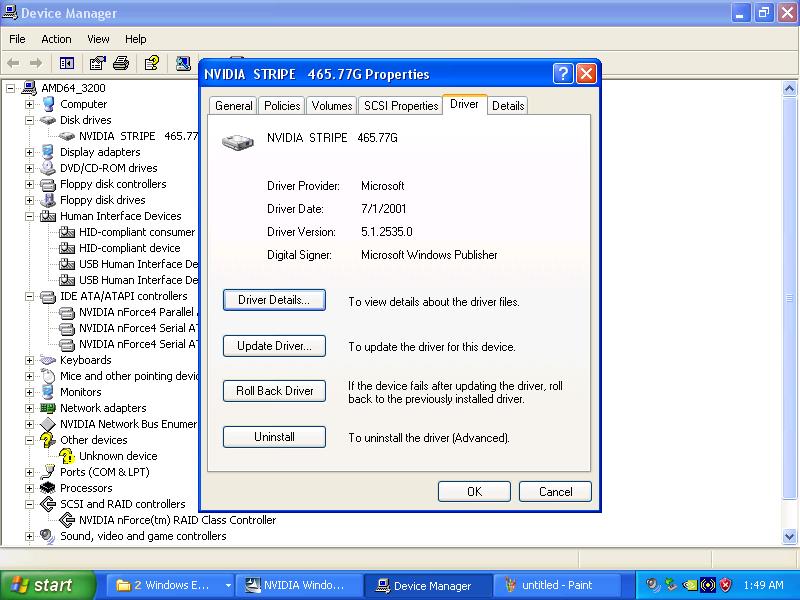
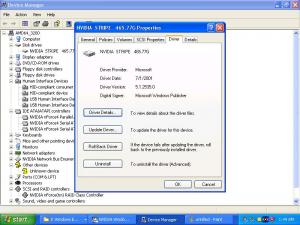
  2. Acpi is enabled, (S1 /S3) Tried it first with F6 and a floppy disk. Copied nvatabus.inf to sataraid and did that .oem change. XP booted ok afterwards but showed ms drivers. Then I made a nlite bootdisc using the 2nd method, deleting the other ide drivers. But had the same results as above. I'm getting tired of this. Gonna try the first method and then I'm gonna give up and delete my raid array.. Attached are some shots I have no idea what that unknown device is. Btw my mb is an Asus a8n-e
Account

Navigation

Configure browser push notifications

Chrome (Android)
  1. Tap the lock icon next to the address bar.
  2. Tap Permissions → Notifications.
  3. Adjust your preference.
Chrome (Desktop)
  1. Click the padlock icon in the address bar.
  2. Select Site settings.
  3. Find Notifications and adjust your preference.