Skip to content
View in the app

A better way to browse. Learn more.

MSFN

A full-screen app on your home screen with push notifications, badges and more.

To install this app on iOS and iPadOS
  1. Tap the Share icon in Safari
  2. Scroll the menu and tap Add to Home Screen.
  3. Tap Add in the top-right corner.
To install this app on Android
  1. Tap the 3-dot menu (⋮) in the top-right corner of the browser.
  2. Tap Add to Home screen or Install app.
  3. Confirm by tapping Install.

mcman

Member
  • Joined

  • Last visited

  • Country

    United States

Everything posted by mcman

  1. I have the line OemSkipWelcome=1 Any other ideas
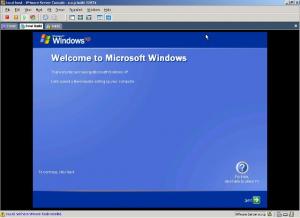
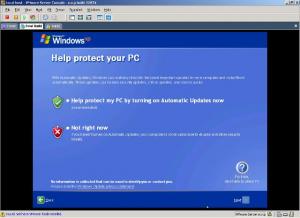
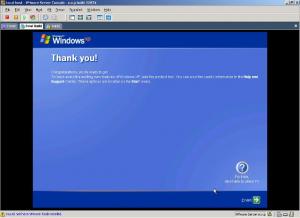
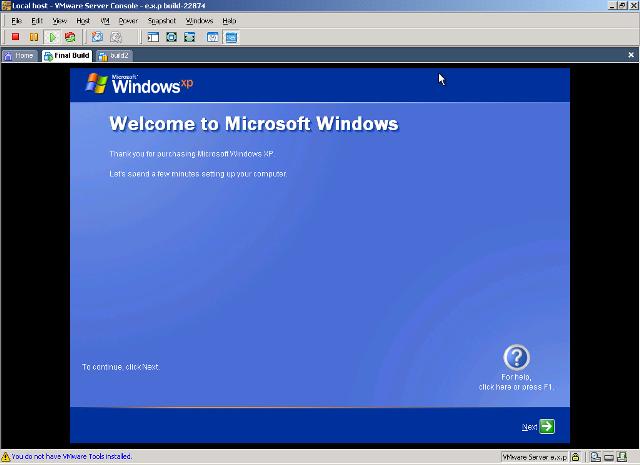
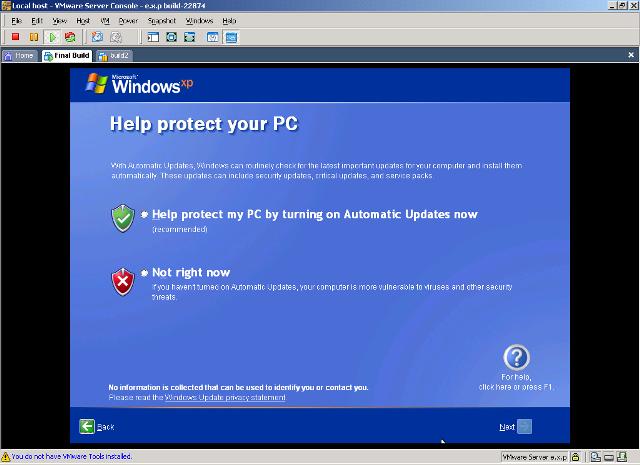
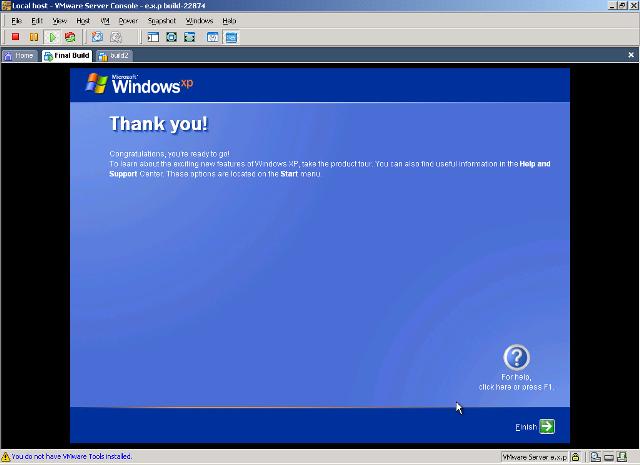
  2. I have followed the guides and I have 3 screens remaining after I do my unattended install. I have attached an image of the first one, then I have the Windows Update Screen and finaly the finnish screen Does any know what settings I need to apply to remove these screens. My WINNT.sif [Data] AutoPartition=1 MsDosInitiated = "No" UnattendedInstall="Yes" AutomaticUpdates="Yes" [unattended] UnattendMode=FullUnattended OemSkipEula=Yes OemPreinstall = "Yes" TargetPath=\WINDOWS [GuiUnattended] OemSkipWelcome=1 AdminPassword=* EncryptedAdminPassword=NO OEMSkipRegional=1 TimeZone=85 [userData] ProductID= FullName="QuickInstall" OrgName="QuickInstall" ComputerName=* [Display] BitsPerPel=32 Xresolution=800 YResolution=600 Vrefresh=60 [TapiLocation] CountryCode=44 [RegionalSettings] LanguageGroup=1 SystemLocale=00000809 UserLocale=00000809 InputLocale=0809:00000809 [identification] JoinWorkgroup=WORKGROUP [Networking] InstallDefaultComponents=Yes [shell] DefaultStartPanelOff = Yes DefaultThemesOff = Yes [Components] msmsgs=off msnexplr=off

  3. When I am installing windows I am getting an error message saying "Windows cannot find 'd:\OEM\bin\t-13install.cmd' bla bla. I know I dont have this file in bin directory. Where do I get this file???

Account

Navigation

Configure browser push notifications

Chrome (Android)
  1. Tap the lock icon next to the address bar.
  2. Tap Permissions → Notifications.
  3. Adjust your preference.
Chrome (Desktop)
  1. Click the padlock icon in the address bar.
  2. Select Site settings.
  3. Find Notifications and adjust your preference.