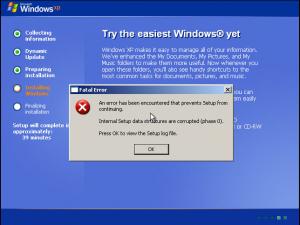
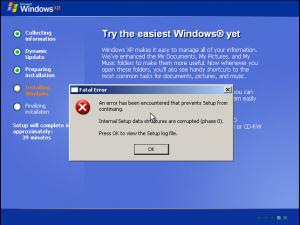
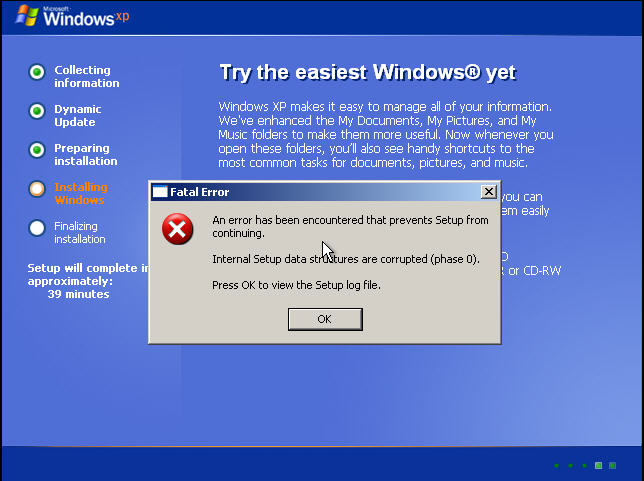
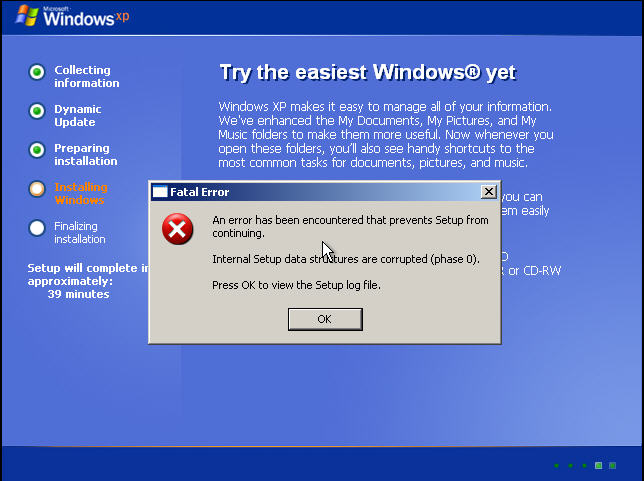
Hello all! I'm new here, so my question might sound stupid for you, but I've been struggling with this problem for hours, and have no clue what to do... so, here's the thing... I've been trying to do unattended installation of windows xp using the manual. Did everything as written in the "Beginner" section. when trying to test the installation on virtual machine, I get the following error as shown in the attachment. what did i do wrong? here's my winnt.sif file: [Unattended] Unattendmode = FullUnattended OemPreinstall = NO TargetPath = * Filesystem = LeaveAlone [GuiUnattended] ; Sets the Timezone to GMT+2 ; Sets the Admin Password to NULL ; Turn AutoLogon ON and login once TimeZone = "135" AdminPassword = * AutoLogon = Yes AutoLogonCount = 1 [LicenseFilePrintData] ; For Server installs AutoMode = "PerServer" AutoUsers = "5" [GuiRunOnce] ; List the programs that you want to lauch when the machine is logged into for the first time [Display] BitsPerPel = 16 XResolution = 800 YResolution = 600 VRefresh = 70 [Networking] [Identification] JoinWorkgroup = Workgroup [UserData] FullName = "Your User Name" OrgName = "Your Organization Name" ComputerName = * ProductKey = "XXXXX-XXXXX-XXXXX-XXXXX-XXXXX" p.s, ---- when not using winnt.sif, but unattend.txt, then i get no error messages, but ofcourse the install will ignore the unattend.txt file...