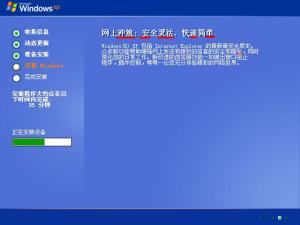
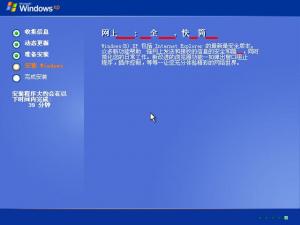
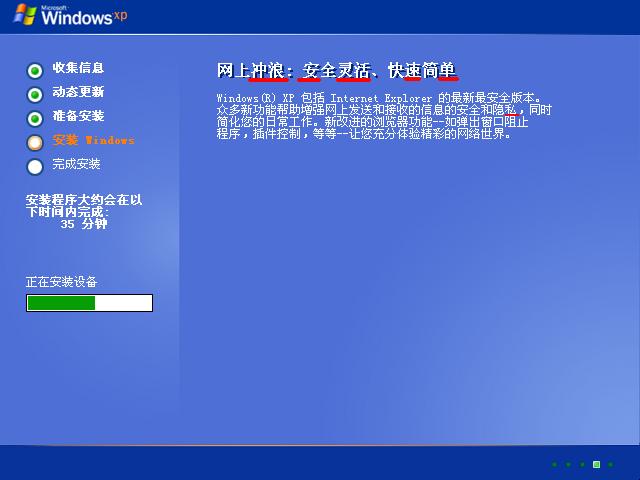
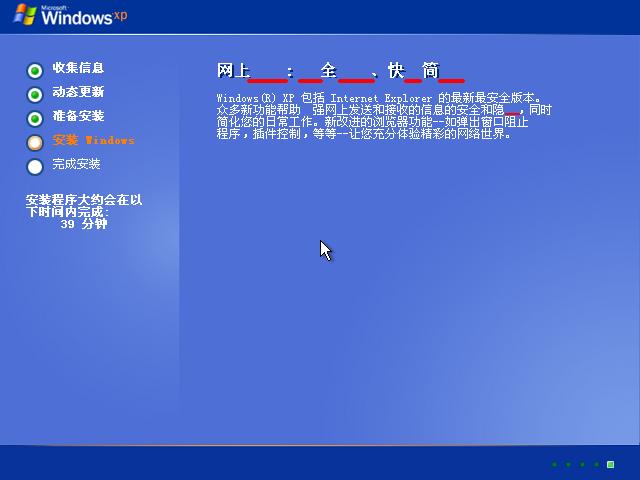
I tried without hotfixes, but still experience the same issue. [Main] Env = 1.3 RC 2 - 2.0.50727.42.Microsoft Windows NT 5.1.2600 Service Pack 2 Target = Windows XP Professional SP:2 - 5.1.2600.2180 - Chinese (PRC) [Tasks] Options [Components] ;# Compatibility # [KeepFiles] msconfig.exe [RemoveFiles] clock.avi yahoo.bmp swtchbrd.bmp [Options] ProfilesDir = "%SystemDrive%\Documents and Settings" TargetPath = "WINDOWS" temp_dir = %USERPROFILE%\Local Settings\Temp AdvTweaks [Patches] TcpIp = 100 DoUxTheme DoSFC [Services2] [Tweaks] [Unattended] ComputerType = Default MaximumDataStorePercentOfDisk = 12 RestorePointLife = 30 DesktopTheme = Default|| AutoUDay = 5 AutoUHour = 15 ProgFilesPath = "\Program Files" [NetAdapter1] connname = "" macaddress = "" ipaddress = "192.168.0.1" subnetmask = "255.255.255.0" defaultgateway = "" dnsserver1 = "" dnsserver2 = "" winsserver = "" netbiossetting = "0" ipxnetworknumber = "00000000" ipxnetworkframetype = "0xFF" [GuiRunOnce] [Drivers] [Hotfixes] But someone told me another way: Find "simsun.ttc,,,65536" in INTL.INF, delete it or replace with ";simsun.ttc,,,65536". Tested work. The original ISO has the line "simsun.ttc,,,65536" too. I don't know why.